Engine & Runtime Management
The Engines menu is your central hub for managing inference engines and their runtime dependencies. Here you can download, update, and configure different versions of llama.cpp, MLX, and other inference backends optimized for your specific hardware.
Understanding the Engines Page
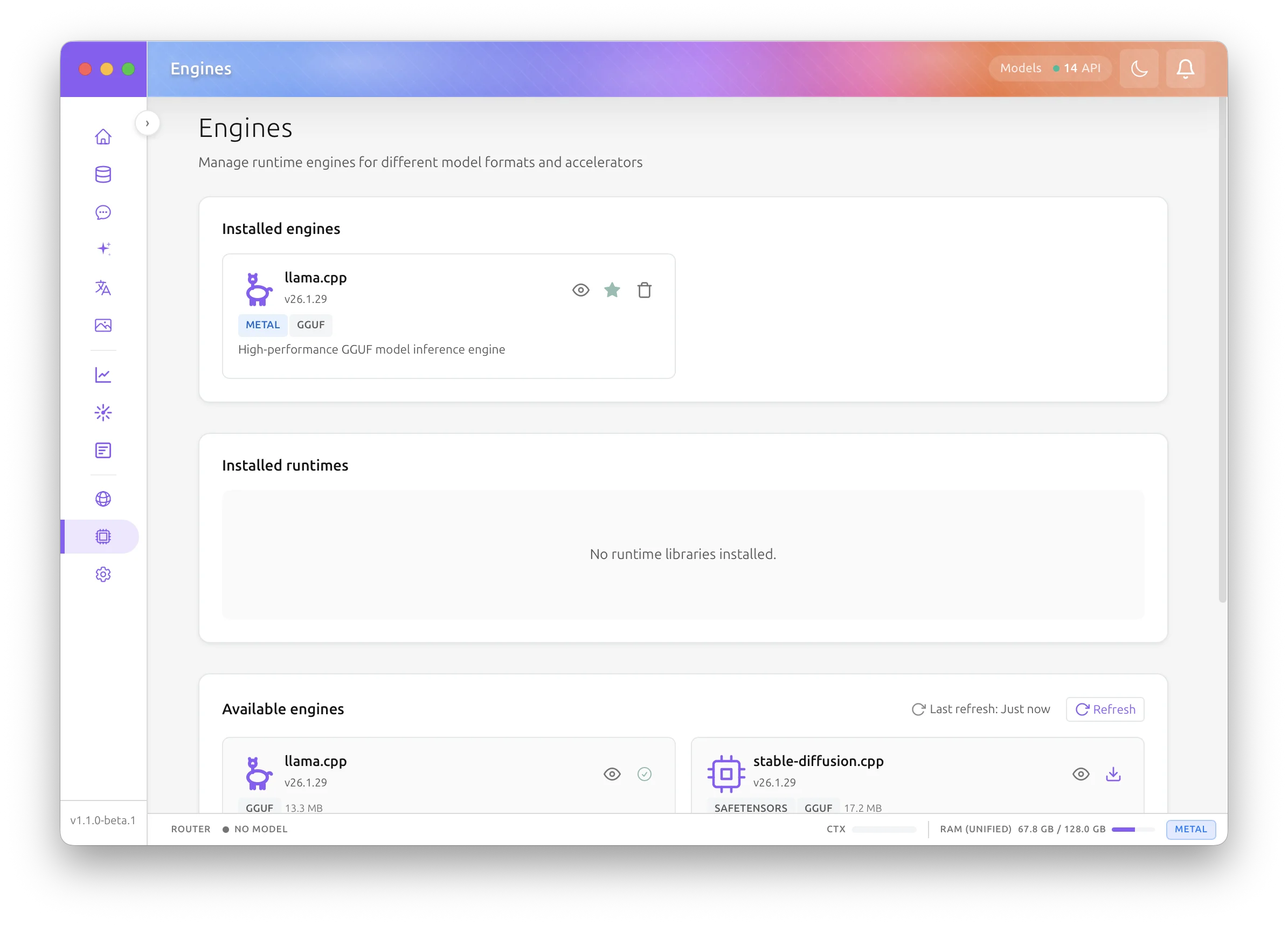
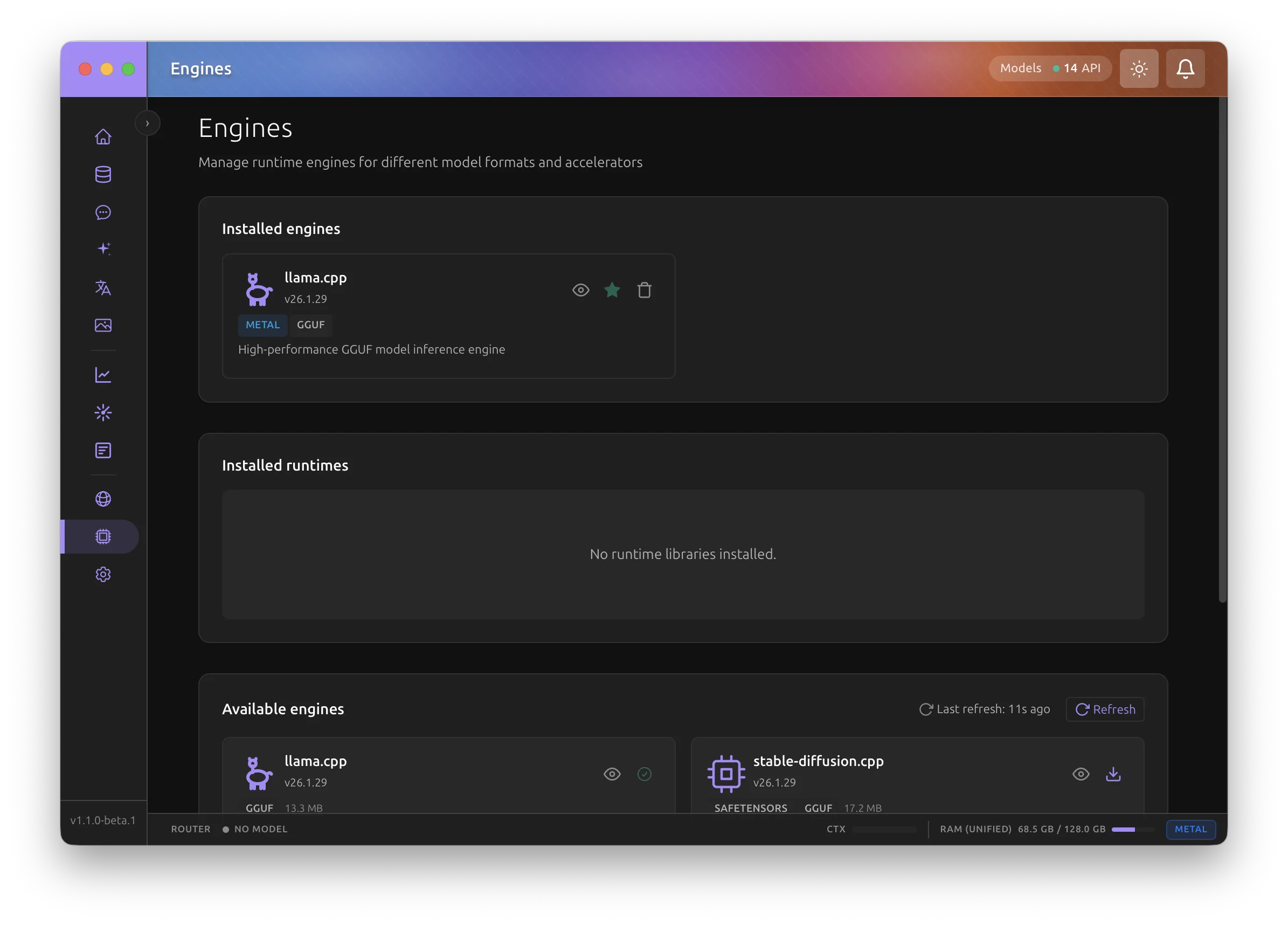
The Engines page is divided into three main sections:
- Installed Engines - Engines currently available on your system
- Installed Runtimes - Runtime libraries (CUDA, ROCm, etc.) that engines depend on
- Available Engines - New engines you can download from the official registry
Why Manage Engines?
Hardware-Specific Optimization
Different GPUs require different engine builds:
| Hardware | Optimal Engine Variant |
|---|---|
| NVIDIA RTX/GeForce | llama.cpp with CUDA 13 |
| NVIDIA (older) | llama.cpp with CUDA 12 |
| AMD Radeon/Instinct | llama.cpp with ROCm/HIP |
| Intel Arc | llama.cpp with SYCL or Vulkan |
| Apple Silicon | llama.cpp with Metal, MLX, or MLXcel |
| NVIDIA GB10 / GH200 (arm64) | llama.cpp with CUDA 13, in the build matching the GPU (see below) |
| CPU-only | llama.cpp CPU (AVX2/AVX-512) |
CUDA 13 on arm64: two GPU-specific builds
On Linux arm64, llama.cpp publishes two CUDA 13 builds. They are compiled for different NVIDIA GPU architectures, so only one of them runs on any given host:
| Build | Target hardware | Compute capability |
|---|---|---|
| CUDA 13 - GB10 / Blackwell (sm_121) | NVIDIA GB10, including DGX Spark | 12.1 |
| CUDA 13 - GH200 / Hopper (sm_90a) | NVIDIA GH200 Grace Hopper, and H100 / H200 | 9.0 |
Installing the wrong one succeeds, and then running any model fails inside CUDA:
Backend.AI GO detects the host GPU and marks only the matching build Recommended. The other one is listed but disabled, with a note naming the build to install instead, so the wrong choice is refused before the download rather than the first time you run a model. To check what the app detected on the command line:
The VARIANT column shows gb10 or gh200 and the NOTE column shows recommended or unsupported.
GB200 and GB300 are not covered by either build. They are the same Blackwell generation but report compute capability 10.0, and neither package targets it, so they are offered both builds and blocked from neither.
When the host GPU cannot be identified, both builds stay installable and both keep the Recommended badge, because a detection gap should not leave a CUDA host with nothing it can install. In that case, read the compute capability yourself and pick the matching row:
A DGX Spark prints NVIDIA GB10, 12.1, which is the GB10 build.
Supported Inference Engines
Backend.AI GO supports multiple inference engines:
| Engine | Supported Formats | Platform | Description |
|---|---|---|---|
| llama.cpp | GGUF | All | High-performance GGUF model inference |
| MLX LM | MLX, GGUF | macOS arm64 (Metal) | Legacy Apple MLX inference path |
| MLXcel | MLX | macOS arm64 (Metal), Linux arm64/x64 (CUDA13) | Preferred MLX serving engine |
| vLLM | Safetensors repository | Managed container on supported NVIDIA hosts | High-throughput container serving |
| SGLang | Safetensors repository | Managed container on supported NVIDIA hosts | Prefix-cache and structured-output serving |
Format-Specific Default Engines
When multiple engines support the same format (for example, MLX LM and MLXcel both support MLX), configure the default in Settings > Models > Default engines by format.
Version Control
Keep multiple engine versions installed side-by-side:
- Test new releases before committing
- Roll back if a new version has issues
- Compare performance between versions
Dependency Management
Some engines require runtime libraries (like CUDA or ROCm). The Engines page automatically detects and manages these dependencies, installing them when needed.
Installing an Engine
From the Registry
-
Navigate to the Engines page from the sidebar menu.
-
Scroll to the Available Engines section.
-
Find the engine you want (e.g.,
llama.cpp). -
Click the Download button.
-
If multiple variants are available (e.g., CUDA 13, Metal, CPU), a dialog will appear:
- Recommended variants are marked based on your detected hardware
- Each variant shows its download size
- Select the variant that matches your GPU
-
The dialog closes and the download begins immediately. The engine's card shows the progress, as does the floating Download Queue panel, and you can start installing another engine while this one downloads. If the install fails, the card says why.
Download Progress Stages
The installation process goes through several stages:
| Stage | Description |
|---|---|
| Downloading | Fetching the engine package from the registry |
| Extracting | Unpacking the compressed archive |
| Verifying | Checking file integrity via checksums |
| Installing | Copying files to the final location |
Runtime Dependencies
If an engine requires a runtime library (like CUDA) that isn't installed, it will be downloaded automatically. You'll see a separate progress indicator for runtime downloads.
Offline Installation
For air-gapped environments or when you prefer manual downloads:
-
Download
.baienginepackage files from Backend.AI GO Releases. -
Place them in the incoming directory:
-
Open the Engines page. A Pending Packages banner will appear.
-
Click Import to install the detected packages.
Alternatively, you can drag and drop .baiengine files directly onto the Engines page.
Managing Installed Engines
Engine Cards
Each installed engine is displayed as a card showing:
- Engine name and version (e.g., llama.cpp 1.0.0)
- Accelerator badge (Metal, CUDA 13, CPU, etc.)
- Status badges:
- 🟢 Active - Currently running a model
- 🟠 Update Available - Newer version in registry
- Supported formats (GGUF, MLX, etc.)
- Installation size
Actions
| Action | Description |
|---|---|
| Make default for FORMAT | Set this engine as the default for the named model format (e.g., "Make default for GGUF") |
| Default — FORMAT badge | Indicates this engine is already the default for that format |
| Refresh icon | Update to the latest version (when available) |
| Trash icon | Uninstall the engine |
| Card click | Open the details drawer |
Setting a Default Engine
When multiple installed engines support the same model format (e.g., both llama.cpp-metal and llama.cpp-cpu support GGUF), each format has its own default:
- Find the engine you want and click Make default for GGUF (or the relevant format name).
- The button is replaced by a Default — GGUF badge, and any previous default for that format is cleared.
- Backend.AI GO uses this engine whenever you run a model of that format.
Per-format scope
Each "Make default" button is scoped to one format. Clicking it on a GGUF-capable engine does not change the default for MLX or any other format the same engine may also support.
Engine Details Drawer
Click on any engine card to open the details drawer with three tabs:
Overview Tab
- Basic Information: ID, version, accelerator, installation date
- Manifest Details: Format version, upstream version, platform compatibility
- Accelerator Information: Specific backend details and optimizations
Files Tab
Browse the installed files:
- Directory structure
- File sizes
- Useful for troubleshooting or verifying installation
Dependencies Tab
View runtime dependencies:
- Required vs. optional dependencies
- Installation status of each dependency
- Version requirements
Runtime Libraries
What are Runtimes?
Runtime libraries are shared dependencies that engines need to function. The most common are:
| Runtime | Purpose |
|---|---|
| CUDA 13 Runtime | NVIDIA GPU acceleration (modern GPUs) |
| CUDA 12 Runtime | NVIDIA GPU acceleration (older GPUs) |
| ROCm/HIP Runtime | AMD GPU acceleration |
| oneAPI/SYCL Runtime | Intel GPU acceleration |
Automatic Installation
When you install an engine that requires a runtime:
- Backend.AI GO detects the missing dependency.
- The runtime is downloaded automatically.
- Both progress indicators appear in the download queue.
- The runtime is installed before the engine finishes.
Viewing Installed Runtimes
The Installed Runtimes section shows:
- Runtime name and version
- Installation date
- Which engines depend on this runtime
Click a runtime card to see the full list of dependent engines.
Runtime Persistence
Runtimes are shared across engine versions. If you:
- Update an engine: The runtime remains intact
- Uninstall all engines using a runtime: The runtime stays (for future use)
- Manually delete a runtime: Dependent engines may stop working
Hardware Detection
Backend.AI GO automatically detects your system hardware to recommend the best engine variants.
What's Detected
- GPU Vendor: NVIDIA, AMD, Intel, or Apple
- GPU Model: Specific card name (e.g., RTX 4090, RX 7900 XTX)
- Driver Version: CUDA version, ROCm version, etc.
- VRAM: Available video memory
- Disk Space: Available storage for engine installation
Viewing System Capabilities
The system capabilities are shown when selecting engine variants:
- Recommended badge on the best variant for your hardware
- Available accelerators listed in the install dialog
- Disk space warnings if storage is low
Updating Engines
Checking for Updates
Backend.AI GO periodically checks the registry for new engine versions. Every check, including the one the Engines page's refresh button runs, reads the registry again, so a version published while the app is running shows up without a restart. When an update is available:
- An orange Update Available badge appears on the engine card
- The version number of the update is displayed
Applying Updates
- Click the refresh icon on the engine card.
- The new version downloads and its checksum is verified. The installed version stays in place while this happens.
- The new version replaces the old one. If the download or the install fails, or the app quits partway, the previous version is kept (or restored at the next start).
- Your settings and default preferences are preserved.
Active Engines
You cannot update an engine while it's running a model. Stop the model first, then update.
Troubleshooting
Engine Won't Install
| Symptom | Solution |
|---|---|
| Download fails | Check internet connection; try again later |
| Extraction fails | Ensure sufficient disk space |
| Verification fails | Package may be corrupted; re-download |
| Missing runtime | Runtime download may have failed; check manually |
ENGINE_MISSING_SHARED_LIBRARY | The package needs a system library this machine does not have. See Missing System Libraries below |
Missing System Libraries
An engine package ships its own libraries in lib/, and AI:GO puts that directory (plus any runtime dependency) on the library search path before it starts the server. Anything the package was linked against that is in neither place has to come from the operating system.
The install step now asks the dynamic loader whether the packaged binaries can actually start on this machine, and refuses the install when they cannot. The message names both the binary and the library, for example:
ENGINE_MISSING_SHARED_LIBRARY: bin/llama-server cannot start on this host. The dynamic loader
cannot find libnccl.so.2, which is shipped in neither the engine package nor its runtime
dependencies. Install the missing library with your system package manager, then install the
engine again.
Install the named library with your distribution's package manager and install the engine again. There is nothing to repair in the package itself.
CUDA packages built before AI:GO 1.13
libnccl.so.2 is the one library this has actually happened with. The CUDA 13 llama.cpp builds picked it up from the machine that built them, so a package from before this was fixed asks for it even though AI:GO never uses the multi-GPU feature it belongs to. On a DGX Spark or any other CUDA host, sudo apt-get install -y libnccl2 (or sudo dnf install -y libnccl) resolves it. Newer CUDA packages do not link it at all.
MLXcel on CUDA
The CUDA 13 build of MLXcel needs two system libraries that its package does not ship. Without them the install stops with ENGINE_MISSING_SHARED_LIBRARY: ... libcudnn.so.9, libopenblas.so.0. On Ubuntu, sudo apt-get install -y libcudnn9-cuda-13 libopenblas0 resolves both, and installing the engine again then succeeds.
Engine Won't Start
| Symptom | Solution |
|---|---|
| "Library not found" | Runtime dependency missing; reinstall engine |
| "GPU not detected" | Update GPU drivers; try CPU variant |
"GPU not detected" but nvidia-smi works outside the service | Running under systemd with PrivateDevices=true, which hides /dev/nvidia* from the unit. Install the GPU drop-in: see GPU Access Under systemd |
| Crashes immediately | Check system requirements; try different variant |
Clearing Stuck Downloads
If a download appears stuck:
- Click the Cancel button in the download queue.
- Wait for cleanup to complete.
- Try the installation again.
Cannot Cancel During Verification
The cancel button is disabled during the verification stage to prevent file corruption.
Best Practices
Choose the Right Variant
- For maximum performance: Match the engine variant to your GPU
- For compatibility: CPU variants work everywhere but are slower
- For memory-constrained systems: Some variants are more memory-efficient
Keep Engines Updated
New versions often include:
- Performance improvements
- Bug fixes
- Support for new model architectures
- Security patches
Manage Disk Space
Engine packages can be large (100MB - 1GB+). Periodically:
- Remove unused engine variants
- Check the Files tab to see installation sizes
- Keep only the variants you actively use
Integration with Running Models
The Engines page works closely with the system that runs models:
-
Model Format Detection: When you run a model, Backend.AI GO checks its format (GGUF, Safetensors, etc.).
-
Engine Resolution: The app finds an installed engine that supports that format.
-
Format-Specific Defaults: Check your configured default engine for the format in Settings.
-
Priority-Based Selection: If no default is set, engines are selected based on priority:
- For MLX format: MLXcel > MLX LM
- For GGUF format: llama.cpp (with GPU acceleration preferred)
-
Hardware Optimization: Within the same priority level, GPU-accelerated variants are preferred over CPU-only. When multiple GPU families are installed (e.g., CUDA and SYCL on the same machine), the resolver picks the engine whose accelerator family matches your detected hardware — so on an NVIDIA host with both a CUDA and SYCL build installed, the CUDA build wins automatically. If multiple CUDA versions are installed, the highest version your driver supports is chosen.
Setting Format Defaults
Go to Settings > Models > Default engines by format to configure which engine should be used for each model format. This is especially useful when both MLXcel and MLX LM are installed and you want to choose which one handles MLX repositories.
For more details on running models, see:
Technical Details
Engine Package Format
Engine packages use the .baiengine format:
- ZIP archive containing binaries and metadata
manifest.jsondescribes the engine and its requirements- Checksums ensure file integrity
- Platform-specific builds for each OS/architecture
Directory Structure
The app-data root is ~/Library/Application Support/ai.backend.go/ on macOS, %APPDATA%\ai.backend.go\ on Windows, and ~/.local/share/ai.backend.go/ on Linux. The old ~/.backend-ai-go/ root is legacy-only.
<app-data>/
├── engines/
│   ├── incoming/              # Offline package staging
│   ├── installed.json         # Installed engines registry
│   ├── llama-cpp-metal/       # Engine: llama.cpp with Metal
│   ├── llama-cpp-cuda13/      # Engine: llama.cpp with CUDA 13
│   └── mlxcel/                # Engine: MLXcel
├── runtimes/
│   ├── installed.json         # Installed runtimes registry
│   ├── cuda13-runtime/        # Runtime: CUDA 13
│   └── hip-runtime/           # Runtime: AMD HIP
├── logs/                      # Application logs
└── config/                    # Configuration files
Supported Accelerators
| Accelerator | Platform | Description |
|---|---|---|
| metal | macOS | Apple Metal for M-series chips |
| cuda | Windows, Linux | NVIDIA CUDA |
| rocm | Linux | AMD ROCm |
| hip | Windows | AMD HIP (Windows port of ROCm) |
| vulkan | All | Cross-platform GPU API |
| sycl | All | Intel oneAPI SYCL |
| cpu | All | Fallback CPU-only inference |
The Engines system ensures you always have the optimal inference backend for your hardware, making local AI both accessible and performant.