Plugin Management
Backend.AI GO supports a plugin system that allows you to extend the application's functionality with third-party or custom plugins. This guide covers how to manage plugins through the Plugins page.
Building your own plugin? See the Plugin Authoring Guide for the manifest schema, permissions, UI slots, the dependency-resolution contract, and the Plugin SDK.
App Plugins vs. Extensions
This page covers App Plugins: JavaScript modules that render inside Backend.AI GO's own UI, described in this guide and in the Plugin Authoring Guide. Claude Code plugin bundles (.claude-plugin) are a separate system, imported on the Extensions page, which installs their skills, subagents, and MCP servers into the agent runtime.
Preview Feature
The plugin system is currently in preview. Plugin loading, lifecycle management, error isolation, and the Plugin SDK are implemented. Plugin loading is supported in both the desktop app and the headless WebUI. Plugin distribution via a public registry will be available in a future release.
Overview
Plugins extend Backend.AI GO with additional features such as:
- Enhanced chat formatting and syntax highlighting
- Model analytics and performance monitoring
- Custom themes and UI modifications
- Data export capabilities
- Third-party service integrations
Accessing the Plugins Page
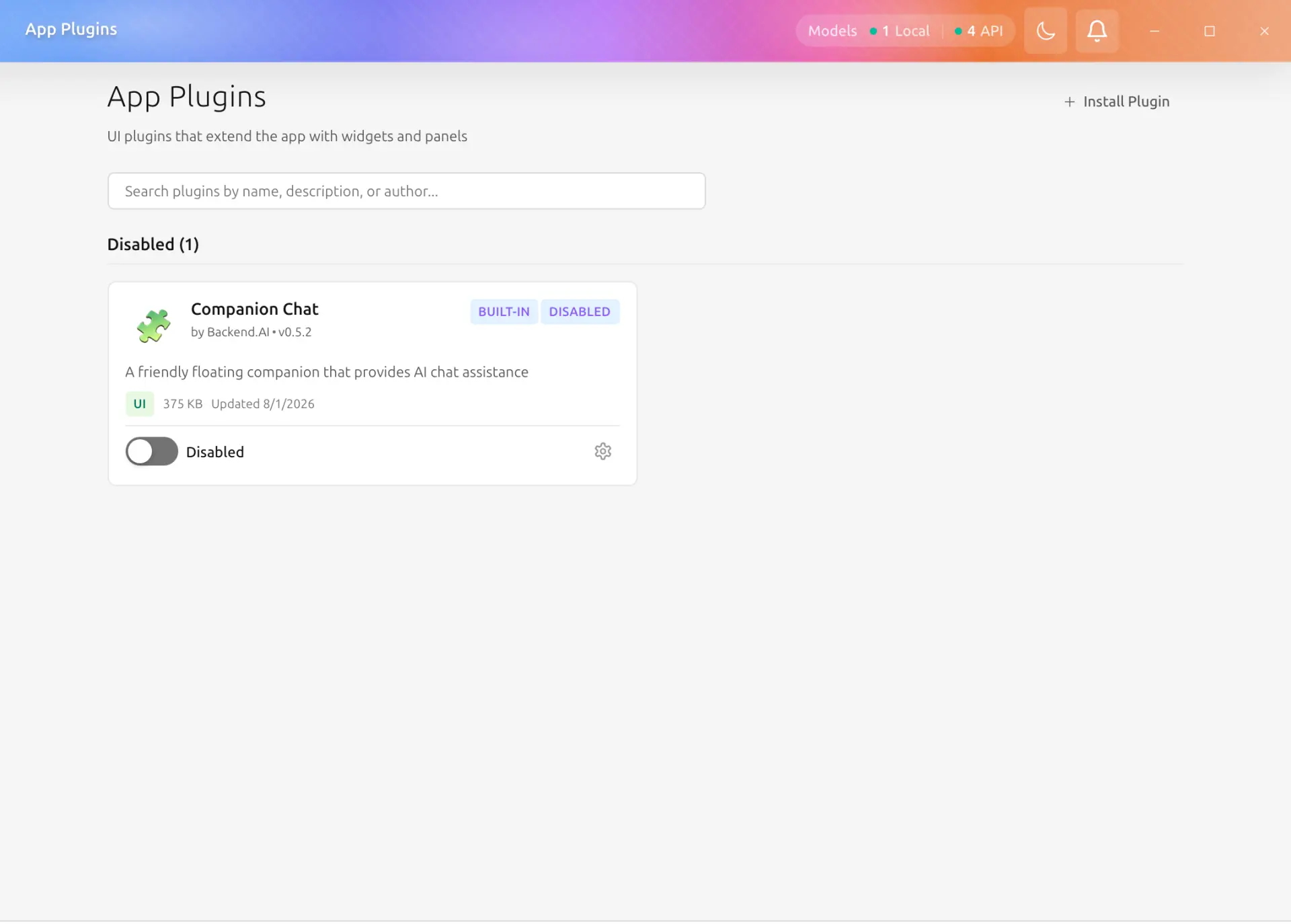
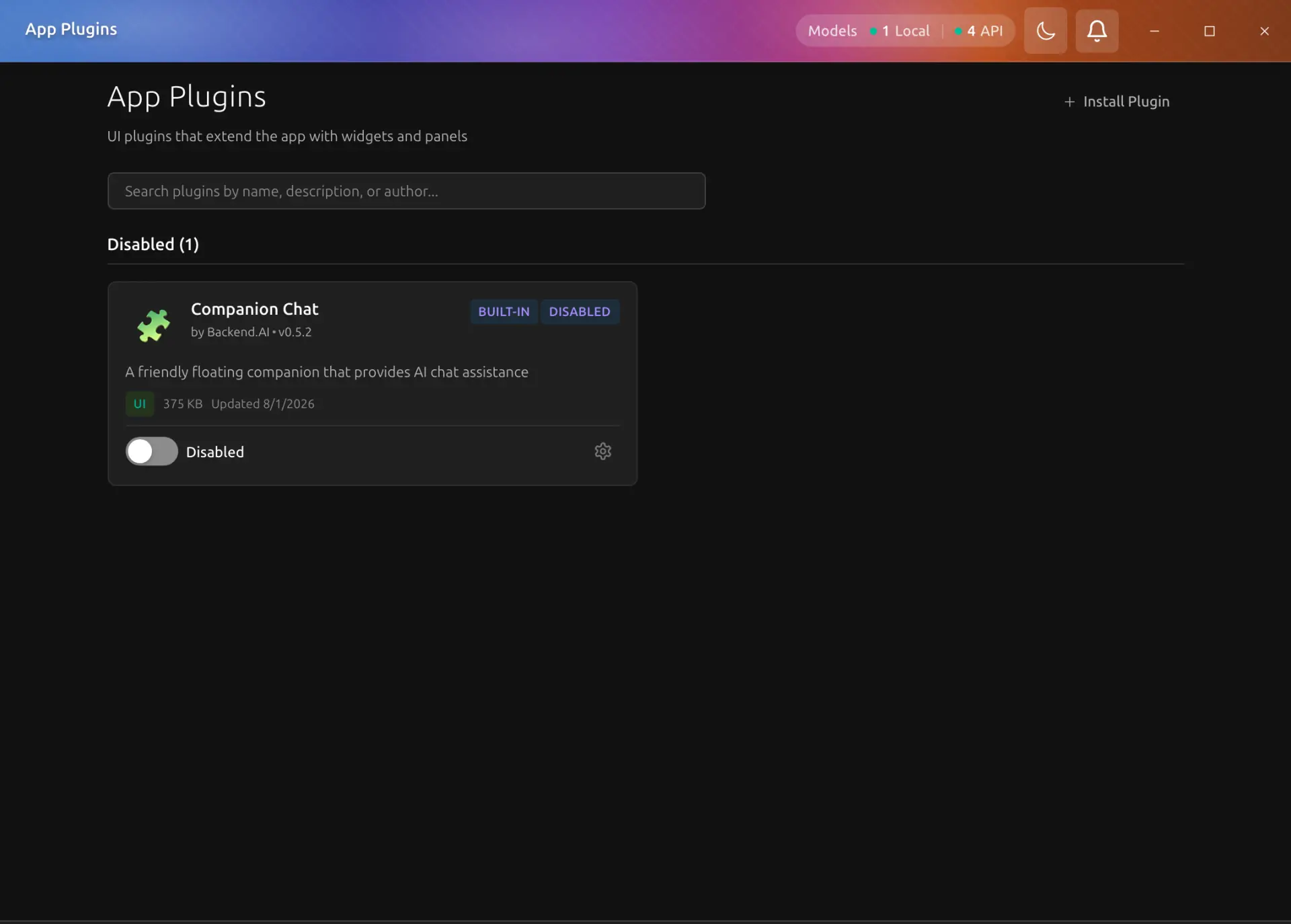
Navigate to the Plugins page from the sidebar under the Platform section. Here you can:
- View all installed plugins
- Enable or disable plugins
- Configure plugin settings
- Install new plugins
- Uninstall plugins you no longer need
Built-in Plugins
Backend.AI GO ships with built-in plugins that are automatically installed and updated on application startup. These plugins are identified by a Built-in badge on their plugin card.
Built-in plugins:
- Are automatically installed on first launch
- Are automatically updated when a new application version ships a newer plugin version
- Can be enabled or disabled like any other plugin
- Cannot be uninstalled (the uninstall button is hidden)
- Preserve your enabled/disabled preference across updates
The Companion Chat plugin is included as a built-in plugin, providing an AI assistant interface with persona customization and memory integration.
Plugin Categories
Plugins are organized into the following categories:
| Category | Description |
|---|---|
| UI | User interface enhancements, themes, and visual modifications |
| Model | Model-related tools, analytics, and performance monitoring |
| Data | Data management, export, and transformation tools |
| Integration | Third-party service integrations |
| Utility | General-purpose utilities and tools |
Managing Plugins
Enabling and Disabling Plugins
Each plugin card displays a toggle switch to enable or disable the plugin:
- Locate the plugin you want to manage
- Click the toggle switch to change its state
- Enabled plugins are shown in the "Enabled" section
- Disabled plugins are shown in the "Disabled" section
Plugin Settings
Many plugins offer configurable settings. To access plugin settings:
- Click the Settings button (gear icon) on the plugin card
- Modify the available settings in the settings modal
- Click Save to apply your changes, or Cancel to discard changes
Settings may include:
- Feature toggles (boolean options)
- Selection dropdowns (choose from predefined options)
- Text or numeric inputs
To restore all settings to their original values from the plugin manifest, click Reset to Defaults in the settings modal. This replaces all current values with the defaults defined by the plugin author.
Installing Plugins
To install a new plugin:
- Click the Install Plugin button in the page header
- Choose an installation method:
- Install from Zip: Browse for a
.zipfile containing a packaged plugin - Install from Directory: Browse for a local directory containing an unpacked plugin
- Confirm the selection in the file browser dialog
- The plugin will be validated and installed automatically
- Once installed, the plugin appears in your plugin list
Plugin package requirements (zip format):
- Maximum archive size: 50 MB
- Must contain a
plugin.jsonmanifest either at the root or inside a single top-level subdirectory - The manifest's declared entry file must exist in the archive
- Archives with symlinks or path traversal entries are rejected for security
Uninstalling Plugins
To remove a plugin:
- Click the Uninstall button (trash icon) on the plugin card
- Confirm the uninstallation in the confirmation dialog
- If the plugin is currently enabled, it is automatically disabled before removal
- The plugin directory and all its data are removed from your system
Warning
Uninstalling a plugin removes all its data and settings. This action cannot be undone.
Note
Built-in plugins cannot be uninstalled. The uninstall button is hidden for built-in plugins. You can disable a built-in plugin instead.
Plugin Permissions
Plugins may request various permissions to function properly. When viewing plugin details, you can see the permissions it requires:
- Required permissions: The plugin cannot function without these
- Optional permissions: Additional features that can be granted
Common permissions include:
| Permission | Description |
|---|---|
| Read chat messages | Access to chat content for processing |
| Modify UI elements | Ability to render custom components |
| Read model information | Access to model metadata |
| Collect metrics | Monitor performance data |
| Write to filesystem | Save files to disk |
Plugin SDK
The Plugin SDK provides plugin authors with a structured, permission-gated API to interact with the host application. Every plugin receives a PluginAPI instance when it is activated, scoped to the plugin's declared permissions.
API Domains
| Domain | Key Methods | Permission Required |
|---|---|---|
| Chat | sendMessage, streamMessage, cancelStream, getActiveModel, listModels | chat.inference, chat.models |
| Storage | get, set, delete (key-value); conversation CRUD | storage.scoped, storage.conversations |
| Memory | Namespace CRUD, entry CRUD, extraction, consolidation | memory.read, memory.write, memory.extract |
| Settings | getAll, get, onChange | None |
| UI | showNotification, getTheme, onThemeChange | ui.notifications (for notifications) |
Available Permissions
The following permissions can be declared in plugin.json:
| Permission | Description |
|---|---|
chat.inference | Send messages to and receive responses from the inference server |
chat.models | List and read information about available models |
storage.scoped | Read and write files in the plugin's own data directory |
storage.conversations | Create, read, update, and delete plugin-scoped conversations |
memory.read | Read entries from the plugin's own Memory Bank namespaces |
memory.write | Create, update, and delete entries in the plugin's own Memory Bank namespaces |
memory.extract | Trigger LLM-based memory extraction into the plugin's namespaces |
ui.overlay | Render UI components in the overlay layer |
ui.sidebar | Render UI components in the sidebar |
ui.statusbar | Render UI components in the status bar |
ui.toolbar | Render UI components in the toolbar |
ui.notifications | Display notifications to the user |
Memory Namespace Isolation
Plugins can only access Memory Bank namespaces that they own. All namespaces created through the SDK are automatically prefixed with plugin:<pluginId>:. For example, a plugin with ID companion-chat calling memory.createNamespace("notes") creates a namespace named plugin:companion-chat:notes. Attempts to access namespaces owned by other plugins or the host application throw a PluginPermissionError.
Plugin Module Contract
A plugin's JavaScript bundle must export:
default(required): A React component that receives{ api, pluginId, manifest }as props.onActivate(optional): A function called after the module is successfully loaded, receiving thePluginAPIinstance.onDeactivate(optional): A function called before the module is unloaded, for cleanup.
Searching Plugins
Use the search bar at the top of the Plugins page to filter plugins by:
- Plugin name
- Description
- Author
- Category
Best Practices
- Only install trusted plugins: Verify the source before installing any plugin
- Review permissions: Understand what permissions a plugin requests before enabling it
- Keep plugins updated: Check for updates to ensure you have the latest features and security fixes
- Disable unused plugins: Disabled plugins don't consume resources
Error Isolation
Backend.AI GO wraps each plugin component in an error boundary. If a plugin crashes while rendering, the error is caught and isolated so that the rest of the application continues to work normally.
When a plugin encounters a rendering error, the plugin's area displays a fallback panel showing:
- The name of the plugin that crashed
- A brief description of the error
- A Retry button to attempt reloading the plugin component
Clicking Retry resets the error boundary and re-renders the plugin component. If the plugin crashes again immediately, try disabling and re-enabling it from the Plugins page.
Note
The error boundary catches errors that occur during React rendering. Errors in lifecycle hooks (onActivate, onDeactivate) are caught during the load or unload phase and set the plugin status to "Error" rather than triggering the fallback panel.
Troubleshooting
Plugin Not Loading
If a plugin fails to load:
- Check that the plugin is compatible with your Backend.AI GO version
- Try disabling and re-enabling the plugin
- Check the application logs for error messages
- Consider uninstalling and reinstalling the plugin
Headless WebUI: Plugins load through an authenticated same-origin REST route (GET /api/v1/plugins/{id}/assets/{path}, scope plugin_read). Ensure your session is signed in and the plugin_read scope is included in your API key or session token. If the entry module cannot be fetched, the browser console will show the fetch error alongside the plugin load failure.
Plugin Displays Error Panel
If a plugin shows the error fallback panel after rendering:
- Click Retry on the error panel to attempt recovery
- If the error persists, disable and re-enable the plugin from the Plugins page
- Check the application logs for details about the crash
- Contact the plugin author if the error is reproducible
Settings Not Saving
If plugin settings aren't being saved:
- Ensure you have write permissions to the application data directory
- Try restarting the application
- Reset the plugin to default settings and reconfigure