Continuum Router & API
Backend.AI GO works as an AI API Gateway for your local network.
What is Continuum Router?
The Continuum Router is an internal component that acts as a traffic controller. It provides a single, unified entry point for all your AI models—whether they are running locally on your machine or in the cloud.
For more detailed technical documentation, please refer to docs.continuum.lablup.ai.
OpenAI-Compatible API
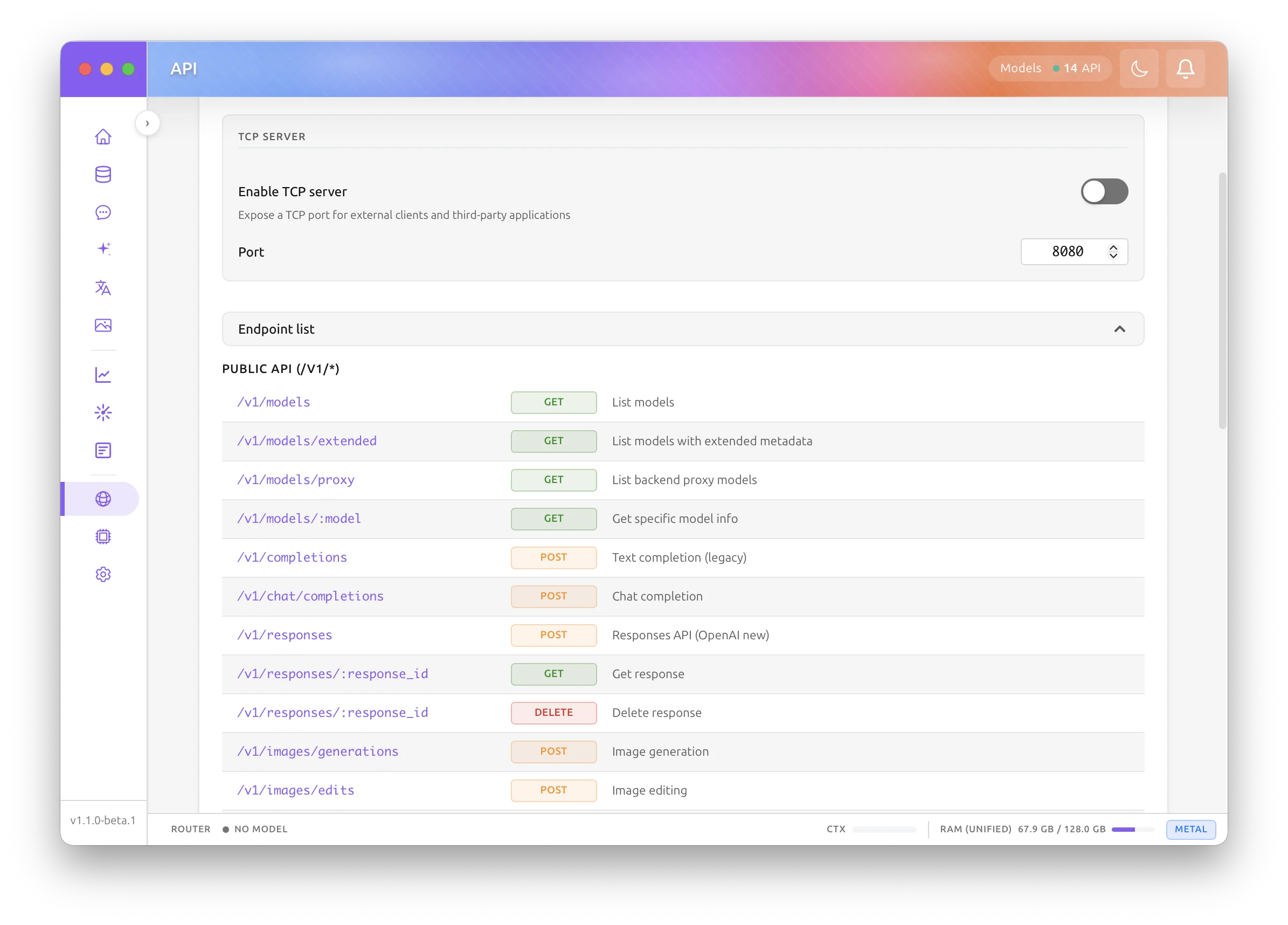
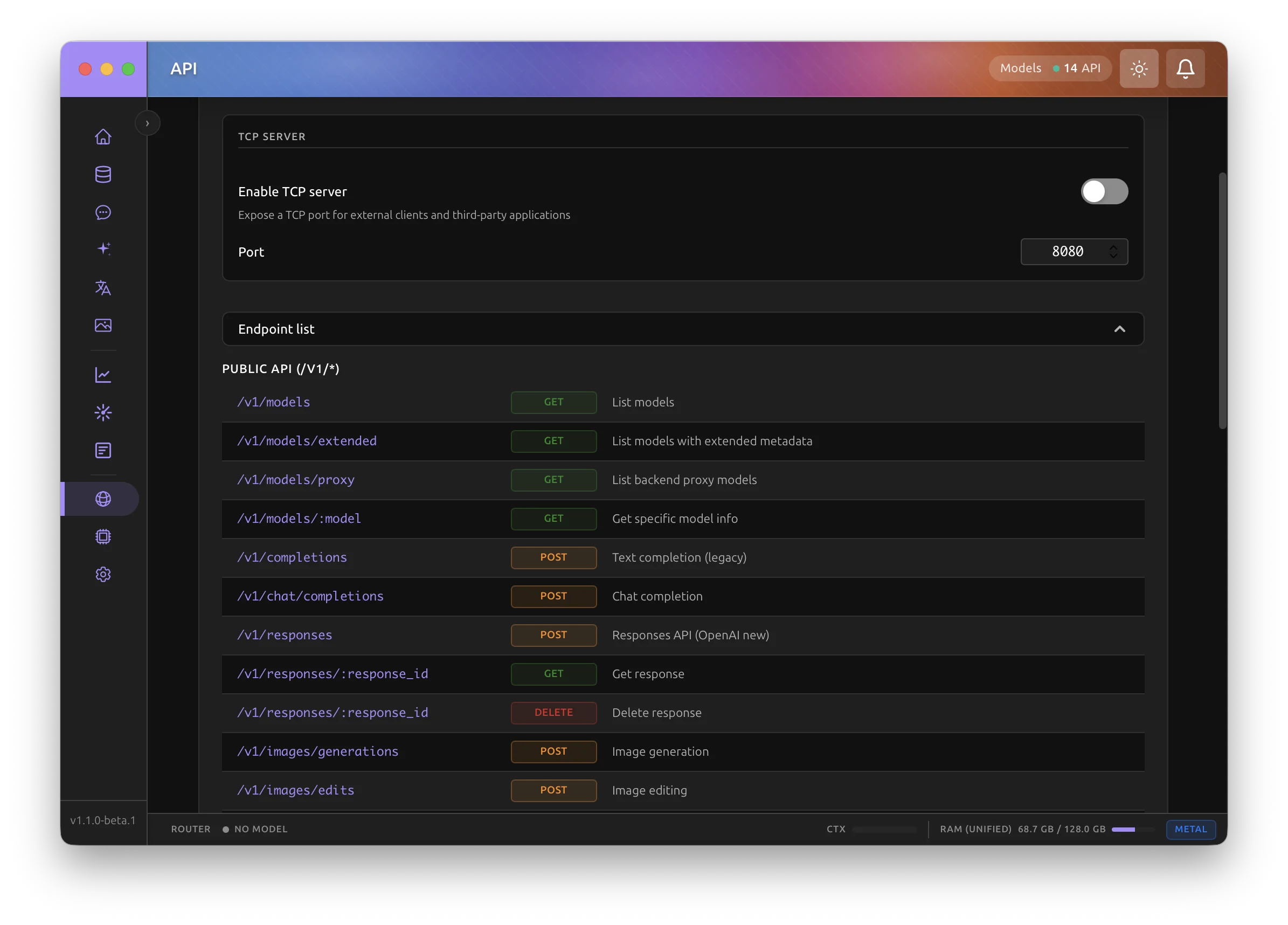
Backend.AI GO exposes an API that mimics the OpenAI API standard. This means you can use Backend.AI GO as a drop-in replacement for any application that supports OpenAI.
- Endpoint:
http://localhost:39080/v1(Default) - Authentication: Optional (configurable in Settings)
Example: Using with curl
curl http://localhost:39080/v1/chat/completions \
  -H "Content-Type: application/json" \
  -d '{
    "model": "llama-3",
    "messages": [{"role": "user", "content": "Hello!"}]
  }'
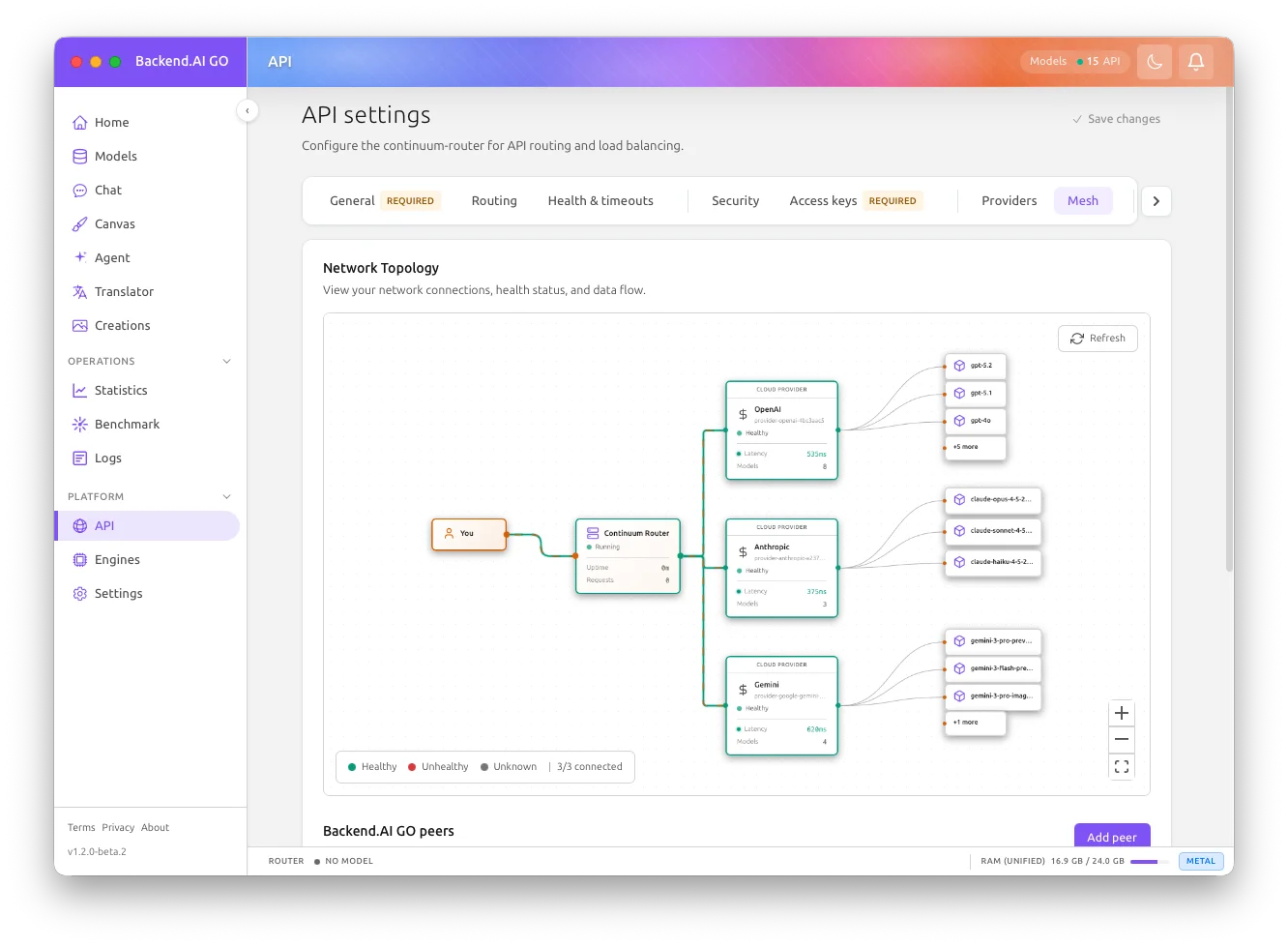
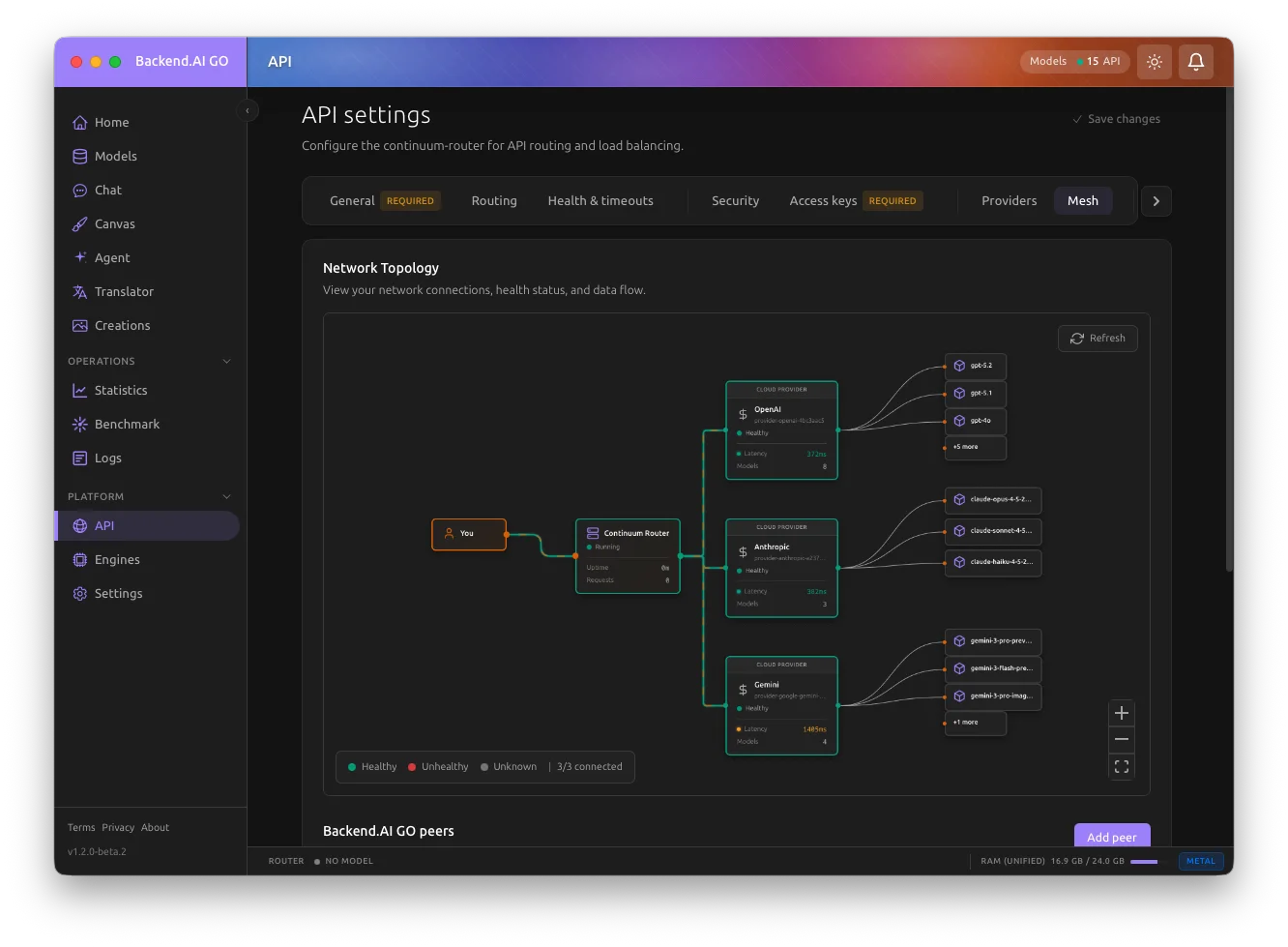
Request Timeouts and Health Checks
Settings > API Server > Health & timeouts holds two related groups of settings: how often the router probes each backend, and how long it waits on a request before giving up.
Backend.AI GO writes the timeouts: section on every install, shaped exactly the way the router reads it, so a fresh install runs on these budgets rather than on the router's own defaults:
timeouts:
  connection: 10s
  request:
    standard:          # Non-streaming requests
      first_byte: 30s
      total: 300s
    streaming:         # Streaming (SSE) requests
      first_byte: 120s
      chunk_interval: 30s
      total: 600s
    image_generation:
      first_byte: 60s
      total: 180s
Four details are worth knowing:
- Only the streaming
first_byteis a real deadline. It bounds the wait for the first chunk of a streaming response, and the router enforces it; once the first chunk arrives,chunk_intervaltakes over. It ships at 120 seconds because a reasoning model routinely spends longer than a minute before its first token. - The other two
first_bytevalues do nothing. A non-streaming response is delivered in one piece once the whole answer has been generated, so forstandardandimage_generationthe time to the first byte is the total generation time, andtotalis the only budget that applies. Both fields must still be present in the file, so they cannot simply be deleted, and changing them has no effect on anything. Leave them at their defaults; if a non-streaming request is being cut short,totalis the value to raise. - A squad agent can raise
standard.totalfor its own model. When a squad agent's LLM response time limit is longer thanstandard.total, a run writes amodel_overridesentry with a longerstandard.totalfor that agent's model before its first task, so the router does not end the agent's model call first. The entry only ever raises the limit and is written again on each run; see Per-Agent Time Limits. - The router enforces its own limits. A non-streaming
totalabove 9 minutes, a streamingtotalabove 20 minutes, a streamingfirst_byteabove 8 minutes, a chunk interval outside 1 to 60 seconds, or a connection timeout above 15 seconds is refused when the router loads the file, and the router then does not start at all. Backend.AI GO checks the same limits before saving, so a value past one of them is rejected in this page with the field named rather than surfacing later as a router that will not start.
Configurations saved by earlier versions are repaired automatically
Earlier versions left the timeouts: block out entirely until you edited one of these values, which meant a fresh install ran on the router's own budgets and its own health-check cadence rather than the ones shown here. Older versions still wrote standard, streaming, and image_generation directly under timeouts, a layout the router rejects with missing field 'request'. Either way your saved values are read as they were, moved under request if needed, and written back in the correct shape the next time the configuration is saved. A health_check block that earlier versions wrote under timeouts is dropped at the same time: the router runs its health checks on Check interval and Check timeout in the health_checks section and does not use that block. Nothing is lost and no manual edit is needed.
Settings > API Server > Advanced holds a related but separate set of settings: the router's own fallback chains, which retry a failed request against other models you name. See Router Fallback and Upstream Routing for how those chains combine with a provider's own routing, such as OpenRouter's, and how to keep one layer in charge of retries.
Local Socket Location
Inside your machine, Backend.AI GO talks to the router over a Unix domain socket rather than a TCP port. The socket file, and the sockets of every local model server, live in a short per-user runtime directory:
| Platform | Directory |
|---|---|
| macOS | /tmp/aigo-{uid} (for example /tmp/aigo-501) |
| Linux, desktop session | $XDG_RUNTIME_DIR/ai.backend.go/sockets (for example /run/user/1000/ai.backend.go/sockets) |
Linux, aigo-server under systemd | $RUNTIME_DIRECTORY/sockets (/run/aigo/sockets with the shipped unit) |
| Linux, no runtime directory | /tmp/aigo-{uid} |
| Windows | %APPDATA%\ai.backend.go\sockets |
The directory is chosen once at launch and the router's current socket path is shown on Settings > API Server under Unix socket. None of the automatic locations contain your user name. A Unix socket path is limited to 103 bytes, and earlier versions built it under the application data directory, which includes your home directory: a macOS account name of 16 bytes or more (6 Hangul syllables) made the router fail to start with path must be shorter than SUN_LEN, and model servers silently switched to TCP from 11 bytes.
Each candidate directory is created with owner-only permissions and checked before use (not a symlink, owned by you, not group- or world-accessible, and a test socket can actually be bound there). A directory that fails any check is skipped with the reason in the log, and the walk continues to the next one; the old application data sockets/ directory is the last resort. Leftover socket files under the old location are cleaned up once at launch.
If no directory at all can be used (for example an unwritable /tmp, or a sandboxed build whose container path is too long), the router still starts, bound to a loopback TCP port, and a notification explains why. This substitute binds 127.0.0.1 regardless of the Allow external access setting below: it exists to stand in for the local socket, not to publish the API server you left off, so turning on external access does not put it on your network. In that mode the router Admin API token is the only protection for the port, since every local process can reach a loopback port. To restore socket mode, set a shorter Socket directory in Settings > Advanced > Ports & networking (62 bytes or less; the change takes effect after a restart) or make /tmp writable.
External Access
By default, the API is only accessible from your own computer (127.0.0.1). If you want to access your models from other devices on your local network (like a tablet or another laptop):
- Go to Settings > API Server.
- Enable Allow external access.
- Open Settings > API Server > Security and Settings > API Server > Access keys to configure authentication before accepting remote clients.
- Use your computer's local IP address (for example,
http://192.168.1.10:39080/v1) in your other apps.
Security Tip
Only enable external access if you trust all devices on your local network. Backend.AI GO protects the router's internal /admin/* endpoints with a per-install bearer token stored in secure storage. That token is not shown in the UI, and rotating it requires a router restart.
The /v1 API requires a key once it leaves the machine. Turning on external access moves the router's api_keys.mode to blocking, so /v1 answers 401 without a valid access key and 401 with an invalid or expired one. /health stays open, and every other route the router carries is covered, including /anthropic/v1/messages. Issue an access key holding Inference Read or Inference Write from Settings > API Server > Access keys before you point a remote client at the port. A listener bound to loopback, or reached over the Unix socket, stays permissive and still serves a caller that presents none. The router does not separate read from write on /v1 at the version shipped here, so a key holding only Inference Read can still post a completion; the Management API's /api/v1/inference/* proxy enforces the scope in every configuration. See Who Can Reach the Inference API for the two doors, the keys file, and the credential the app carries for its own inference.