Chat Interface
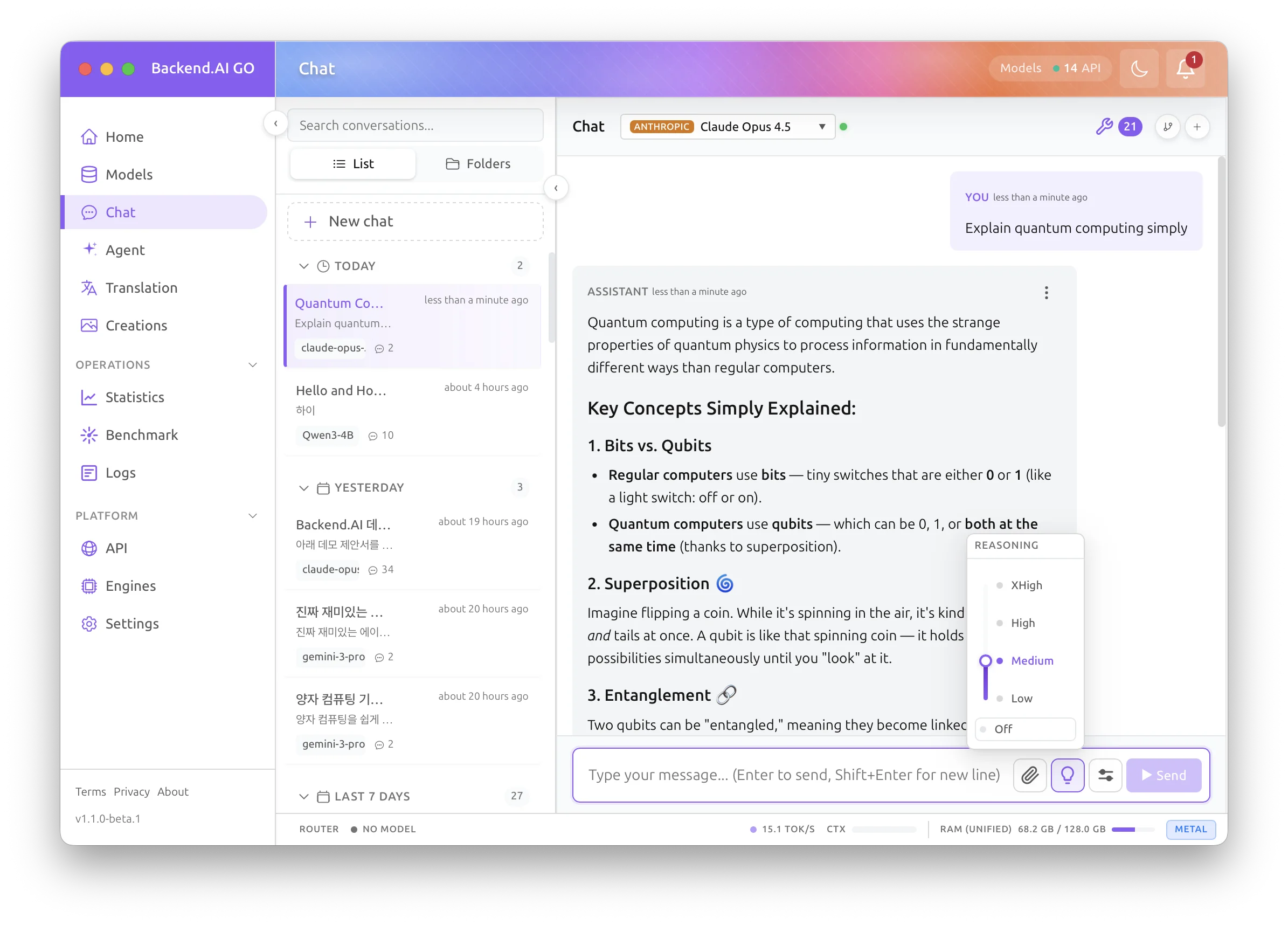
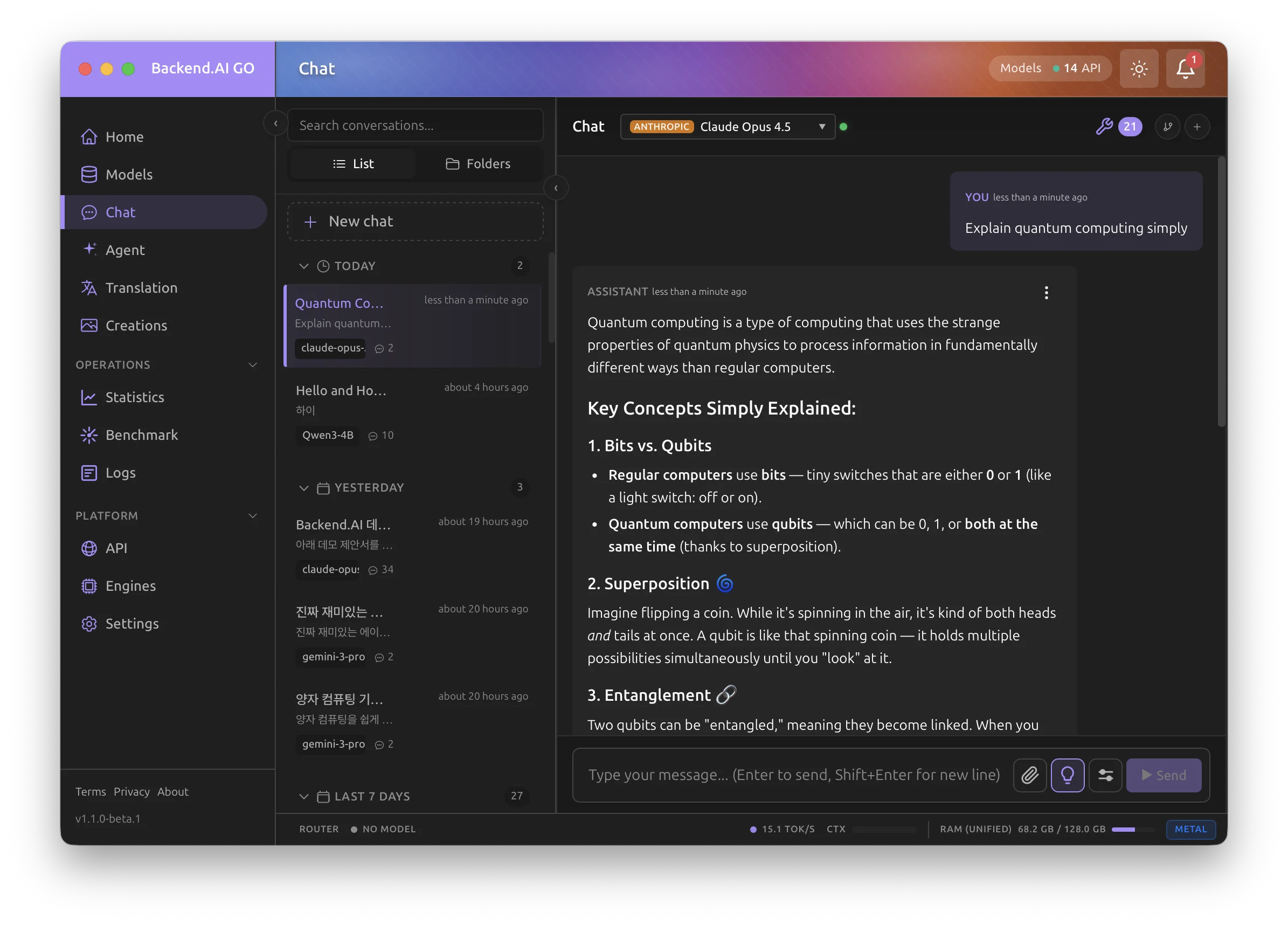
The Chat Interface is where you interact with AI models. It supports rich text rendering, code highlighting, and advanced features like reasoning visualization.
Overview
The interface consists of three main areas:
-
Message History: The central area displaying the conversation.
-
Input Area: At the bottom, where you type your messages.
-
Control Bar: At the top, showing the current model and providing access to parameters.
Chat and Cowork modes
Chat and Cowork share one surface. A single conversation list holds both kinds of sessions, and you start either one from the same launcher. The mode is a property of the session, shown as a badge in the conversation list.
The composer has a mode toggle:
-
Chat: A turn-based conversation with the model.
-
Cowork: An autonomous run over your working folders, with tool use and approvals.
You choose the mode before the first message. A cowork session shows a folder chip in the composer and a collapsible right rail with Progress (run steps and sub-agents), Output (workspace files), and Context (permitted folders and instructions). A chat session shows no rail.
You can turn an ongoing chat into a cowork session by attaching a working folder. The transcript so far carries over as context for the cowork run. This escalation is one-way: a session that becomes cowork stays cowork, because it holds sandbox and approval state that must not change mid-conversation.
The old /cowork route now redirects here. Everything Cowork could do is reachable from this unified surface. See Cowork Overview for the cowork capabilities in depth.
Rich Text & Code
Backend.AI GO supports full Markdown rendering.
-
Code Blocks: Automatically detects programming languages and applies syntax highlighting. You can copy code with a single click.
-
Mathematics: Supports LaTeX rendering for mathematical formulas (e.g., \(E = mc^2\)).
-
Tables: Renders clean, readable tables from data.
Artifact Viewer
The Artifact Viewer displays AI-generated code blocks, SVG graphics, HTML pages, and Markdown documents in a dedicated side panel or pop-out window with interactive rendering and editing tools.
Opening Artifacts
When the AI generates renderable content or a long code block, an Open as Artifact button appears at the top of the code block. Click it to open the Artifact Viewer panel.
You can also press Ctrl+Shift+A (Windows/Linux) or Cmd+Shift+A (macOS) to toggle the panel at any time.
Panel Features
-
Code tab: Displays the raw source with syntax highlighting, line numbers, and a word-wrap toggle.
-
Preview tab: Renders the content visually — SVG graphics with zoom controls, HTML in a sandboxed iframe with viewport presets, or Markdown with full GFM and math support.
-
Copy: Copies the artifact content to the clipboard.
-
Download: Saves the content as a file with the appropriate extension.
-
Pop-out: Opens the artifact in a separate native window for side-by-side viewing.
-
History navigation: Use the previous/next arrows to browse artifacts produced earlier in the conversation.
Renderable Types
The following code fence languages open directly in Preview mode:
| Language | Rendered as |
|---|---|
svg | SVG graphic with zoom and background controls |
html, htm | HTML page in a sandboxed iframe |
markdown, md | Styled Markdown with GFM, math, and CJK support |
mermaid | Interactive Mermaid diagram with SVG export and theme support |
csv | Interactive table with sortable columns, search, and CSV/TSV export |
latex, tex | LaTeX equations rendered with KaTeX, including numbered equation blocks |
css | CSS source (code view) |
json, yaml, xml | Formatted source (code view) |
Code blocks in any other language open in Code view. Long code blocks (10 or more lines) also show an Open as Artifact button for convenient viewing.
Saving Artifacts to Creations
Click the Save to Creations button in the Artifact Viewer toolbar to persist an artifact for later reference. Saved artifacts appear in the Creations section (visible from the main navigation), where they can be browsed, previewed, and managed.
Security
-
HTML artifacts are sandboxed (
allow-scriptsonly) and isolated from the main application. -
SVG and Mermaid artifacts have
on*event handler attributes and dangerous elements (<script>,<foreignObject>) stripped before rendering. -
All artifact content runs in an isolated origin to prevent cross-origin access.
Advanced Chat Features
Message Editing & Forking
You can edit any past message (both yours and the AI's) to steer the conversation in a new direction.
-
Hover over a message and click the Edit (Pencil) icon.
-
Modify the text and click Save & Submit.
-
This creates a Fork (or branch) in the conversation tree. The original message is preserved.
Navigating Branches
When you edit a message or regenerate a response, you create multiple versions of the conversation at that point.
-
Look for navigation arrows (e.g.,
< 2 / 3 >) below the message bubble. -
Click the arrows to switch between different branches of the conversation history. This allows you to explore "what if" scenarios without losing your previous context.
Regenerate Response
If the AI's answer isn't quite right, click the Regenerate (Refresh) icon below the AI's message. This will generate a new response, creating a new branch.
Thinking Blocks (Reasoning Models)
When using advanced "Reasoning Models" like DeepSeek-R1 or Qwen3-Thinking, the model outputs its internal thought process before the final answer.
-
Collapsible View: By default, the thinking process is collapsed to keep the chat clean.
-
One-Line Summary: When collapsed, a short AI-generated summary of the reasoning is shown next to the "Thinking" label, so you can quickly understand what the model considered without expanding the block.
-
Expand to Learn: Click the "Thinking" header (with the brain icon) to expand and read how the model arrived at its conclusion. This is great for debugging logic or understanding complex derivations.
-
Streaming: You can watch the thoughts appear in real-time as the model generates them.
Reasoning Effort Control
You can control how much "thinking" a reasoning model does using the Reasoning Effort control in the chat input area.
-
None (Off): Disables extended thinking. The model responds directly without showing internal reasoning.
-
Low / Medium / High / Extra High: Progressively increases the depth of reasoning. Higher values allow the model to think longer and more thoroughly, which can improve answer quality for complex problems.
-
Default Setting: Configure the default reasoning effort level in Settings > Generation > Default reasoning effort. You can also choose "Last used" to store the most recently used setting and apply it again.
-
Numeric thinking budget: Each reasoning effort level is also translated into a
thinking_budget_tokenscap on the per-request body so engines that enforce a hard cap on<think>tokens (llama.cpp, mlxcel-server) honor it deterministically. See Model Settings -> Thinking budget (numeric cap) for the exact mapping. -
Preserve thinking across turns (Qwen3.6+): For Qwen3.6+ models, the Model Config Drawer's Advanced tab adds a
Preserve thinking across turnstoggle that retains<think>blocks from prior assistant turns instead of stripping them. This improves agent KV cache reuse. See Model Settings -> Preserve thinking across turns (Qwen3.6+).
Token Exhaustion Warning
When a reasoning model runs out of tokens before it can produce a visible answer, the chat shows a warning banner directly below the affected message. Two cases trigger the banner:
-
The model spent all available tokens inside the
<think>block and the response content is empty (finish_reason: lengthwith non-zeroreasoning_tokens). The banner shows how many tokens were consumed in reasoning and suggests increasingmax_tokensor lowering the reasoning effort. -
Reasoning was enabled on the request but the model reported no
reasoning_tokensin the usage data while the response is still empty (finish_reason: length). This typically means the engine does not expose per-token reasoning counts but hit the limit inside the thinking block nonetheless.
To resolve either warning, try increasing Max Tokens in the Chat Parameters Drawer, shortening the conversation, or reducing the Reasoning Effort level.
Tool Use & Attachments
Tool Calling Visualization
If you are in Cowork, the AI may use tools (like Web Search).
-
Collapsible View: A turn's tool calls, their results, and any related thinking steps collapse into one Agent activity box in the transcript, instead of a separate block for every step.
-
Live Status: While the turn is still running, the box stays open and its header names the tool currently in progress.
-
Summary When Done: Once the turn finishes, the box collapses and its header reports how many tools ran, how many thinking steps occurred, and how long it took.
-
Expand to Inspect: Click the box to open it again. Each row shows what tool was called, with what inputs, and the result (e.g., the search results or file content) that was fed back to the AI.
File Attachments
You can attach images to your messages for analysis with multimodal models (like Llama 3.2 Vision, GPT-4o) using any of these methods:
-
Drag and drop: Drag image files directly into the chat input area.
-
Clipboard paste: Copy an image (e.g., a screenshot) and paste it with Cmd+V (macOS) or Ctrl+V (Windows/Linux). The image appears as an attachment thumbnail.
-
Attach button: Click the paperclip icon to browse and select files.
Normal text paste behavior is preserved; only image content from the clipboard triggers the attachment flow.
Voice Input
Click the microphone icon in the chat input area to start a push-to-talk recording. Speak your message, then click the icon again (or press the same button) to stop. The recording is transcribed locally by whisper-server and the resulting text is inserted into the composer — either waiting for you to review and send, or sent automatically, depending on the Insert mode you configure in Settings > Voice Input.
Voice input requires a running whisper-server with a downloaded model. If the engine or model is not set up yet, the button shows a guide pointing you to the Engines page or Settings.
macOS requires microphone permission. The first time you use voice input, macOS will ask for permission; grant it to continue.
Native audio input
When the selected model accepts audio input, you can send the recording (or an attached audio file) straight to the model as audio instead of transcribing it first. The model then hears the audio itself, so intonation, non-speech sound, and multiple speakers are preserved. This is different from dictation, which transcribes locally and sends only text.
The audio affordance appears only for audio-capable models: mlxcel models such as Gemma 4 Unified on Apple Silicon, llama.cpp models loaded with an audio projector, and remote audio models (OpenAI input_audio, Gemini). For a text-only model there is no audio affordance and dictation remains available.
The microphone behavior is set in Settings > Voice Input > Microphone behavior: Auto (send audio when the model supports it, otherwise dictate), Always dictate, or Always send audio. When send-audio is active the composer shows the mode and a data-flow hint: Local for a local model (the audio stays on your device) or Upload for a remote model (the audio is uploaded). You can switch between dictate and send-audio inline from the mic button.
Privacy: dictation keeps audio on your machine because whisper runs locally and only the transcript is sent. Sending audio to a remote model uploads the recording to that provider. The active mode and data-flow hint make this visible before you record.
Image Generation
Backend.AI GO supports AI-powered image generation directly in the chat interface when connected to an image generation model (such as DALL-E or Stable Diffusion via API).
Generating Images
When an image generation model is available, you can request images by describing what you want in your message. The generated images appear inline in the chat with the following options:
-
View Full Size: Click on the image to view it at full resolution.
-
Save: Download the image to your local system with embedded metadata (prompt, model, settings).
-
Show Details: Expand to see generation parameters including the prompt, model used, size, and timestamp.
Image Variations
You can create variations of any generated image:
-
Click the Variations button below a generated image.
-
Configure the variation settings in the popup:
- Model: Select the model to use for generating variations.
- Count: Choose how many variations to create (1-10, depending on the model).
- Size: Select the output size (square, portrait, or landscape).
-
Click Generate Variations to create new images inspired by the original.
Model-Specific Constraints
Different models have different capabilities:
- DALL-E 2: Supports square sizes only (256x256, 512x512, 1024x1024) and requires PNG format.
- Other models: May support additional sizes including portrait (1024x1792) and landscape (1792x1024) orientations.
Memory Context
The Memory system stores persistent facts and context that the AI references across conversations. For a complete guide including memory banks, the Memory Viewer, auto-extraction, and injection settings, see Memory.
Context Menu
Each chat message has a context menu providing quick access to common actions. Hover over a message and click the three-dot menu icon that appears in the message header to open the context menu.
Available Actions
-
Copy: Copy the message content to the clipboard.
-
Regenerate (assistant messages only): Regenerate the AI's response. This option is disabled until backend support is implemented.
-
Save to Memory (user and assistant messages): Save the message content to a memory namespace for future context injection. Only available when memory is enabled.
-
Delete (user messages only): Delete the message. This option is disabled until backend support is implemented.
Keyboard Shortcut
You can also open the context menu using the keyboard:
-
Focus the message (click on it or use Tab to navigate).
-
Press Shift+F10 to open the context menu.
-
Use Up and Down to navigate menu items, Enter to select, and Esc to close.
Timestamp Display
Each message displays a timestamp showing when it was sent or received. You can customize how timestamps appear throughout the application.
Timestamp Formats
Go to Settings > General to configure your timestamp display preference:
-
Smart (Default): Automatically switches between relative and absolute formats based on age. Recent messages show "2 minutes ago" while older messages show the actual date and time.
-
Relative: Always displays time relative to now (e.g., "5 minutes ago", "2 hours ago", "3 days ago").
-
Absolute: Always displays the actual time and date (e.g., "10:15 AM", "Yesterday at 2:30 PM", "Jan 15, 2025 at 3:00 PM").
Smart Mode Threshold
When using Smart mode, you can configure the threshold (in hours) at which timestamps switch from relative to absolute format. The default is 24 hours, meaning messages older than 24 hours will show absolute timestamps.
Timezone Display
Enable Show timezone to include timezone information in absolute timestamps (e.g., "10:15 AM PST").