Customizable Dashboard
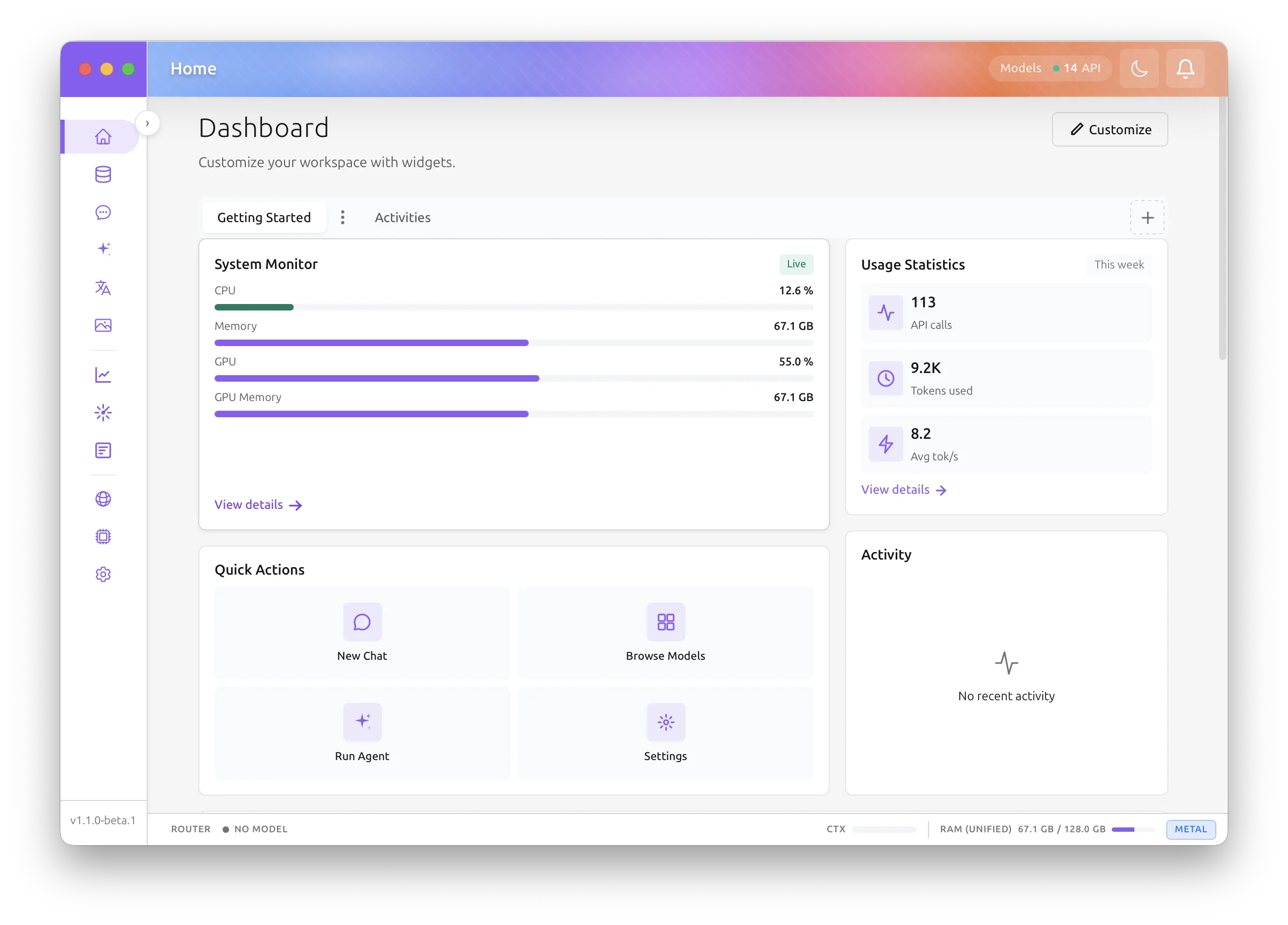
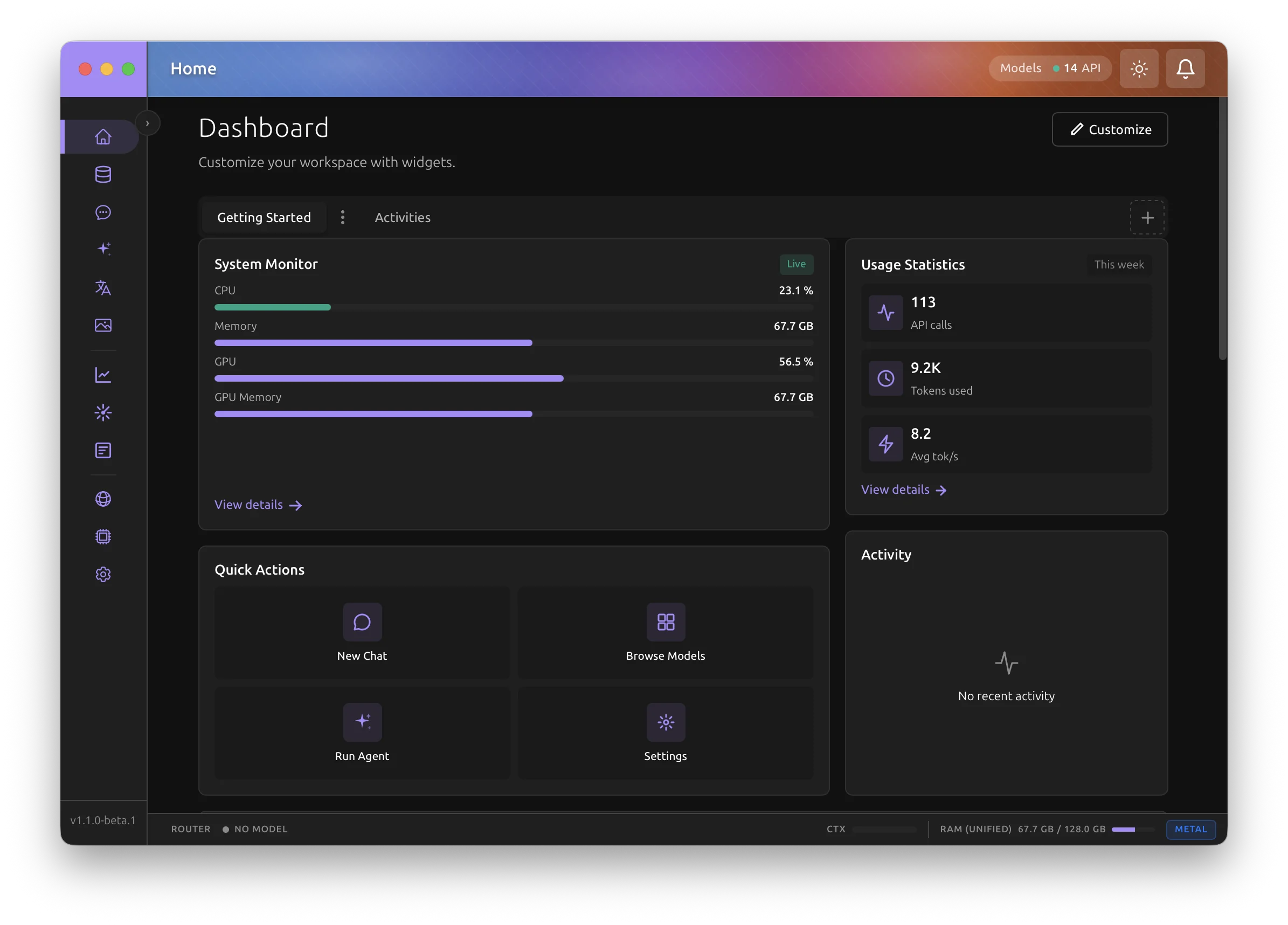
The Dashboard page provides a customizable workspace where you can arrange widgets to create your ideal monitoring and quick-access hub.
Overview
The Dashboard allows you to:
- Arrange widgets using drag-and-drop
- Create multiple dashboard tabs for different workflows
- Add, remove, and reorder widgets
- Persist your layout across sessions
Accessing the Dashboard
Click the AI:GO logo at the top of the sidebar to open the customizable dashboard. You can also open it from the command palette.
Edit Mode
To customize your dashboard, click Edit layout in the header. This enables edit mode, where you can:
- Drag widgets to reorder them
- Remove widgets by clicking the X button
- Reset the dashboard to default
Edit Mode Controls
| Button | Description |
|---|---|
| Add widget | Open the widget library to add new widgets (also shown outside edit mode) |
| Reset | Restore the dashboard to the default layout, after a confirmation |
| Done | Exit edit mode |
Available Widgets
The dashboard includes six widget types:
Statistics Widget
Displays usage statistics including:
- API calls this week
- Tokens used
- Average tokens per second
Click "View details" to go to the full Statistics page.
Quick Actions Widget
Provides quick access buttons:
- New conversation: Start a new conversation
- Browse models: Open the models page
- Run agent: Open Agent Extensions
- Settings: Open application settings
Recent Conversations Widget
Shows your most recent conversations with:
- Conversation title or preview
- Relative timestamps
- Click to resume a conversation
System Monitor Widget
Real-time system resource monitoring:
- CPU usage
- Memory usage
- GPU usage (if available)
- GPU memory
The live indicator shows when metrics are updating.
Model Status Widget
Overview of currently running models:
- Model names and status
- Quick count of running models
- Link to manage models
Activity Feed Widget
Recent notifications and events from the application.
Widget Library
Click Add widget in edit mode to open the widget library. The library displays:
- All available widget types
- Description of each widget
- Icon preview
Click any widget to add it to your dashboard.
Dashboard Tabs
Create multiple dashboards for different workflows:
Creating a New Dashboard
Click the + button next to the tab bar to create a new dashboard. New dashboards start empty so you can customize them.
Tab Management
Right-click on a tab (or click the tab menu button) to access options:
| Option | Description |
|---|---|
| Rename | Change the dashboard name |
| Duplicate | Create a copy of the dashboard |
| Delete | Remove the dashboard (cannot delete the last one) |
Switching Dashboards
Click any tab to switch between dashboards. Each dashboard maintains its own widget layout.
Keyboard Navigation
The dashboard supports full keyboard navigation:
- Tab: Navigate between interactive elements
- Enter/Space: Activate buttons and widgets
- Escape: Exit edit mode or close the widget library
Data Persistence
Your dashboard configuration is automatically saved to local storage, including:
- Widget layout and order
- Dashboard tabs and names
- Widget settings
Changes persist across application restarts.
Tips
- Create separate dashboards for different tasks (e.g., "Monitoring", "Quick Access")
- Use the System Monitor widget to keep an eye on resource usage during inference
- The Quick Actions widget provides the fastest way to access common features
- Drag widgets to prioritize the information most important to you