Model Settings & Parameters
Backend.AI GO offers a wide range of configuration options to fine-tune how models run and how they generate text. This page details all available settings.
Run Parameters
These settings apply when you run a model. They determine hardware usage and basic model capabilities.
Hardware Acceleration
- GPU Layers: Determines how many layers of the model are offloaded to your GPU.
- -1 (default): llama.cpp decides. It offloads every layer when the model fits in GPU memory, and keeps the rest on the CPU when it does not.
- A number: Offloads that many layers, and the rest run on the CPU. A number turns off llama.cpp's own placement.
- 0: Runs entirely on CPU (slower).
- Expert layers on the CPU (Mixture of Experts models only, llama.cpp only): Keeps the expert weights of the first N layers in system memory (
--n-cpu-moe). A MoE model whose experts do not all fit in GPU memory then runs its other weights on the GPU, which is usually faster than leaving whole layers on the CPU. The row appears when the model file names experts. 0 (the default) turns it off. Any other value turns off llama.cpp's own placement, so every layer the GPU Layers setting allows goes to the GPU. Settings > Performance finds a value for a MoE model that does not fit, andaigo loaded showand the session's launch details in Runs report the value a running model was started with. The memory estimate counts those expert weights as system memory instead of GPU memory, so the compatibility check and the automatic context limit do not hold them against the GPU. A model whose file names no experts does not take a value: saving one is refused, and a value saved earlier is ignored when the model runs. - Main GPU: If you have multiple GPUs, selects which one to use as the primary device.
- Split Mode: For multi-GPU setups, determines how the model is split across devices (e.g., Row Split, Layer Split).
Memory & Context
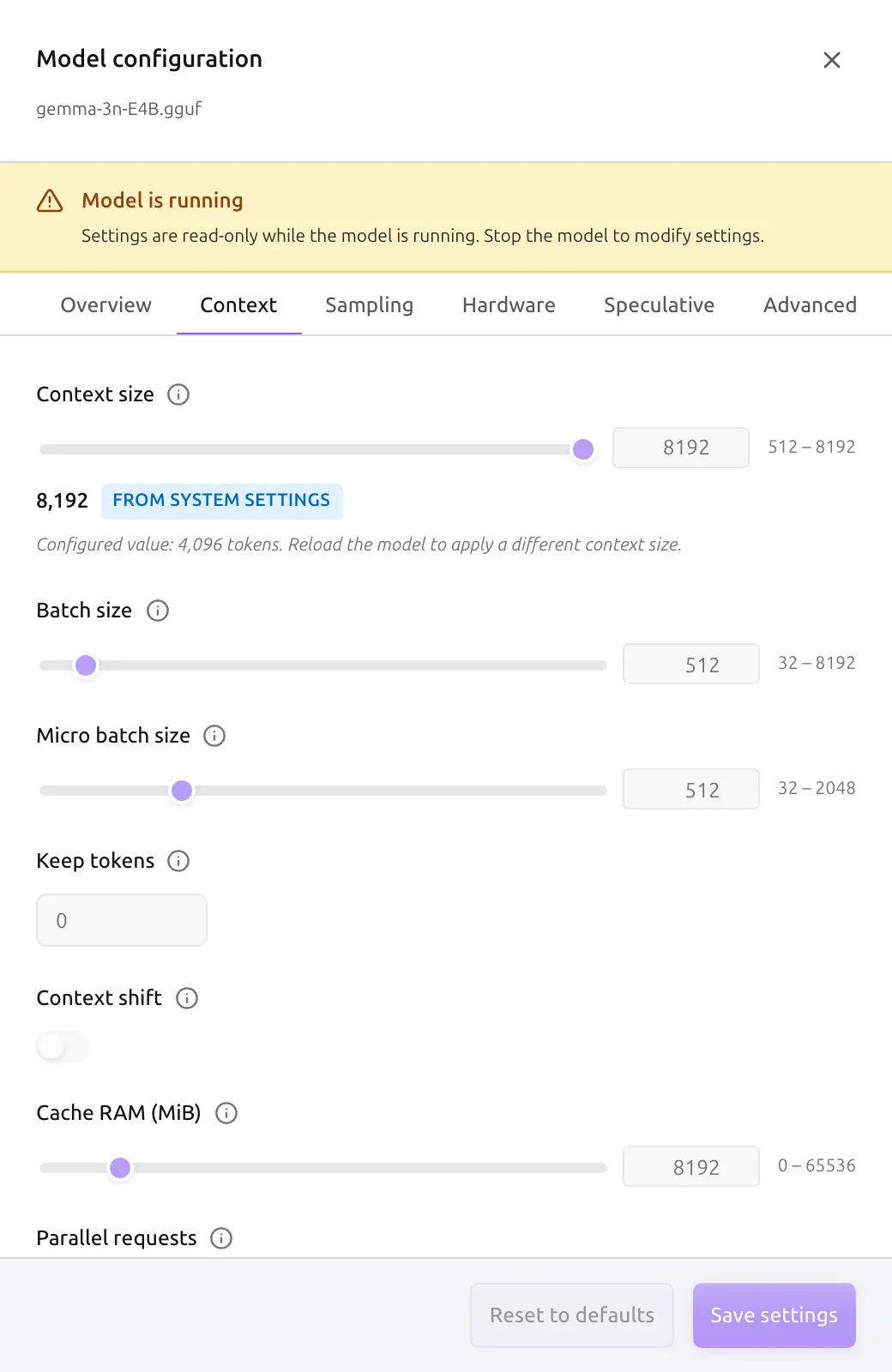
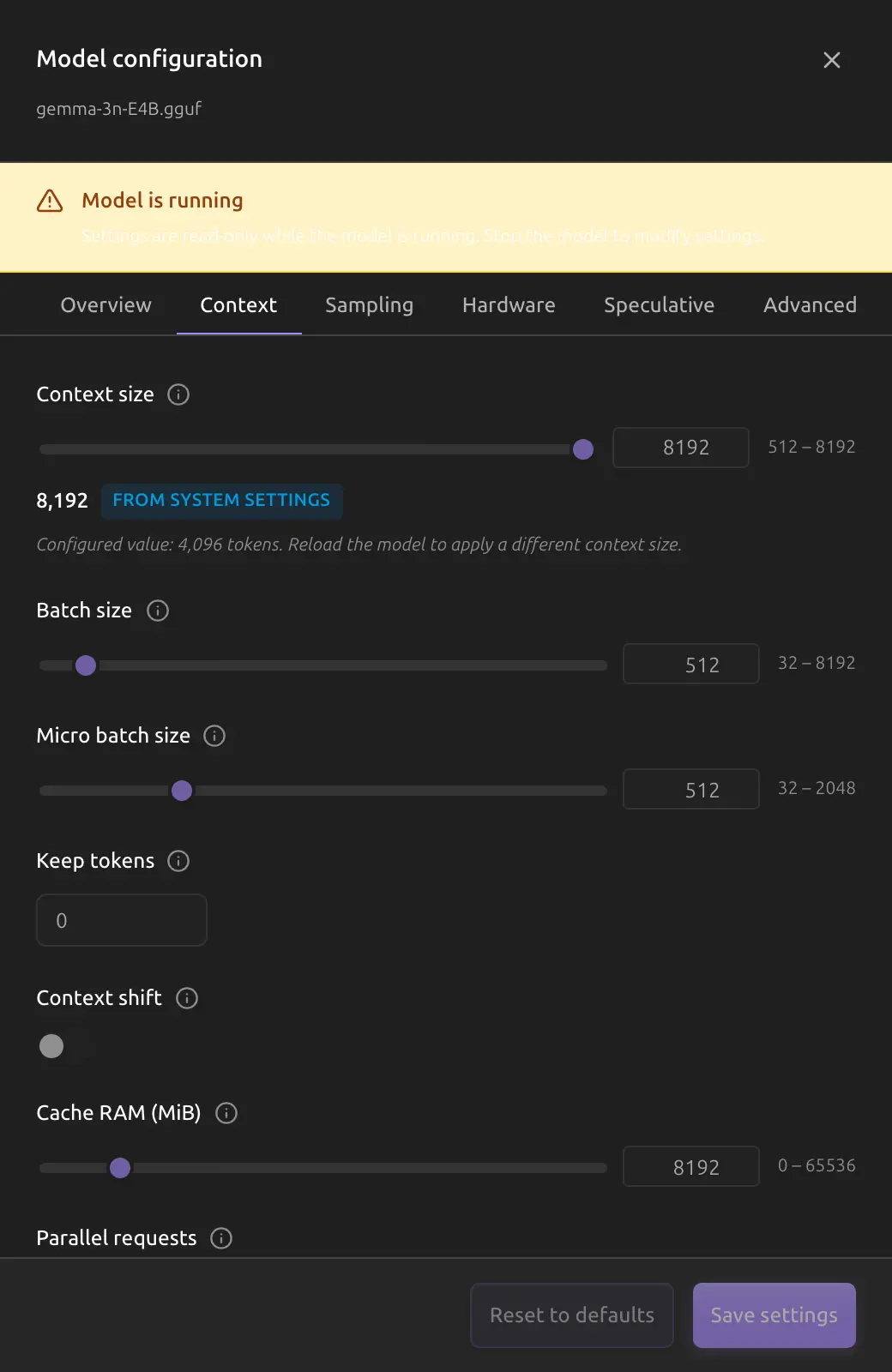
- Context Length: The maximum number of tokens the model accepts in a single request, covering the conversation sent to it and the output it generates.
- Note: Higher context requires more VRAM/RAM.
- Default: Usually 2048 or 4096 depending on the model.
- Batch Size: The number of tokens processed in parallel during prompt evaluation. Higher values speed up processing long prompts but use more VRAM.
- Parallel Requests: The number of requests the running model serves at the same time (1 to 8, default 2). Each request can use the full context length. Requests running at the same time share it, so together they cannot exceed it; on llama.cpp an overflow fails the in-flight requests with
Context size has been exceeded.MLX models currently serve one request at a time until the engine supports a shared context. See Parallel Request Slots for tuning guidance. - Flash Attention: Enables memory-efficient attention mechanism (requires compatible hardware).
- RoPE scaling (Advanced tab): How a model stretches its position encoding past the context length it was trained on.
- Model default: The scaling the model file declares applies, so gpt-oss keeps its YaRN scaling.
- Off: Turns the model's scaling off (
--rope-scaling none). - Linear and YaRN: Apply that method with the RoPE scale and RoPE freq base shown under it (
--rope-scaling linearor--rope-scaling yarn). YaRN also takes a YaRN original context. Each value applies only while its method is selected, so one left from an earlier choice is not sent under Model default or Off. - llama.cpp models receive this setting. MLX models keep the model's own scaling.
Performance
- Threads: The number of CPU threads to use for inference (relevant when not fully offloaded to GPU).
- NUMA Support: Optimizations for multi-socket CPU systems.
Speculative Decoding
Speculative decoding runs a small, cheap drafter model that proposes several tokens per step; the main model then verifies them in a single forward pass and accepts the longest correct prefix. At temperature 0 the output is byte-identical to classic decoding, so it is a pure latency win whenever a compatible drafter is available. You configure it per model in the Speculative tab of the Model Config Drawer. Some GGUF conversions carry MTP prediction weights inside the main file, in which case no separate drafter is needed at all (see Acceleration mode below).
Both bundled engines support the draft-model path, but the underlying flags differ — the app picks the right ones automatically based on the target model's format.
- Enable speculative decoding: Master switch. When off (the default), nothing changes for the model.
- Acceleration mode (GGUF targets only): Where the draft tokens come from.
- External drafter (the default) is the classic setup described below and needs a separate drafter checkpoint.
- Embedded MTP uses next-n MTP weights that are already inside the main GGUF, so there is nothing to download and no drafter to pick. llama-server builds the draft context against the model itself. Conversions of the Qwen 3.5 and GLM MoE lines ship these weights, but only when the publisher kept them, so the app reads the file's metadata rather than trusting its name. If the file turns out to carry no MTP weights, llama-server still starts and simply decodes at normal speed; the app logs a warning saying so.
- Selecting Embedded MTP hides the drafter picker, draft GPU layers, and the drafter algorithm, because none of them apply without a draft model. A drafter you configured earlier stays saved but is ignored while this mode is on.
- N-gram looks draft tokens up in text that is already in the conversation (
--spec-type ngram-mod), so it needs no drafter at all. It speeds up only answers that repeat a long passage the model has already seen, such as an edited copy of a pasted text, and decodes every other answer at normal speed. Selecting it hides the drafter picker and every draft-model setting (maximum and minimum draft tokens, minimum acceptance probability, draft GPU layers, drafter algorithm, engine default speculation config). Tune for Chat tries this mode when no drafter is installed and keeps it only when it measures faster. - The control is not shown for MLX targets. mlxcel runs MTP only from a separately extracted drafter checkpoint and drops embedded next-n layers from a main checkpoint, and it has no draft-free speculation, so a drafterless MLX launch is rejected before the engine starts.
- Drafter model: The small model that proposes draft tokens. Pick a downloaded local model of the same format as the target (a GGUF drafter for a GGUF target, an MLX drafter for an MLX target), or choose Enter manually to type a local path or a Hugging Face repo id.
- For llama.cpp (GGUF) targets, a Hugging Face repo id (
org/repo[:quant]) is auto-downloaded; a local path is used as-is. - For MLX (mlxcel) targets, the drafter must be a local directory. Hugging Face repo ids are not auto-downloaded for MLX in this version — download the drafter first, then reference its folder.
- For llama.cpp (GGUF) targets, a Hugging Face repo id (
- Max draft tokens: How many tokens the drafter proposes per step. Both engines default to 16.
llama.cpp-only knobs (shown for GGUF targets): minimum draft tokens, minimum acceptance probability, and draft GPU layers, plus three drafter-algorithm controls:
- Drafter algorithm: Which speculation algorithm llama-server runs. Auto (the default) sends no flag, so the bundled engine detects the drafter type from the draft model's metadata; only engines older than b10415 lack that detection. Choose MTP to force
draft-mtpexplicitly. This is llama.cpp's own selector and is unrelated to the mlxcel Drafter kind setting below. - Use engine default speculation config: Applies llama-server's built-in default speculative configuration on top of the values set here. Takes effect only together with an explicitly selected Drafter algorithm: left on Auto, llama-server's default speculation config replaces draft auto-detection with ngram-only speculation instead of using the configured drafter, so the app disables this toggle until an explicit algorithm is chosen.
- Preserve reasoning blocks: Keeps reasoning blocks from earlier assistant turns instead of stripping them. It only takes effect when the model's chat template supports it; on any other template llama-server logs a warning and ignores it.
mlxcel-only knobs (shown for MLX targets):
- Drafter kind: How mlxcel interprets the drafter checkpoint. Auto (recommended) detects the kind from the checkpoint. The two kinds map to specific target families:
- MTP (Multi-Token Prediction) is validated for Gemma 4 targets.
- DFlash is validated for Qwen 3.5 text/VLM targets.
- Draft block size: Draft block size in tokens (defaults to 4 for MTP, 16 for DFlash).
The app surfaces a non-blocking hint when the target looks like a Gemma 4 or Qwen 3.5 model, but it never hard-blocks a pairing — the engine is the source of truth and falls back to classic decoding if the drafter is incompatible. If the drafter cannot be resolved (a missing local path), the run fails with a clear error before the engine starts.
For engine-level details, see llama.cpp Acceleration and Apple MLX Acceleration.
vLLM Settings
A downloaded Hugging Face safetensors repository runs on a container engine, and its settings dialog has a vLLM tab for the vllm serve flags a model card asks for: the tool-call and reasoning parsers, the GPU memory fraction, the tensor parallel size, the MoE backend, the KV cache type, prefix caching, the Mamba settings of hybrid models, and speculative decoding with a draft model. A setting left unset adds no flag. Speculative decoding for such a model is set in this tab, because the Speculative tab applies to llama.cpp and MLX models. See Per-model serve settings for the flag behind each setting and a worked example.
Generation Parameters
These settings (often found in the "Parameters" drawer during chat) control the creativity and behavior of the model's responses.
Creativity & Randomness
- Temperature: Controls the randomness of the output.
- Low (0.1 - 0.5): Focused, deterministic, logical. Good for coding and factual tasks.
- High (0.8 - 1.5): Creative, unpredictable. Good for storytelling.
- Top P (Nucleus Sampling): Limits the next token selection to a subset of most probable tokens.
- Top K: Limits the next token selection to the top K most probable tokens.
- Min P: Sets a minimum probability threshold relative to the most probable token.
Repetition Control
- Repeat Penalty: Penalizes words that have already appeared in the text to prevent looping.
- Presence Penalty: Penalizes tokens based on whether they have appeared at all.
- Frequency Penalty: Penalizes tokens based on how many times they have appeared.
Structural Control
- System Prompt: A high-level instruction that defines the model's persona and constraints (e.g., "You are a helpful coding assistant").
- Stop Strings: Specific sequences of text that will cause the model to stop generating immediately.
- Max Tokens: The hard limit on the number of tokens the model can generate in a single response.
Reasoning Effort
For models that support extended thinking (reasoning models), you can control the depth of reasoning:
-
Default Reasoning Effort: Configure in Settings > Generation. Options include:
- None (Off): No extended thinking
- Low / Medium / High / Extra High: Progressively deeper reasoning
- Last Used: Stores the most recently used setting and applies it again
-
Per-Conversation Override: Adjust reasoning effort directly in the chat interface for individual conversations.
Thinking budget (numeric cap)
The reasoning effort selector is also translated into a numeric thinking_budget_tokens value in every chat request, so engines that enforce a hard cap on <think> tokens (llama.cpp, mlxcel-server, vLLM) honor it deterministically.
| Reasoning effort | thinking_budget_tokens |
|---|---|
none (Off) | 0 (immediate end) |
| Low | 128 |
| Medium | 512 |
| High | 2048 |
| Extra High | 8192 |
| (no selection) | field omitted; engine default (unbounded) |
Engine semantics: -1 = unlimited, 0 = immediate end (disables thinking), N>0 = hard cap of N tokens emitted inside the <think> block before the engine forces </think>. Power users can override the categorical mapping with the CLI flag aigo chat --thinking-budget <N> (see CLI reference).
Preserve thinking across turns (Qwen3.6+)
The Model Config Drawer's Advanced tab has a Preserve thinking across turns toggle, which is shown only on Qwen3.6+ models. When enabled, every chat request from conversations using that model includes chat_template_kwargs.preserve_thinking=true, which retains <think> blocks from all prior assistant turns instead of stripping them. This improves agent decision consistency in multi-turn tool-use scenarios and improves KV cache prefix reuse.
The toggle is persisted per model (default: off). Older Qwen3/3.5 models accept the flag but the behavior is unvalidated, hence the allowlist gate.
The Conversation parameters drawer (opened per conversation) also exposes a tri-state Preserve thinking across turns selector with three options:
- Inherit from model (default): no per-conversation override; the per-model setting above applies.
- On: forces
preserve_thinking=truefor every request in this conversation, even if the model default is off. - Off: suppresses the kwarg for every request in this conversation, even if the model default is on.
The conversation override takes precedence over the model default. Switching back to Inherit from model restores the model-level setting.
Default Models
Configure default models for different interfaces in Settings > Models. This ensures your preferred models are automatically selected when you open each interface.
Use as default model on a Compare models result sets the same settings: a chat or long-documents comparison sets the chat default model, so new chats start with it, and an agents comparison sets the agent default model.
Available Settings
- Chat Default Model: The model new chats start with. Changing it applies to new chats from now on: the model picker of the next new chat (Home or the Dashboard's chat input) shows it once the model is running, and a chat that is already open keeps its model. A model you pick in a chat afterwards is what new chats start with next, until the default is set again. A local model that is not running starts with the app the next time when Startup model policy is Restore last used model (the default).
- Image Default Model: The model the
generate_imagetool draws with when a chat asks for an image. A local diffusion model runs first if it is not running. - Agent Default Model: The model an agent run uses when its profile names none, and the model squad agents fall back to. A local model that is not running runs when the run starts.
- Utility Model: Used for titles and the short summaries the app writes on its own (thinking summaries, squad progress lines). When set to None, the current chat model is used.
- Translation Model: No feature reads this setting at the moment; translating in chat uses the chat model.
- Extraction Model and Title Generation Model: Used for automatic memory extraction and for conversation titles. Recommended lightweight model (auto) uses the recommended small model while it runs, and runs it for the next title when it does not.
- Wiki Generation Model and Data Summary Model: Used to draft Data wiki pages and document card summaries. When set to None, a model is picked automatically: one running locally if there is one, otherwise a configured provider.
Model Selection
You can choose from:
- Local Models: GGUF models downloaded to your machine (prefixed with "Local"). A local model that is not running is marked Not running in the list and on the selected row.
- Cloud Models: Models from configured API providers like OpenAI, Anthropic, or Gemini (shows provider name)
Running a Model When It Is Needed
A local model chosen here runs when the feature that uses it needs it: the agent default when an agent or squad run starts, the extraction and title models when a memory or a title is written, the wiki and summary models when a draft starts, and the utility model when a summary is written. A notification shows the model while it starts. Nothing needs to be turned on; the former Run automatically when needed switch is gone.
The model runs only when it fits in memory beside the models already running. When it does not fit, or it is no longer in the model library, or it fails to start, the task stops instead of using another model, and the notification says why, including how much memory the model needs and how much is free. A setting left at None keeps the fallback described above.
Model at Launch
Settings > General > Startup model policy decides which model the chat starts on when the app starts. The setup wizard asks the same question in its Select startup model step when you pick a first model. If you finished setup before it asked, the first launch that runs your last model says so once in the notification center, with where to change it.
- Start with the last model used (the default): the model you last chatted with runs when the app starts.
- Start with a pinned model: the chat starts on one model at every launch, whichever model you picked last time. Choose it in Startup model below the policy: a local model runs when the app starts, and a cloud model is selected. You can also pin a model from the ⋯ menu on its card on the Models page (Pin as startup model), for local and cloud models alike, and undo it from the same menu (Unpin startup model), which returns the policy to the last model used.
- Run when needed: no model runs at launch. The model you last chatted with stays selected, marked Not running, and runs when you send a message.
A cloud model is never run at launch; it is only selected. Models with Auto-run on startup turned on in their card run at every launch, whichever policy is chosen, in addition to the chat model; a model that is both runs once. Settings saved with the former Use explicit flags policy now read as Run when needed, which runs the same flagged models.
When no model was chosen before, the chat starts on a local model that is already running. If none is running, the model picker stays empty and the composer asks you to choose a model; a cloud model is never chosen for you.
Diffusion Model Settings
When you select a diffusion (image generation) model on the Models page and open its settings, a dedicated Diffusion Config Drawer appears with settings specific to the stable-diffusion.cpp (sd-server) backend. These settings are organized across five tabs.
Overview Tab
Displays read-only information about the selected model:
- Model name, file size, format, architecture
- Diffusion type (SD 1.x, SD 2.x, SDXL, Flux, etc.)
- Publisher and repository
- File path (with copy button)
Components Tab
Configure auxiliary model files used alongside the main diffusion model. Availability of certain fields depends on the model architecture:
- VAE model: Custom Variational Autoencoder for higher quality decoding
- CLIP-L encoder: Text encoder for SDXL and Flux models
- CLIP-G encoder: Additional text encoder for SDXL models only
- T5-XXL encoder: Text encoder for Flux models only
- LLM encoder: Text encoder for Qwen-Image models only
- Diffusion model: Standalone diffusion weights for Qwen-Image models only
- TAESD: Tiny AutoEncoder for fast (but lower quality) preview decoding
- ControlNet: Model for guided image generation
- LoRA directory: Directory containing LoRA adapter files
- Embeddings directory: Directory for textual inversion embedding files
- Upscale model: ESRGAN model for image upscaling
Generation Defaults Tab
Set default values for image generation requests:
- Width / Height: Default image dimensions with preset buttons (SD 1.x, SD 2.x, SDXL, Portrait, Landscape)
- Steps: Number of denoising steps (1--150). More steps generally produce higher quality but are slower.
- CFG scale: Classifier-Free Guidance scale (0--30). Controls how closely the image follows the text prompt.
- Guidance: Guidance value for Flux models (0--10)
- Sampling method: Algorithm used for denoising (euler, euler_a, dpm++2m, etc.)
- Scheduler: Noise schedule type (discrete, karras, exponential, etc.)
- CLIP skip: Number of CLIP layers to skip (-1 = none, up to 12)
- Seed: Random seed for reproducibility (-1 = random)
- Batch count: Number of images per generation (1--8)
- Negative prompt: Default text describing what to avoid
- Strength: img2img denoising strength (0.0--1.0)
Hardware Tab
Configure hardware utilization for the inference server:
- Threads: CPU threads to use (-1 = auto, or 1--64)
- Flash Attention: Enable memory-efficient attention
- Diffusion Flash Attention: Flash Attention for diffusion layers only
- VAE tiling: Process the VAE in tiles to reduce VRAM usage
- VAE tile size / overlap: Tile dimensions and overlap ratio
- CPU offload options: Offload the model, CLIP, or VAE to CPU
- Memory mapping (mmap): Use memory-mapped file access
- Weight type: Override the model weight precision (f32, f16, q4_0, etc.)
Advanced Tab
Fine-tune specialized parameters:
- RNG type: Random number generator backend (std_default, cuda, cpu)
- Flow shift: Shift value for Flux/SD3 flow-based models
- LoRA apply mode: When to apply LoRA weights (auto, immediately, at_runtime)
- SLG parameters: Skip Layer Guidance scale, start, and end points
- Circular padding: Enable seamless tiling for tileable textures
- Prediction type: Noise prediction method (eps, v, edmv, sd3flow, fluxflow, sefiflow, minit2i_flow)
- Qwen zero cond T: Enable
zero_cond_tfor Qwen-Image models
Settings require restart
Changes to the Components, Hardware, and Advanced tabs are launch-time arguments for the inference server, so they require stopping the model and running it again to take effect. The saved configuration is read on every run, including automatic runs triggered from the Canvas page or by an agent tool. Generation Defaults are applied per request and do not require a restart.