Running Models & Your First Chat
Once you have downloaded a model, it's time to put it to work. Backend.AI GO provides a modern chat interface that feels familiar and responsive.
Loading a Model
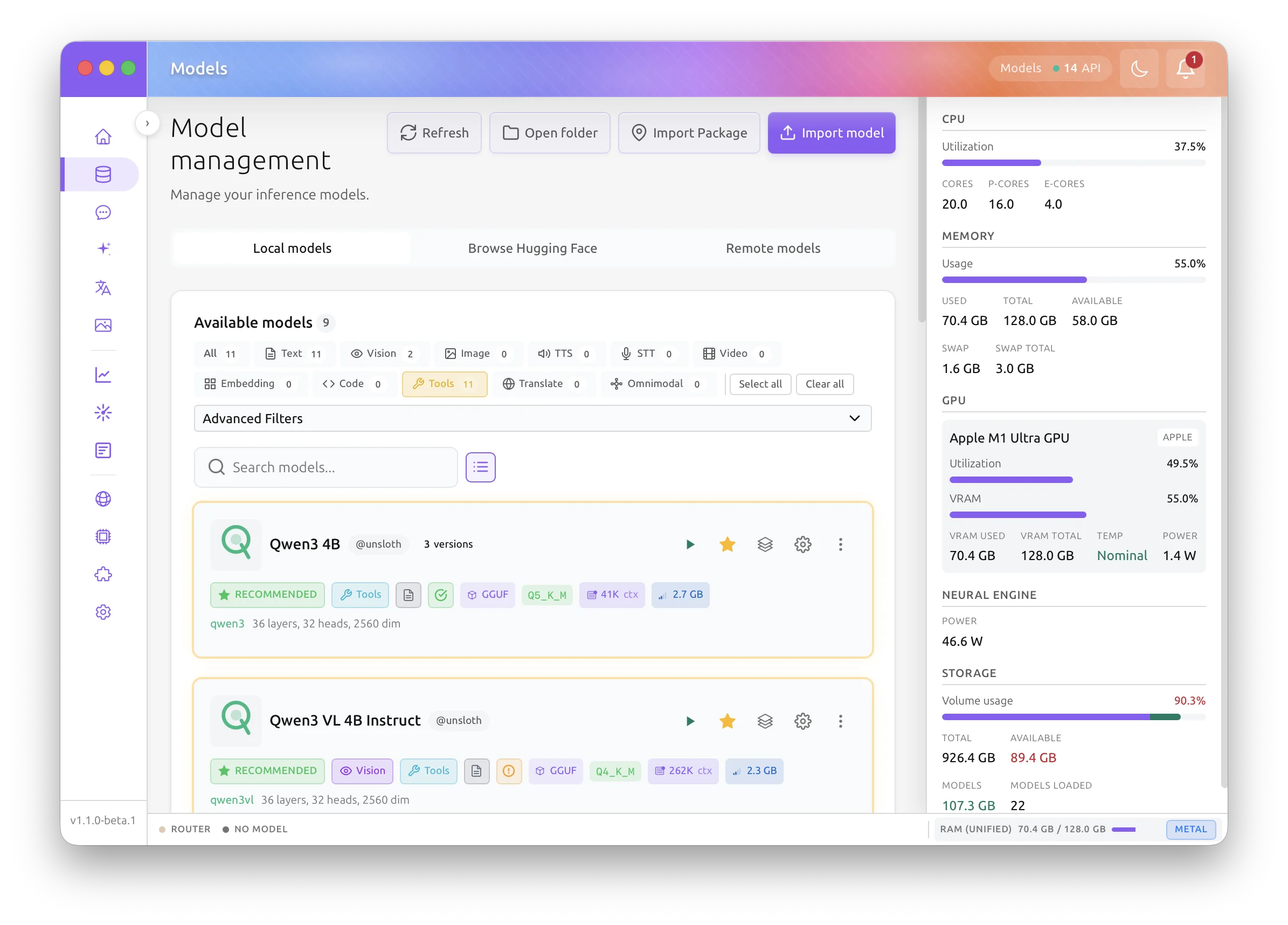
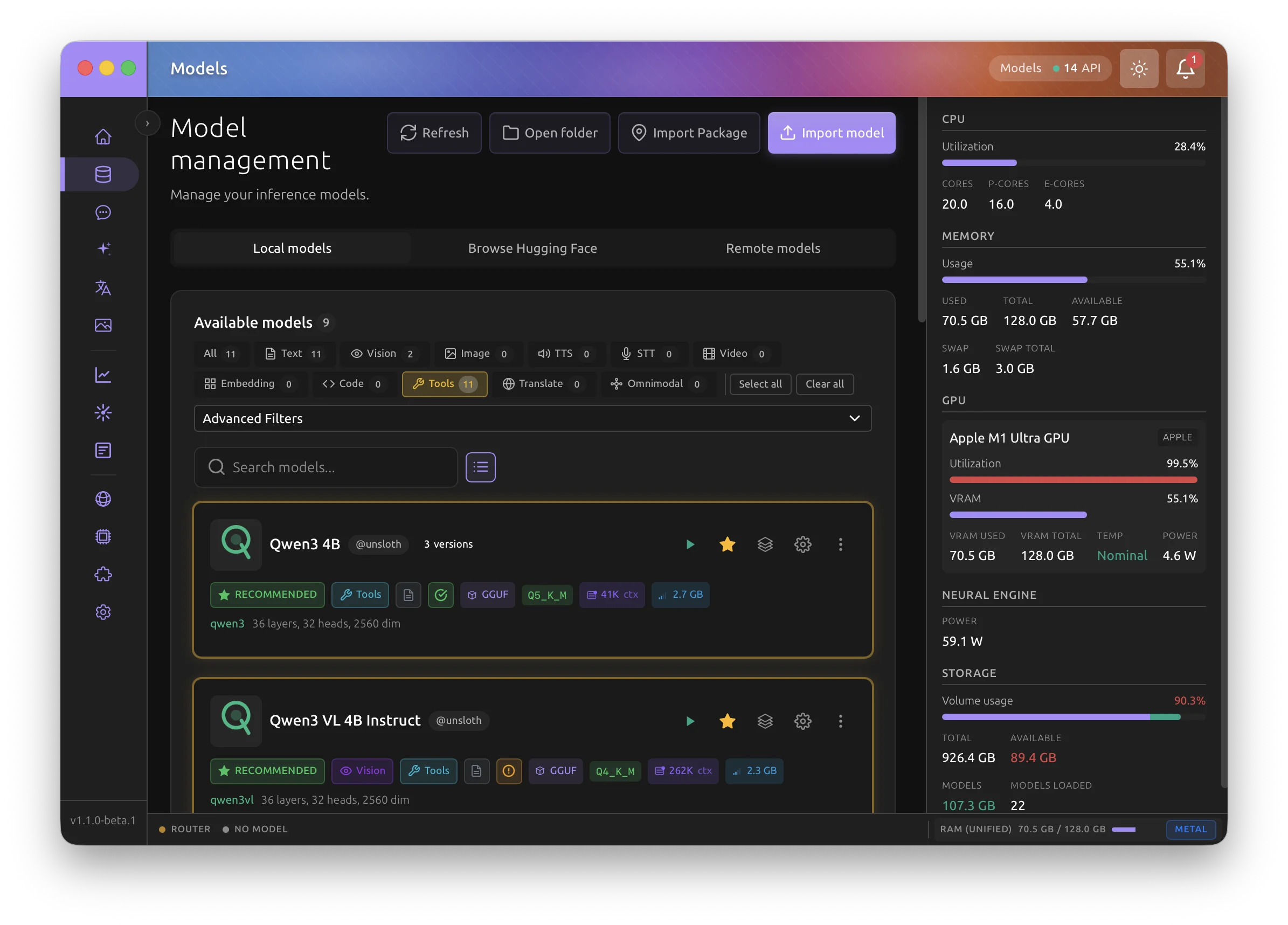
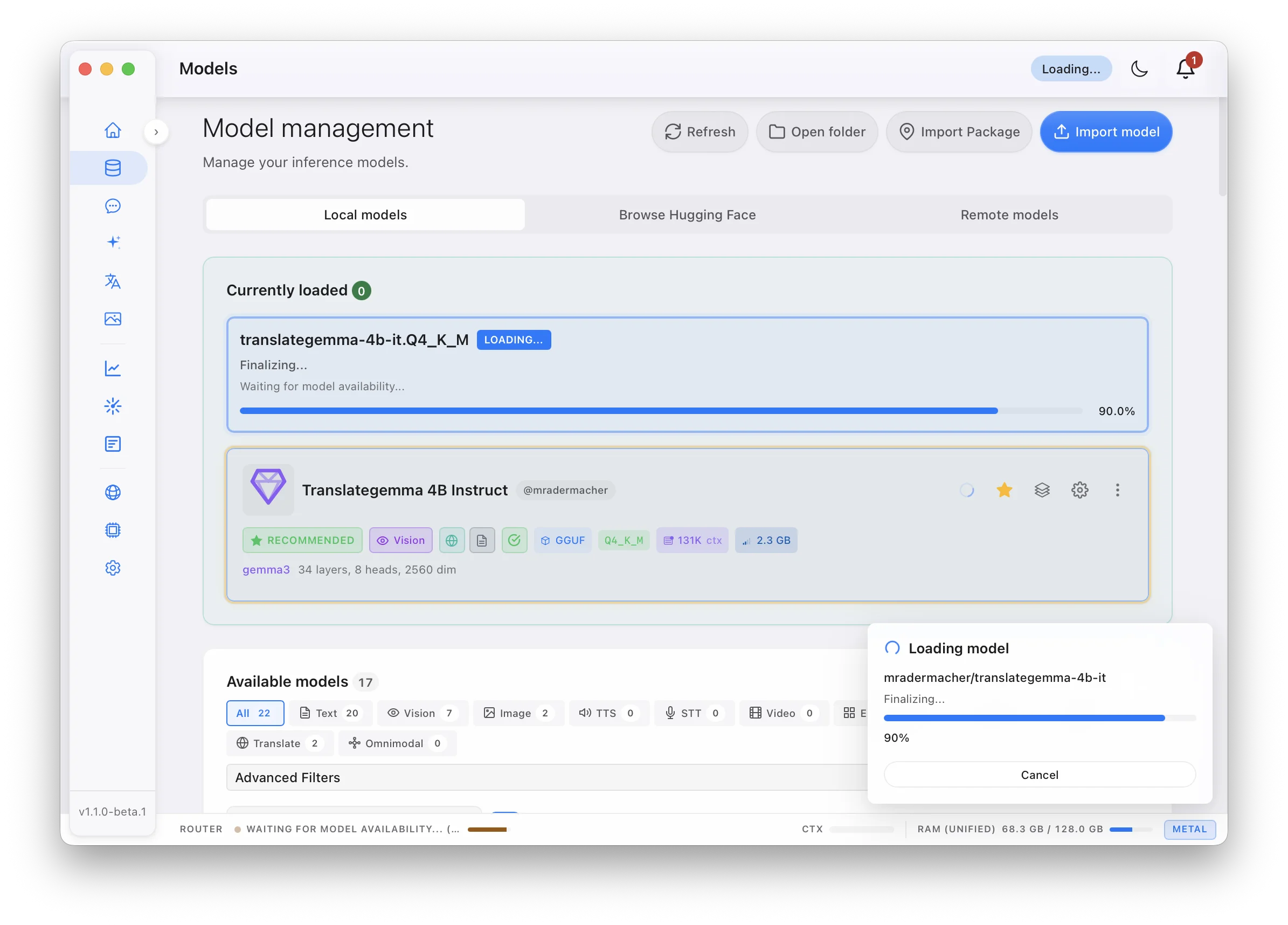
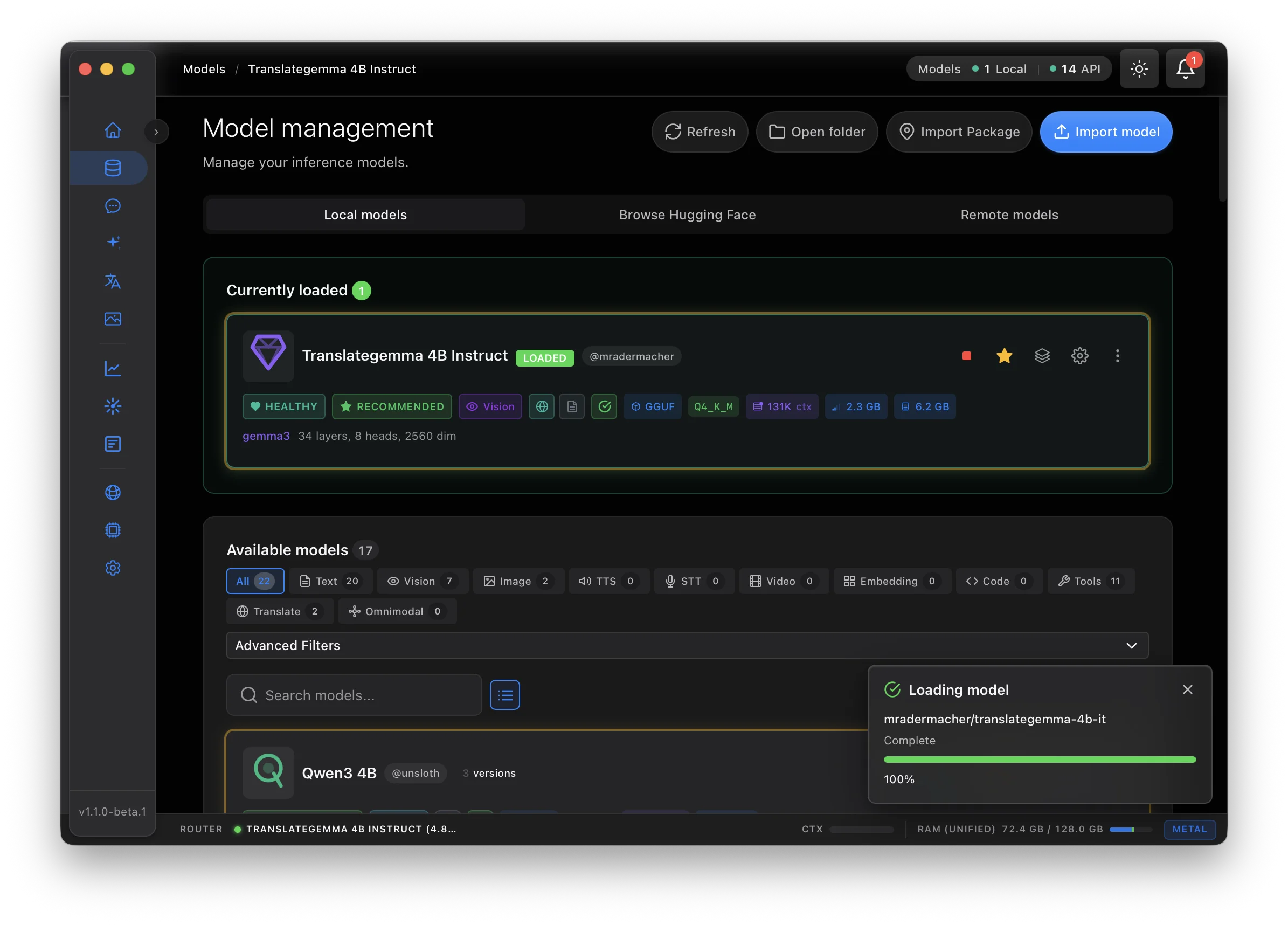
Before you can chat, the model must be "loaded" from your disk into your computer's memory (RAM or VRAM).
- Navigate to the Models tab.
- Your downloaded models will appear here as cards.
- Click the Load button on the model you want to use.
- Advanced Settings: Before loading, you can click the settings icon on the model card to adjust parameters like Context Length and GPU Offloading.
- For a complete guide on all available options, see Model Settings & Parameters.
- Watch the progress bar. Once it turns green and says "Loaded," you are ready!
Model Structure
Each model card includes a Model Structure viewer that provides a detailed breakdown of the model's internal architecture. Click the structure icon on a model card to open the modal.
The viewer supports both GGUF and safetensors (MLX) model formats. For safetensors models, architecture details are read from the model's config.json file and mapped to the same visualization pipeline used for GGUF models.
Overview
The overview section displays:
- Model Overview: Architecture type (e.g., GEMMA3N), tensor count, and number of layers.
- Quantization: Compression method (e.g., Q4KM), compression ratio, original vs. quantized bit depth, and quality-vs-size trade-off visualization.
- Dimensions: Embedding size, vocabulary size, and context length shown as proportional bars.
Model Flow & Layer Stack
The model flow section visualizes:
- Model Flow: The data pipeline from Input Tokens through Embedding, Transformer layers, Output, and Vocabulary.
- Layer Stack: The layer hierarchy including Input Embedding, individual transformer layers, and Output Head.
- KV Cache: Context capacity, estimated KV cache size, and memory estimation details (per-layer size, head dimensions, precision).
Transformer Layer Details
Clicking on a transformer layer reveals:
- Multi-Head Attention: Number of Q/V heads, KV heads, head dimension, and GQA ratio.
- Grouped Query Attention (GQA): A visual diagram showing how query heads are grouped and share KV heads, helping you understand the model's attention efficiency.
Position Encoding & Normalization
This section shows the model's positional encoding and normalization parameters:
- Position Encoding (RoPE): Explains how Rotary Position Embedding works, with a position-based rotation visualization and frequency spectrum display.
- Normalization: RMS epsilon value used for layer normalization.
The Chat Interface
Click the Chat icon in the sidebar to enter the main interface.
Creating Conversations
- New Chat: Click the "+" button in the sidebar to start a fresh conversation.
- History: Your previous chats are automatically saved in the sidebar for easy access.
- Search: Use the search bar in the sidebar to find past conversations by keyword.
Interaction Features
- Markdown Support: The model can format responses with bold text, lists, and tables.
- Code Highlighting: Programming code in responses is beautifully highlighted with a "Copy" button.
- LaTeX Support: Mathematical formulas are rendered cleanly.
- Thinking Blocks: Some models (like DeepSeek or specialized reasoning models) can show their internal "thinking" process. Backend.AI GO displays these in a dedicated collapsible block.
Understanding Chat Parameters
In the chat interface, you can find a "Parameters" drawer (usually a gear icon on the top right) to fine-tune the model's behavior:
- Temperature: Controls "creativity." Lower (0.1) is more focused and predictable; higher (0.8+) is more creative and random.
- Top P: Another way to control randomness.
- Repeat Penalty: Prevents the model from getting stuck in a loop.
- System Prompt: Give the model a "personality" or specific instructions (e.g., "You are a helpful coding assistant" or "Speak like a pirate").
Model Status in Header
The header shows how many models are loaded, grouped into three categories: Local (models served on this machine through llama.cpp or MLX), API (cloud provider models), and Mesh (models served by other Backend.AI GO peers). Each category shows a count and a health dot; hovering it reveals which category it is.
Details for an individual loaded model, its memory, context, uptime, and quick actions, are not in the header. They live in the status bar's model list at the bottom of the window, described next.
Status Bar Model Popover
In the status bar, click the loaded-model item to expand the list of currently loaded models, then hover over one to open its details popover:
- Full Model Path: Where the model file is located on disk
- Memory Details: Memory usage with a progress bar relative to system total
- Context Length: The per-request context window the engine reports it enforces, the same value shown in the Sessions table. A dash appears instead when the value is not yet known.
- Load Time: When the model was loaded (relative time like "2 hours ago")
- Uptime: How long the model has been running
- Engine: Which inference engine (llama.cpp, MLX, MLXcel, and so on) is serving the model
- Transport: Shown only when the server fell back to loopback TCP because a local socket was unavailable, along with the reason
- Chat / Unload Model / Model Settings: Jump straight into a chat with this model, free its resources, or open its configuration
This provides a convenient way to monitor and manage a loaded model from anywhere in the application.
Status Bar
The status bar at the bottom of the window keeps runtime vitals visible at all times:
- RAM / GPU: System memory and GPU utilization. On Apple Silicon this is shown as unified memory; the tooltip names the active accelerator backend (Metal, CUDA, ROCm, or CPU-only).
- Loaded models: How many models are currently in memory.
- CTX: Context window usage for the active conversation. If the selected model's window is not known yet (a hosted model that has not been detected), CTX shows only the token count used, with no percentage and no fill, until the window is resolved.
- Inference speed: While a response is generating, the bar shows separate PF (prefill) and DEC (decode) speeds in tokens per second. Prefill is how fast the engine ingests your prompt; decode is how fast it produces new tokens.
- Prefilling indicator: Before the first token of a response arrives, the bar shows
Prefilling... (N tokens)while the engine processes the prompt. - Router: Status of the built-in API router.
Unloading Models
When you are finished, or want to switch to a different model:
- In the status bar, click the loaded-model item, hover the model you want to free, and click Unload Model in the popover.
- Or open the model's settings drawer from the Models tab and toggle Unload.
The Models tab itself focuses on the model catalog (browsing, downloading, configuring artifacts). Runtime state, including which models are currently loaded, on what port, and for how long, is surfaced in the header status pill, in chat, and in the Sessions page. This separation keeps the Models tab focused on artifacts rather than runtime instances.
Unloading frees up your system RAM/VRAM for other tasks.
Batch Operations
When you have many models, Backend.AI GO provides batch operations to manage multiple models at once.
Entering Selection Mode
- Go to the Models tab.
- Click the Select button in the page header to enter selection mode.
- Model cards will now show checkboxes for selection.
Selecting Models
-
Click on a model card to toggle its selection.
-
Shift+Click to select a range of models (from the last selected model to the clicked one).
-
Cmd/Ctrl+Click (on macOS/Windows/Linux) to toggle individual model selection.
-
Use Select all to select all visible models.
-
Use Deselect all to clear your selection.
Batch Delete
-
Select the models you want to delete.
-
Click the Delete button in the floating action bar at the bottom.
-
A confirmation dialog will appear showing the list of models to be deleted.
-
Click Delete to confirm. A progress bar shows the deletion status.
-
If any deletions fail, an error summary is displayed.
Exiting Selection Mode
Click Exit selection or press Escape to leave selection mode and return to normal view.
Model Package Export and Import
Backend.AI GO supports a portable .baimodel package format that allows you to export and import models with all their metadata intact. This is useful for:
- Transferring models between computers
- Sharing models with colleagues
- Backing up models with their configuration
Exporting a Model
-
Go to the Models tab.
-
Find the model you want to export.
-
Right-click (or long-press on touch devices) to open the context menu.
-
Select Export as Package.
-
In the export dialog:
-
Review the model information and file sizes.
-
For vision models, optionally include the mmproj (multimodal projector) file.
-
Choose a save location for the
.baimodelpackage.
-
-
Click Export to begin. A progress bar shows the packaging status.
The exported package contains:
- The model file(s) in their original format
- Package manifest with model metadata
- SHA256 checksums for integrity verification
Importing a Package
-
Go to the Models tab.
-
Click the Import Package button in the header.
-
Select the
.baimodelfile you want to import. -
The import dialog shows:
- Validation status of the package
- Model information (name, format, size)
- Any warnings or errors
-
Click Import to extract the package.
-
The model will be placed in your models directory and appear in the model list.
Package Features
-
Integrity Verification: SHA256 checksums are calculated during export and verified during import to ensure data integrity.
-
Security Checks: Packages are validated for path traversal attacks, symlinks, and ZIP bomb attempts.
-
Progress Tracking: Both export and import operations show detailed progress including phase, speed, and estimated time remaining.
-
Atomic Operations: Export uses atomic file writes to prevent partial packages on failure.
-
Fast-head metadata reads: Every
.baimodelpackage placesmanifest.jsonas the first entry, STORE-compressed and with no data descriptor or ZIP64 extras. Library scans, the import preview dialog, and CLI listing therefore read the manifest from a single sequential read at offset 0, regardless of how large the rest of the archive is. Older packages that predate this layout still open through the classical reader as a fallback.
Bundled inference settings
When you export a model, Backend.AI GO can optionally bundle two additional sources of inference settings alongside the model weights. Both are opt-in on export and opt-in on import, so they never apply silently.
Publisher's recommended sampling (manifest.recommendedSampling)
If your .model-config.json for the model contains tuned sampling values (temperature, top-p, top-k, min-p, repeat penalty, Mirostat, etc.), the export dialog can project them into a publisher-style recommendedSampling block inside manifest.json. Recipients see this as your authoritative "this is how you should sample me" recommendation.
The block lives in manifest.json, so importing systems can read it through the fast-head path without scanning the rest of the archive. The runtime recommendedSampling.contextLength is a separate recommendation from the model's structural contextLength (the maximum supported length) — both can be carried side by side.
Previous user's tuning (user-config.json)
The export dialog can also bundle a hardware-stripped copy of your full .model-config.json as a separate user-config.json entry inside the archive. This is useful when you want to share non-sampling tuning that is harder to describe — context shift, cache types, rope scaling, custom penalties not covered by the recommendedSampling block.
Hardware-specific fields are always filtered out at the write boundary and re-filtered at the read boundary on import. These fields never travel between machines:
gpuLayersthreads,threadsBatchmainGpuflashAttnmlock,mmapkvOffloadcacheRam
The importing machine re-detects them locally so a foreign GPU-layer count or thread budget never overrides what your hardware can support.
Importing
When you open a .baimodel package that carries either or both of these blocks, the import dialog renders them as two independent suggestion blocks above a static "Hardware settings stay local" explainer. Each block has its own toggle — you can apply one, both, or neither. Your existing per-model settings always win on conflict; the imported values only fill in fields you have not already configured.
Precedence on import (from highest to lowest priority):
- Your existing
.model-config.jsonvalues on the importing machine (never overwritten). - Publisher-recommended sampling (
manifest.recommendedSampling), if applied. - Previous user's
user-config.json, if applied.
context_size, batch_size, and ubatch_size are additionally clamped against host-friendly hard caps before being persisted, so an oversized value from a foreign machine falls back to your local default instead of being silently truncated.
CLI parity — the standalone scripts/make-baimodel.py packager exposes matching flags: --recommended-temperature, --recommended-top-p, --recommended-top-k, --recommended-min-p, --recommended-repeat-penalty, --recommended-mirostat-mode/tau/eta, --recommended-context-length, --recommended-notes, and --include-user-config PATH. Use --no-recommended-sampling to suppress the recommendedSampling block even when individual --recommended-* flags are set.