Settings
Backend.AI GO groups settings into three navigation sections:
- App
- Agent
- System
Older docs sometimes referred to retired tabs such as Inference, Network, or Storage. Those names no longer match the current UI.
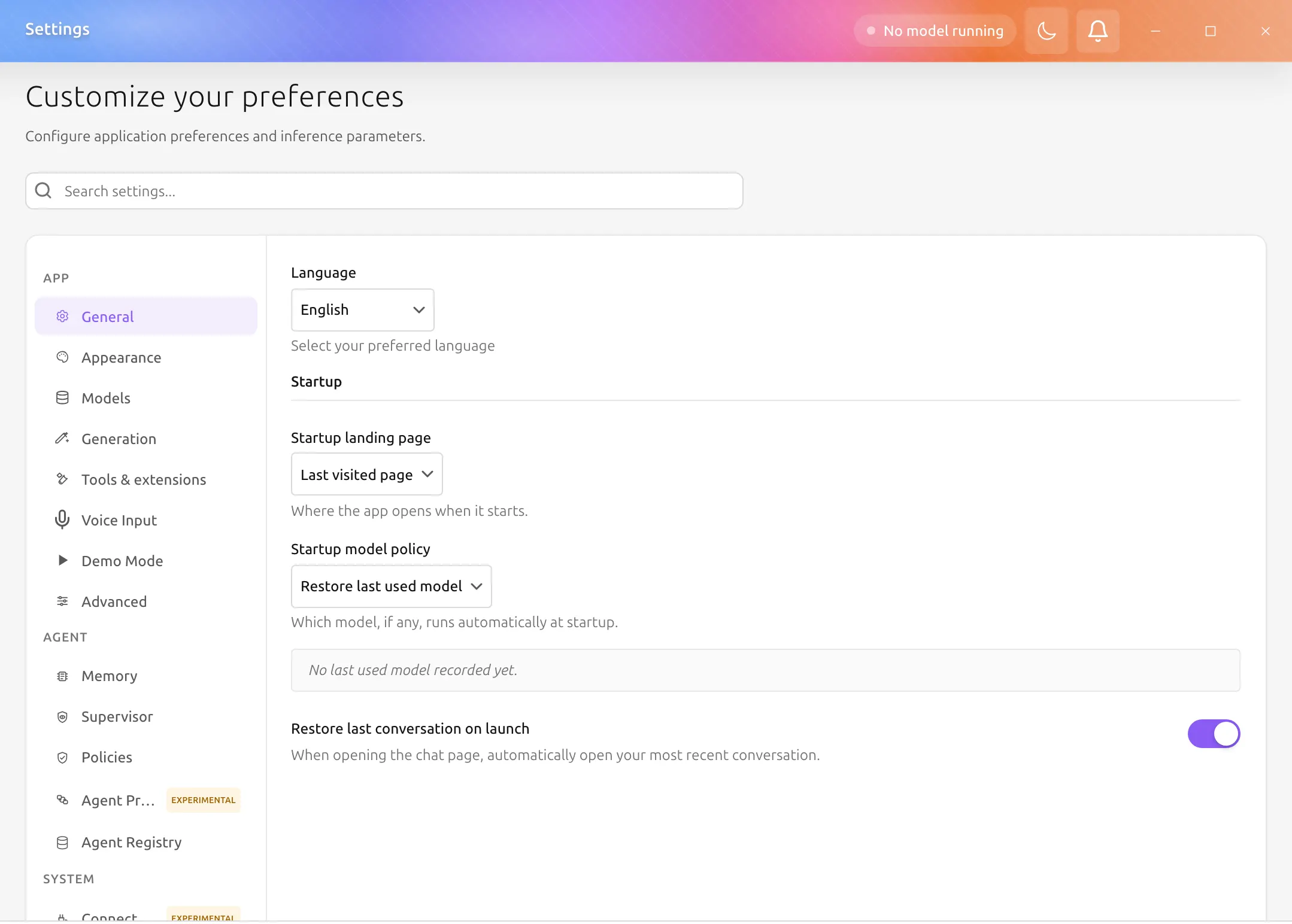
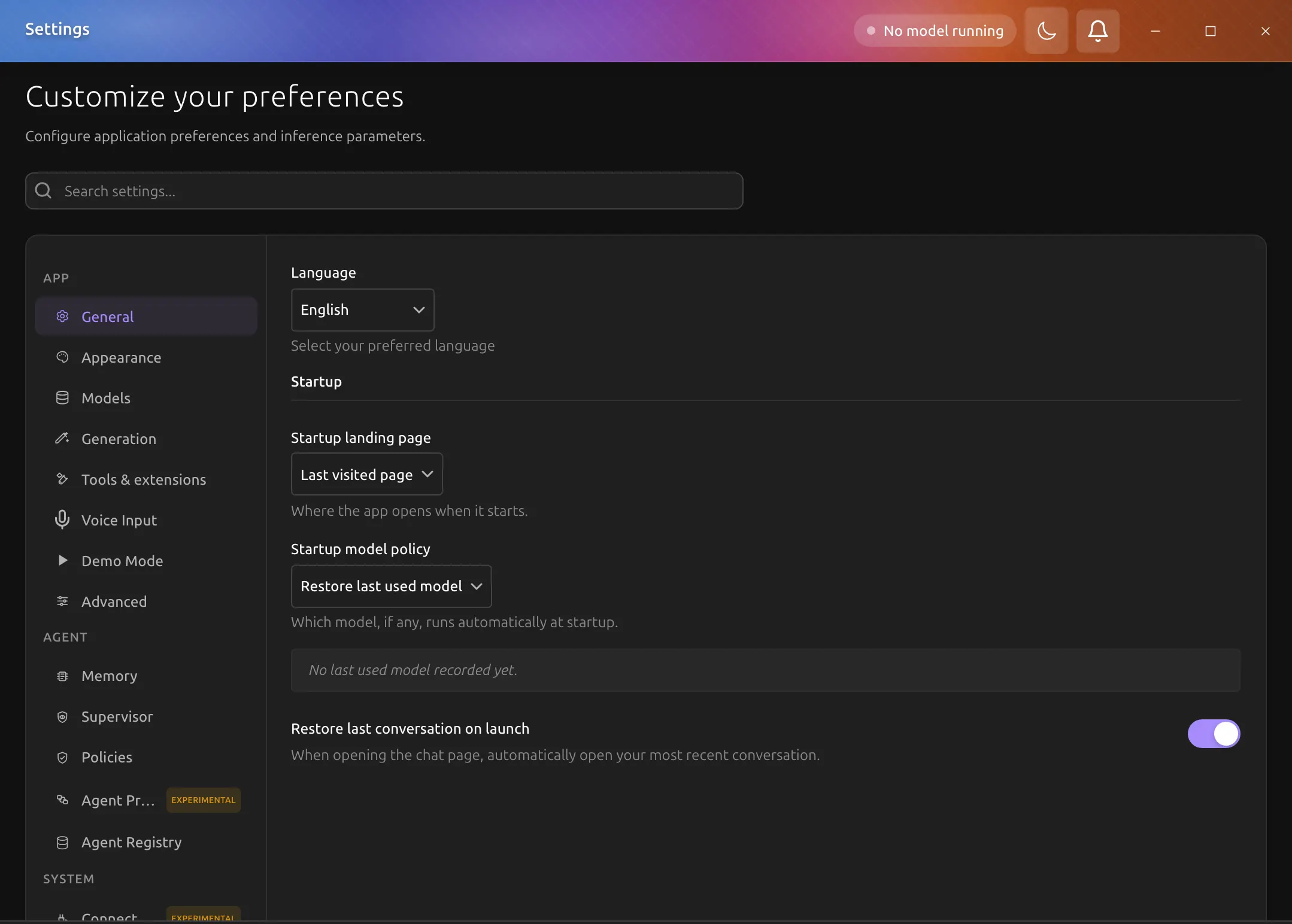
Current settings tabs
| Group | Tab | What it covers |
|---|---|---|
| App | General | app language, timestamp format, startup behavior, and general app preferences |
| App | Appearance | theme and UI presentation |
| App | Models | default models for app surfaces and default engines by format |
| App | Generation | default reasoning effort, generation defaults, container-engine defaults, and MLX engine defaults |
| App | Tools & extensions | tool permissions, MCP, and web search |
| App | Voice Input | microphone and transcription behavior |
| App | Demo Mode | demo-mode behavior |
| App | Advanced | advanced app behaviors such as transport-related options |
| Agent | Memory | memory-related controls |
| Agent | Supervisor | supervisor controls |
| Agent | Policies | policy controls |
| Agent | Agent Protocol | ACP settings |
| Agent | Agent Registry | registry sources for agent profiles and squad templates |
| System | Connectors | connector settings |
| System | Managed endpoints | managed remote endpoints |
| System | Organization | organization-wide settings |
| System | Nodes | node sharing and connected nodes |
| System | Maintenance | maintenance utilities |
Where key controls live now
Models directory
Open Settings > Models.
Default models for app surfaces
Open Settings > Models.
Default engines by format
Open Settings > Models.
Default reasoning effort and generation defaults
Open Settings > Generation.
MLX engine defaults
Open Settings > Generation.
Distributed transport port range
Open Settings > Advanced.
Socket directory
Open Settings > Advanced. Leave Socket directory empty to use the per-user runtime directory described in Local Socket Location. A custom value must be an absolute path inside your home directory, 62 bytes or shorter (so a socket name still fits in the 103-byte limit), and is applied to the router, the model servers, the Management API, and the monitor at the next launch. A longer path is rejected when you save, with the byte count in the message.
Tool permissions, MCP, and web search
Open Settings > Tools & extensions.
This covers Backend.AI GO as an MCP client, connecting to remote MCP servers. To expose Backend.AI GO itself as an MCP server, see MCP Endpoint under API > Management API.
Voice input behavior
Open Settings > Voice Input.
Connector configuration
Open Settings > Connectors.
Maintenance tasks
Open Settings > Maintenance.