Cowork Overview
Cowork is Backend.AI GO's autonomous assistant mode: the agent takes your request, builds an execution plan, calls tools, and coordinates sub-agents to accomplish complex tasks.
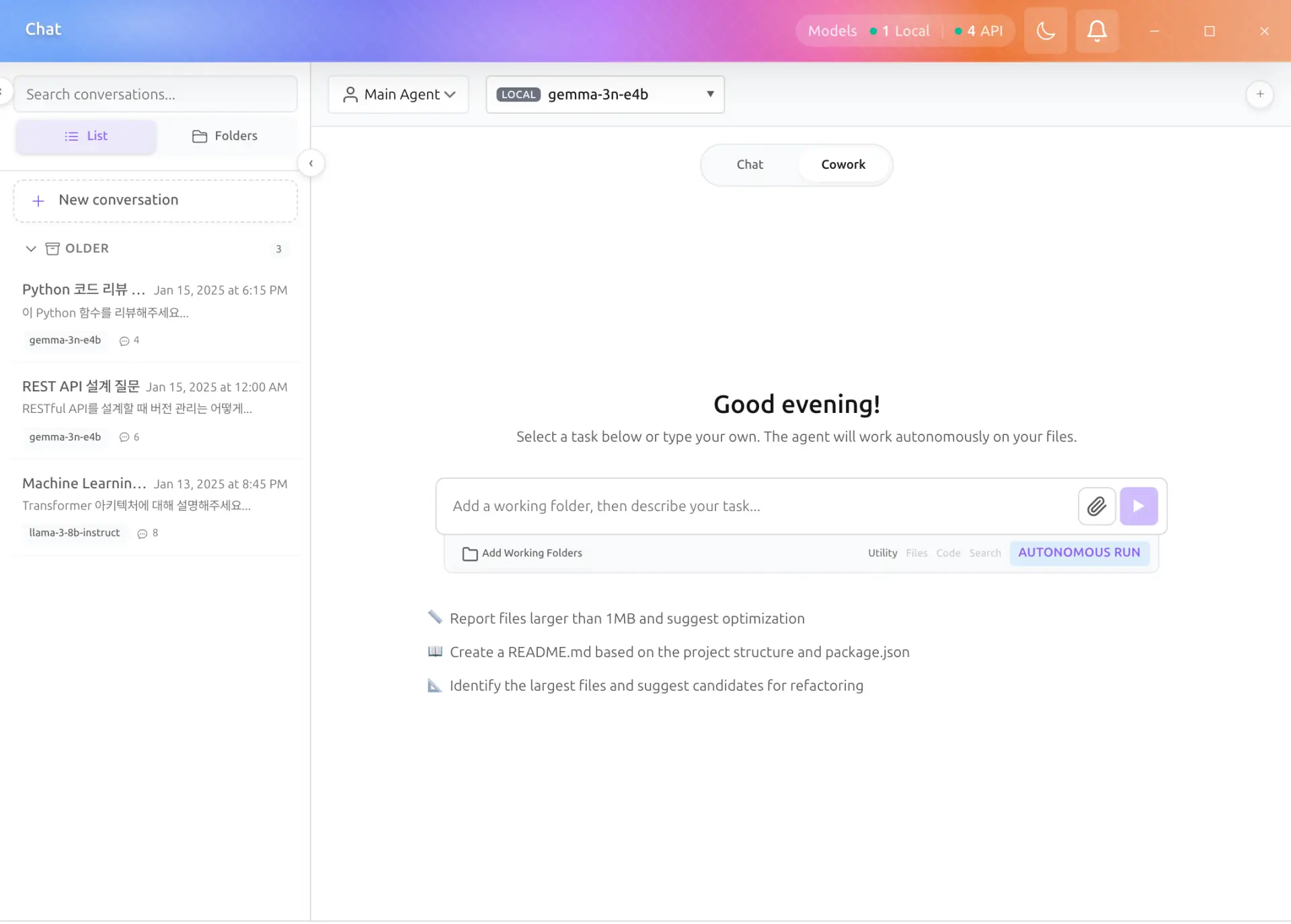
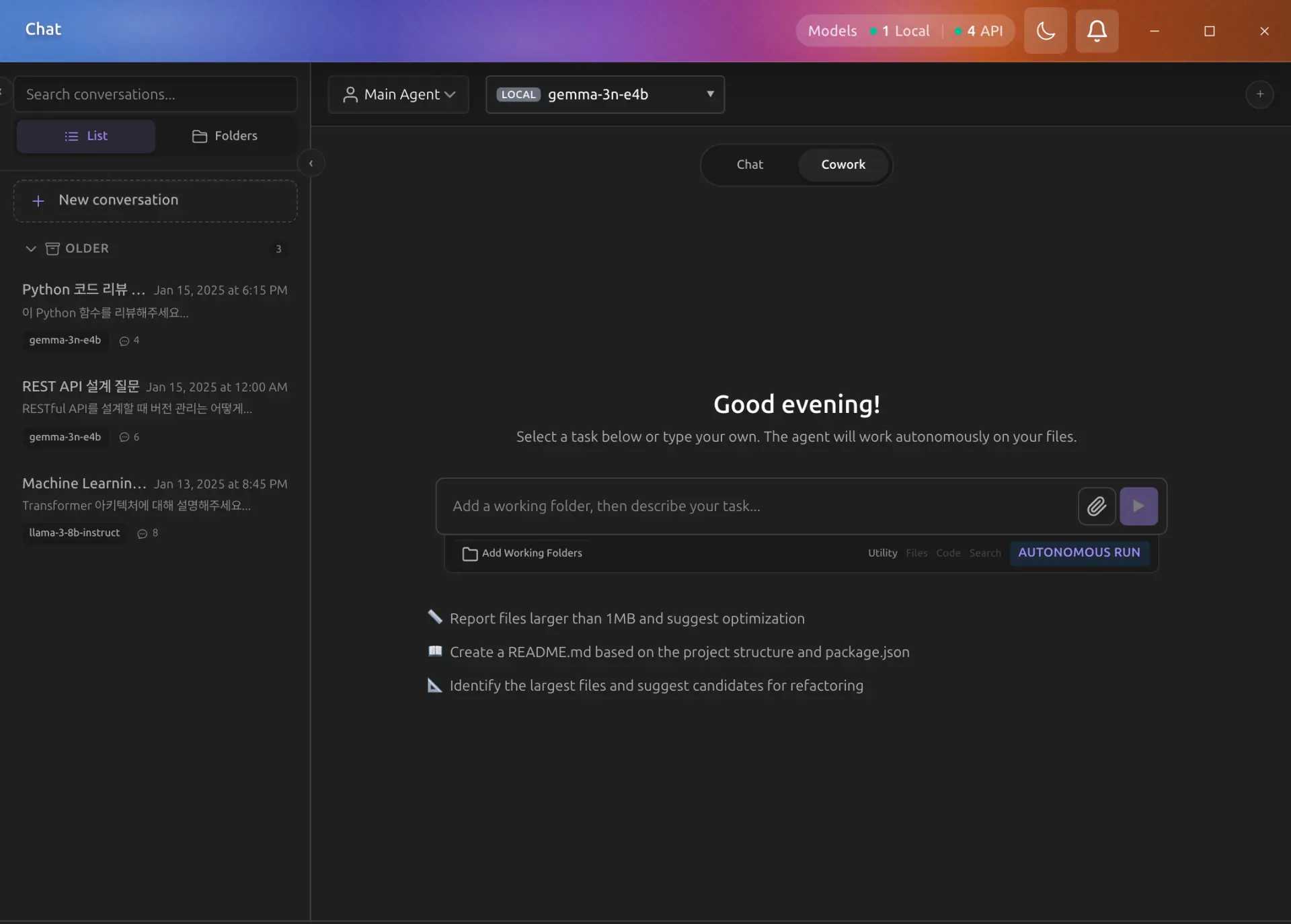
Cowork is a mode of the unified conversation surface, not a separate menu. You start a cowork session from the same launcher and conversation list as chat, by choosing the Cowork mode in the composer or by attaching a working folder to an ongoing chat. The old /cowork route redirects to the conversation surface. See Chat and Cowork modes for how the two modes sit together.
What is Cowork?
Unlike a standard chat where the model just predicts the next text, Cowork follows a ReAct (Reasoning + Acting) pattern:
-
Observe: Analyzes your request and the current environment.
-
Think: Builds an execution plan and emits a tool request when a step needs one.
-
Act: Executes a tool (e.g., searches the web, reads a file).
-
Observe: Looks at the result of the tool and decides whether to continue or provide a final answer.
Key Benefits
-
Up-to-Date Information: Cowork can search the web to find information beyond the model's training data.
-
Practical Actions: Cowork can interact with your local files or run code to verify calculations.
-
Autonomous Reasoning: You give a high-level goal, and Cowork breaks it into sub-steps and runs them in order.
-
Parallel Execution: Sub-agents can work on multiple tasks simultaneously for faster results.
When to Use Cowork
-
Researching: "Find the latest pricing for NVIDIA RTX 50 series GPUs."
-
Data Analysis: "Read the CSV file in my Documents folder and summarize the sales trends."
-
Code Debugging: "Run this Python script and tell me why it's throwing a SyntaxError."
Getting Started with Cowork
-
Open a conversation and switch the composer to Cowork mode, or attach a working folder to an ongoing chat to escalate it to cowork.
-
Select an Agent Profile (e.g., "General Assistant", "Web Researcher") from the profile selector.
-
Choose a model that supports Tool Calling (look for the "Tool Calling" tag in your library).
-
Enter your task in the composer.
-
Watch the agent's reasoning and tool execution in the workspace progress rail.
Folder Permissions
Cowork requires explicit permission to access folders on your system. This ensures the agent only operates within directories you approve.
Permission Levels
| Level | Description |
|---|---|
| Read | The agent can read files in the folder but cannot modify them. |
| Read & Write | The agent can read and write files in the folder. |
| Full | The agent has full access including creating, deleting, and moving files. |
Managing Folder Access
-
In a cowork session, open the workspace rail and go to the Context section (permitted folders and instructions). Attaching a folder to a chat session also grants access and escalates it to cowork.
-
Review the permitted directories listed there.
-
Click Add Folder to open the folder picker and grant access to a new directory.
-
Set the permission level for each folder.
-
To revoke access, click the remove button next to a folder entry.
Principle of Least Privilege
Only grant the minimum permission level needed for your task. Use Read for research tasks and Read & Write or Full only when the agent needs to create or modify files.
Standing Instructions
Standing instructions are persistent directives that guide the agent's behavior across all tasks. They are injected into the system prompt for every interaction.
Global Instructions
Global standing instructions apply to all Cowork sessions regardless of which folder or profile is active.
-
Open the Settings drawer and go to the Global Instructions tab.
-
Enter your global instructions (e.g., "Always respond in formal English", "Prefer Python over JavaScript for code tasks").
Folder-Specific Instructions
You can also set standing instructions that apply only when a specific folder is active:
-
Open the Settings drawer and go to the Permitted Folders tab.
-
Enter folder-specific instructions in the field below each folder (e.g., "This is a React project using TypeScript and Zustand", "Follow the coding conventions in CONTRIBUTING.md").
Folder-specific instructions are combined with global instructions and injected together into the system prompt.
Mid-Task Steering
While a Cowork task is running, you can provide real-time guidance to steer the agent's behavior without stopping and restarting the task.
How to Steer
-
While a task is in progress, type your guidance in the composer, the same input you use to start a turn.
-
Press Enter to send the steering message. Mid-run input is routed as steering rather than starting a new turn.
-
The agent will incorporate your guidance into its next reasoning step.
Steering messages can be up to 10,000 characters and are useful for:
- Correcting the agent's approach ("Focus on the backend files, not the frontend")
- Providing additional context ("The database uses PostgreSQL, not MySQL")
- Adjusting priorities ("Skip the unit tests for now and focus on the main implementation")
Sub-Agent Coordination
For complex tasks, Cowork can spawn sub-agents that work in parallel on different parts of a task.
How Sub-Agents Work
- The main agent analyzes your task and breaks it into sub-tasks when beneficial.
- Each sub-agent runs independently with its own tool access and reasoning chain.
- Results from sub-agents are collected and synthesized by the main agent.
Sub-Agent Execution Mode
You can choose how sub-agents run by opening the Settings drawer and navigating to the Cowork Settings tab.
| Mode | Description |
|---|---|
| In-Process (default) | Sub-agents run inside the main process. Lightweight and fast with no additional setup. |
| Container | Sub-agents run in an isolated Docker container. Provides stronger sandboxing at the cost of requiring a container runtime. |
When Container mode is active, a small badge indicator appears near the task input as a reminder that tasks will run in an isolated container.
To configure container details, switch to Container mode in Cowork Settings, then set:
- Image — the Docker image to use (default:
aigo-agent-runner:latest) - Timeout — the maximum number of minutes a container may run before being forcefully terminated
Configuring Sub-Agents
- Max Concurrent: Set the maximum number of sub-agents that can run simultaneously in Cowork Settings. Higher values allow more parallelism but consume more resources.
Sub-Agent Tracker
The Cowork UI includes a tracker that shows:
- Active sub-agents and their current status
- What each sub-agent is working on
- Progress of individual sub-tasks
- Results as they complete
Execution History
Cowork maintains a complete history of all your past tasks. You can browse, search, and review any previous run.
Browsing Past Runs
-
Open the run history drawer from the workspace rail Progress section to see all past Cowork runs grouped by date (Today, Yesterday, older dates).
-
Use the search field at the top to filter runs by task description.
-
Click the filter toggle to show only runs with a specific status (Completed, Error, Stopped).
-
Click any run to open its Run Details view.
Run Details
When you select a past run, a detailed view shows:
-
Task: The original task description you provided.
-
Metadata Summary: At-a-glance stats including status badge, duration, step count, and total tokens used. Below the summary, the model name, start time, and end time are displayed.
-
Execution Steps: A collapsible list of every step the agent took. Each step shows a type-specific icon and can be expanded to reveal:
- Thinking steps: The agent's reasoning rendered as Markdown.
- Tool Call steps: The tool name and arguments in a structured view.
- Tool Result steps: Success/failure badge with the result rendered as Markdown.
- Final Answer: The complete answer rendered as Markdown, with a Save to Creation button.
Save to Creation
Final answers from Cowork can be saved to your Creations library for later reference:
-
Expand a completed run's Final Answer step.
-
Click the Save to Creation button (bookmark icon) at the bottom of the answer.
-
The answer is saved to Creations and can be accessed from the Creations page in the sidebar.
This feature works the same way as saving chat responses to Creations.
Real-Time Streaming
When the agent is thinking, you can see its reasoning in real time:
-
Thinking steps stream token-by-token as the model generates its response, giving immediate visual feedback.
-
Once the thinking is complete, the step is finalized with the full content and the agent proceeds to execute tools or provide a final answer.
-
Tool call parsing and the agent's decision logic remain unaffected by streaming — it only changes how quickly you see the thinking content.
Understanding the Status Indicator
The Cowork interface displays a prominent status badge that shows the current state:
| Status | Color | Description |
|---|---|---|
| Ready | Green | Cowork is ready to accept a new task. A gentle pulse animation indicates availability. |
| Thinking | Amber | The agent is actively processing your request. The pulse animation indicates ongoing work. |
| Paused | Amber | The agent has been temporarily paused. You can resume or stop the task. |
| Waiting for Approval | Amber | The agent needs your approval before executing a high-risk tool (e.g., writing files). |
| Completed | Green | The task has finished successfully. |
| Stopped | Gray | The task was manually stopped before completion. |
| Error | Red | An error occurred. Check the error message for details and suggested actions. |
Progress Tracking
Below the status badge, a visual progress bar shows:
- Completed steps: Filled portion of the bar
- Current step description: What the agent is currently doing
- Step count: "Step X of Y" format
Model Choice Matters
For best results in Cowork, use models specifically trained for tool calling, such as Qwen3.6 variants.