Launcher Home
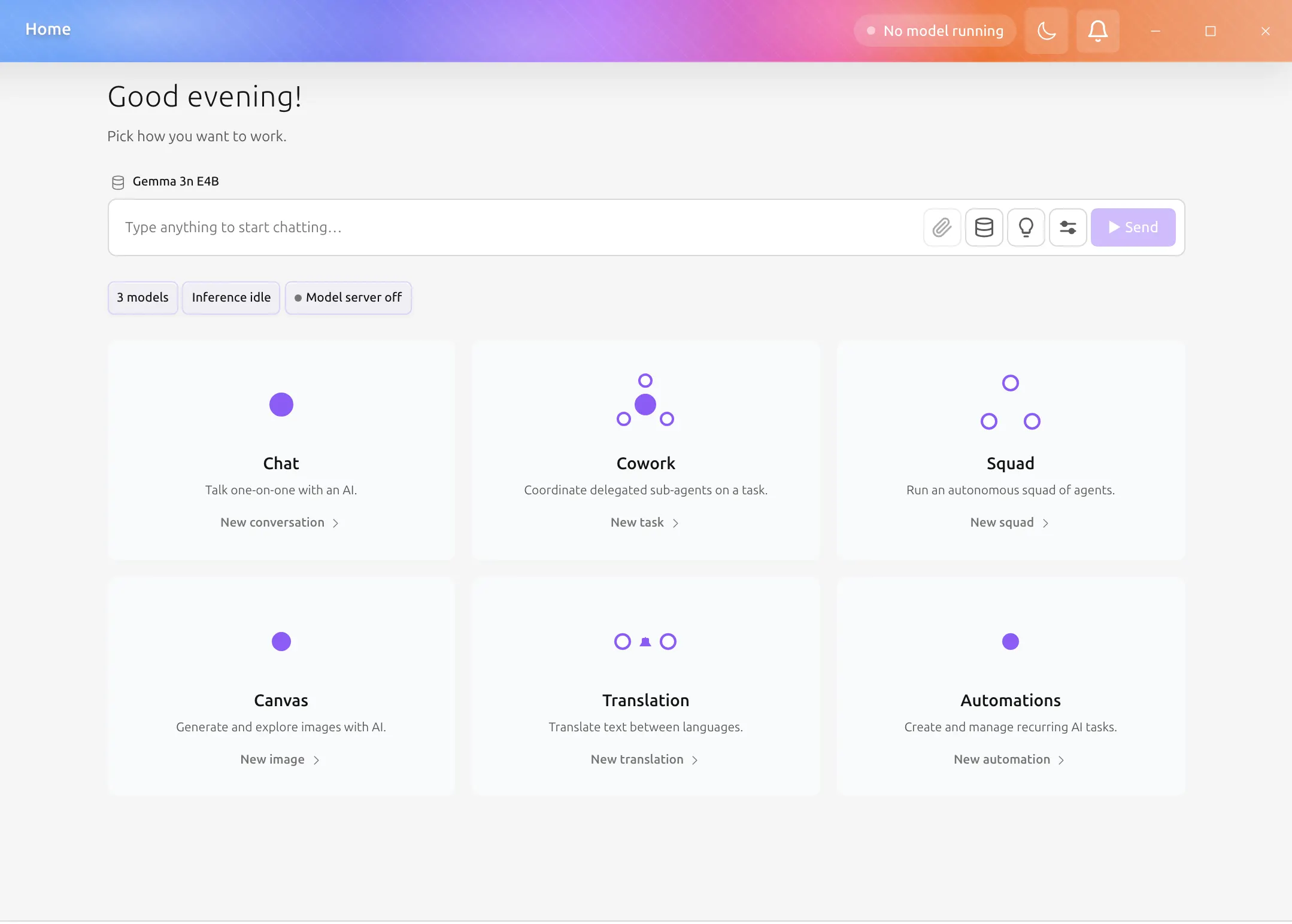
After completing the first-time setup wizard, you land on the Launcher Home (/home). It presents six working modes as large cards, so new users have a clear starting point instead of an empty dashboard.
Overview
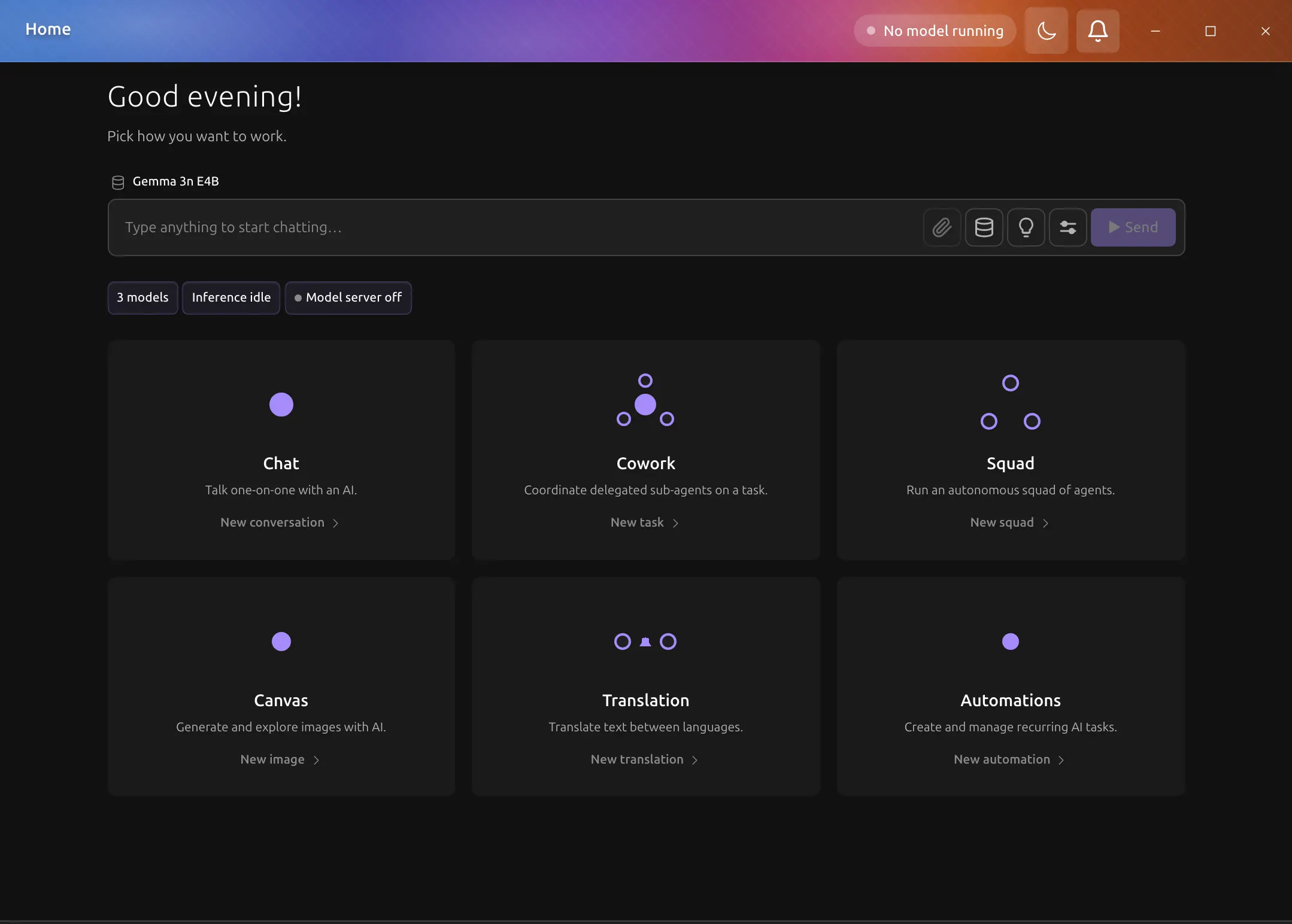
The Launcher Home shows Chat, Cowork, Squad, Draw, Translation, and Automation. Each card carries a topology glyph that distinguishes solo chat, delegated work, teams, creative generation, language exchange, and recurring tasks.
Readiness Strip
A one-line strip sits between the quick-chat input and the mode cards at all times. What it shows depends on whether any model is installed.
When no model is installed, the strip renders a setup call-to-action that links to the Models page. Once at least one model is present, the strip switches to a row of clickable status segments:
- Models — number of locally installed models; click to open the Models page.
- Inference — shows "running" (with the number of active engines) when at least one inference engine is loaded and healthy, or "idle" otherwise; click to open the Sessions page.
- API — shows whether the OpenAI-compatible API server is on or off; click to open the API settings page.
- Downloads — appears only when a model download is in progress, showing a compact progress bar and the primary filename; click to return to the Models page.
Quick Chat
Above the mode cards sits a text input. Type a message and press Enter to open a fresh chat session with that message already sent — the app navigates directly to /chat and delivers the message as soon as the model is ready. The input is disabled until at least one model is installed, so you will see the no-model placeholder text when the readiness strip is showing the setup call-to-action.
Mode Cards
Chat
One-on-one conversation with a single AI model. The primary button starts a new chat session.
Cowork
A delegated working mode where a primary agent coordinates sub-agents to handle tasks in parallel. The primary button opens Chat with Cowork mode selected. Click it when you need an agent to plan, delegate, and synthesize results on your behalf.
Squad
An autonomous multi-agent team. The primary button opens the Squad list.
Draw
AI image generation. The primary button opens the Draw interface.
Translation
Text and document translation. The primary button opens the Translation workspace.
Automation
Scheduled and recurring work. The primary button opens the Schedules page.
Start from a Template
Below the mode cards, a horizontal row of template chips lets you open a squad that is already configured for a specific purpose rather than building one from scratch.
The row has two kinds of chips. Built-in template chips come with the app and work offline; clicking one opens the squad-creation wizard with that template already applied, so you only need to confirm a name and a model. Marketplace chips show templates from the remote registry that you have not installed yet; clicking one opens Agent Extensions > Squad Templates, where you can inspect and install it.
A "Browse more" button at the end of the row always appears when the template section is visible. It takes you to the same Marketplace tab.
The section is hidden when built-in templates fail to load (for example, on a corrupted app bundle), and it is also hidden on first paint before the built-in list arrives, so there is no flash of an empty row.
Continue Strip
If you have existing chat conversations or squads, a "Continue" row appears above the mode cards. It shows up to five chips sorted by most recently updated, mixing conversations and squads. Click any chip to jump straight back into that session without opening the full list first.
Returning to the Launcher Home
The sidebar has a Home icon that brings you back to /home at any time.
To make the Launcher Home your permanent startup screen, open Settings → General → Startup landing page and select Launcher Home. The setting also accepts Last visited page, which means the next launch reopens whatever page you were on; a genuine first run with no history still lands on the Launcher Home automatically.