Multi-Node Overview
Backend.AI GO is designed to work as a node in a larger computational mesh. This architecture allows you to scale beyond the limits of your local hardware by connecting to other Backend.AI GO instances, Continuum Routers, or enterprise-grade Backend.AI Clusters.
Why Multi-Node?
Local inference is great for privacy and low latency, but it is constrained by your hardware (VRAM, compute power). Multi-node capabilities allow you to:
- Access Larger Models: Run models that don't fit in your local GPU by offloading them to a server or cluster.
- Scale Throughput: Distribute inference requests across multiple nodes to handle higher concurrency.
- Centralized Management: Use Backend.AI GO as a client to manage and utilize resources from a central server.
Node Types
In the Backend.AI GO ecosystem, there are three primary types of connections:
- Local Node: Your current machine running Backend.AI GO. It runs its own Continuum Router and manages local models.
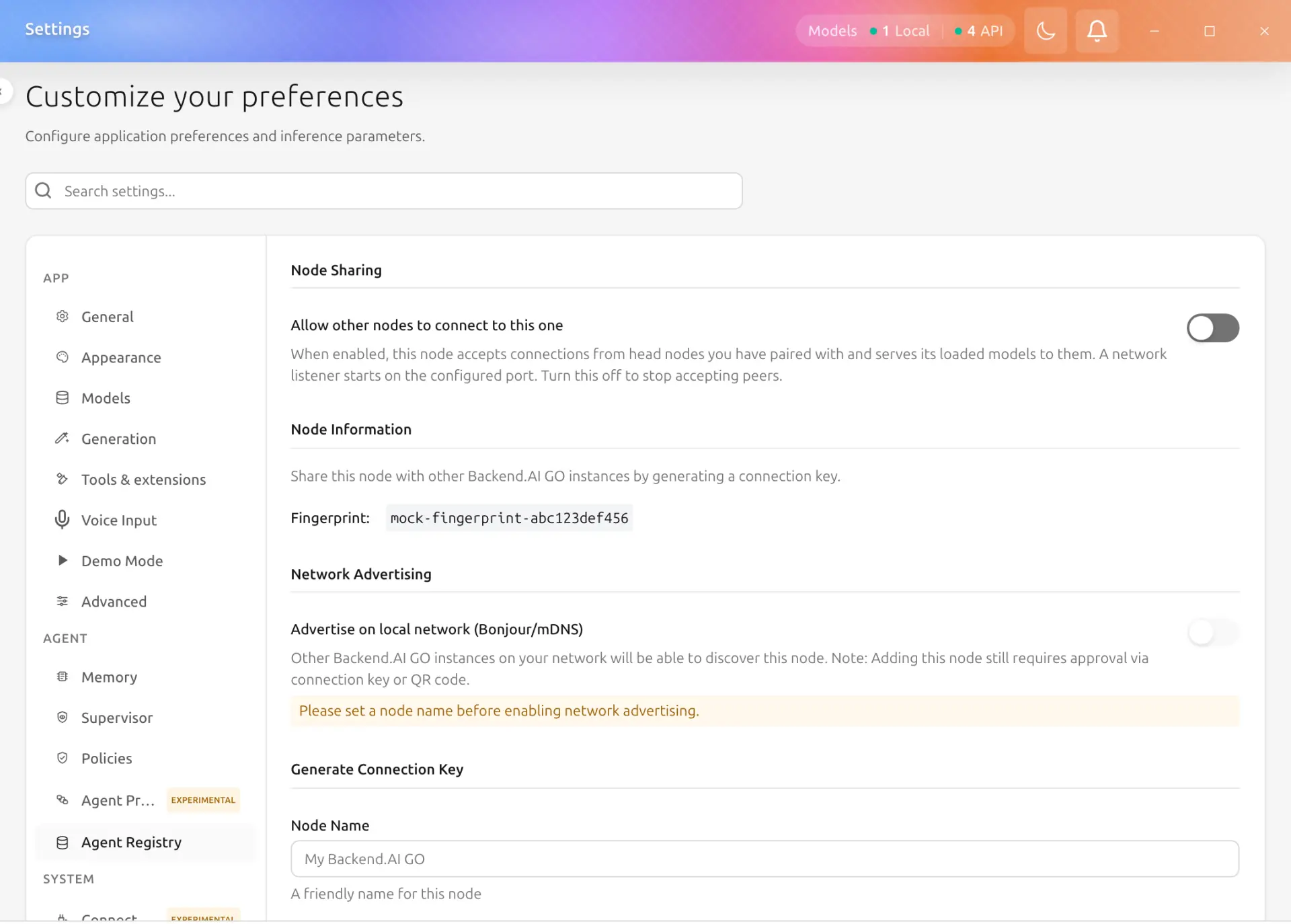
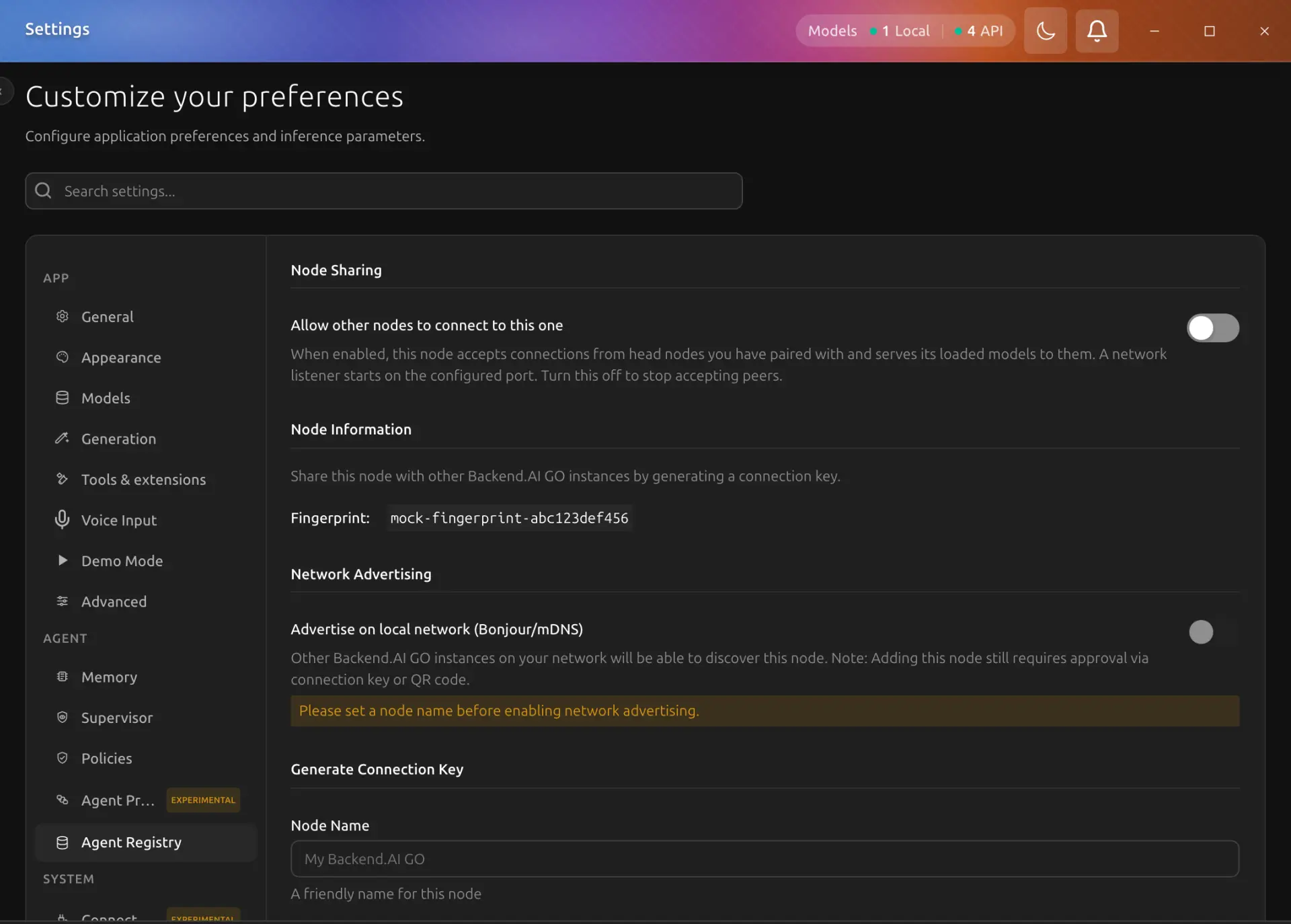
- Peer Node (Backend.AI GO): Another computer running Backend.AI GO. You can connect to it directly to use its running models; peers are registered in Settings > Nodes > Connect other computers (see Manual Registration and Auto Discovery).
- Backend.AI Cluster: An enterprise-grade cluster managed by Backend.AI Core. This provides massive scalability, user management, and security features.
How It Works
Backend.AI GO uses a Mesh Networking approach.
- The Continuum Router: At the heart of every node is the Continuum Router. It acts as an API gateway that routes your prompts to the appropriate backend (local process, network node, or cloud API).
- Unified API: Whether the model is running locally on your laptop or on an H100 cluster in a data center, Backend.AI GO treats it the same way. You select the model from the dropdown, and the system sends the request to the node hosting it.
- Security: Connections to Clusters are secured using HMAC-SHA256 authentication (Access Key & Secret Key).
Shared Models
A computer that shares its models keeps serving them to the computers connected to it, and two switches under Settings > Nodes > Share this computer > Shared models decide what happens when a model one of them uses is not loaded. Both are on by default.
| Setting | What it does |
|---|---|
| Keep models shared to the mesh loaded | While sharing is on and a computer is connected, the Supervisor does not unload a model because it is idle or because memory is low. |
| Load a shared model when another computer asks for it | A connected computer can ask for any model this computer has downloaded. If the model is not loaded, this computer loads it and then answers. The model stays in the connected computer's model list while it is unloaded. |
A model can still stop for other reasons: you unload it, the model pool is full and a newer load takes its place, or its process exits. With the second switch on, the next request loads it again. The request waits up to 100 seconds for the load; if the load takes longer, the request fails with a message that the model is still loading, and the next request finds it loaded.
When a model cannot be served, the computer that asked is told why. The message names the model and the computer that shares it, and says whether the load failed (with the reason), is still running, or was not tried because loading on request is off on that computer.
The idle time the Supervisor reads counts from the model's last request, so a model in use is not idle.
Real-Time Network Visualization
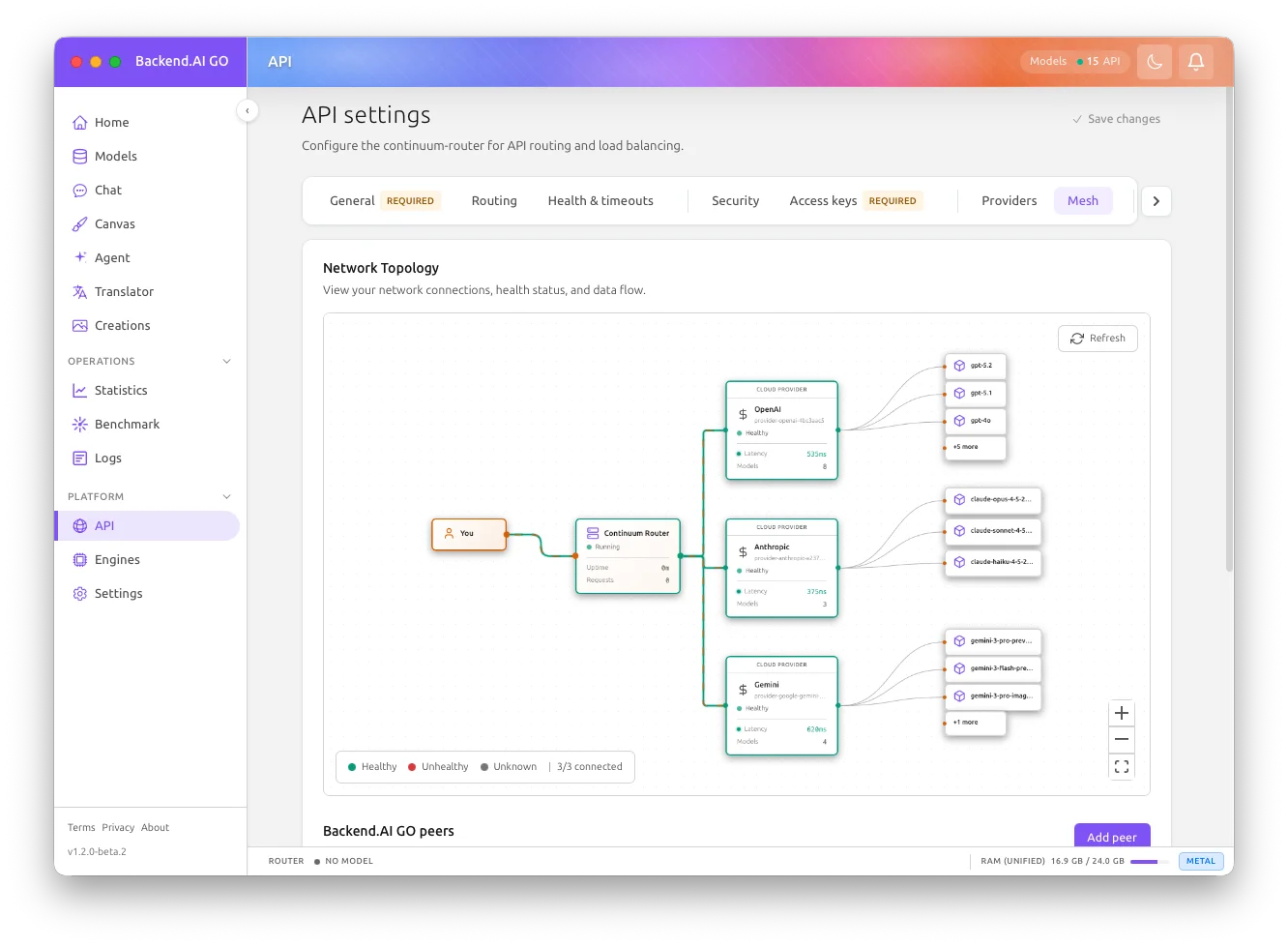
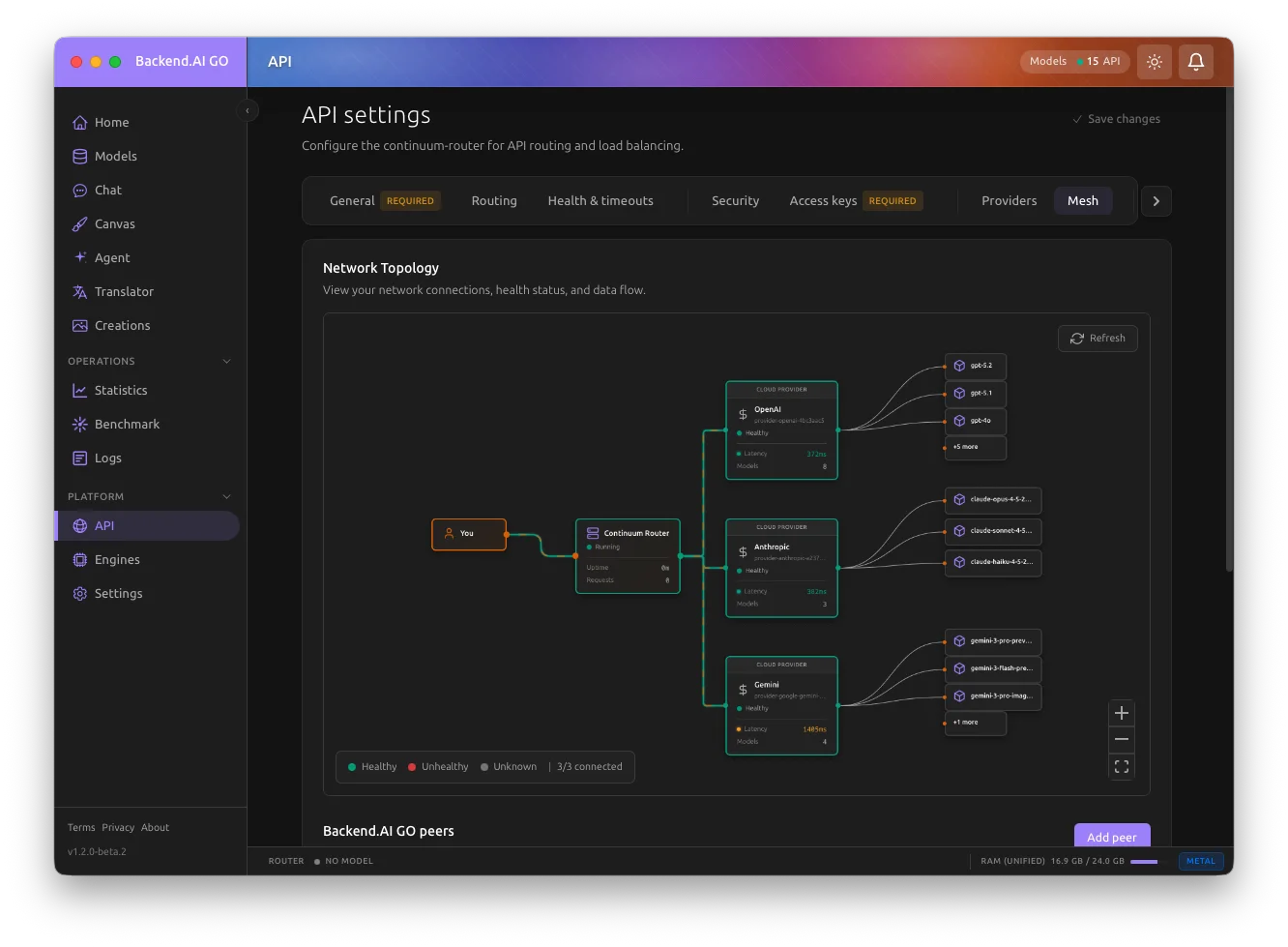
The Mesh tab provides an interactive, real-time visualization of your entire network topology. This visualization helps you understand how your Backend.AI GO instance connects to various backends and monitor their health status at a glance.
What You Can See
The network visualization displays a hierarchical, left-to-right flow diagram showing:
- User Node: Represents you (the entry point for all requests)
- Router Node: Your local Continuum Router acting as the API gateway
- Shows running status and uptime
- Displays request statistics (total, successful, failed)
- Backend Nodes: All connected backends including:
- Backend.AI GO peers
- Continuum Routers
- Backend.AI Clusters
- Cloud providers (OpenAI, Anthropic, Gemini, etc.)
- Local backends (llama.cpp, MLX, vLLM, Ollama)
- Model Nodes: Available models from each backend
Live Connection Status
The visualization updates automatically every 5 seconds, showing:
| Visual Indicator | Meaning |
|---|---|
| Green connections | Healthy, active connections |
| Red connections | Unhealthy or failed connections |
| Gray connections | Disabled or inactive connections |
| Animated particles | Data flowing between nodes |
| Latency labels | Response time in milliseconds |
Animated Data Flow
The animated edge visualization shows live traffic on each connection:
- Flowing particles show the direction of data travel
- Green particles indicate healthy request/response flow
- Red particles indicate problems in the connection
- Glow effects highlight active connections
This makes it easy to see at a glance which connections are actively processing requests and which might need attention.
Interactive Controls
- Pan and Zoom: Navigate large network topologies using scroll wheel or the control buttons
- Node Selection: Click any node to select it and view detailed information
- Details Panel: A side panel appears showing the node's details
- Path Highlighting: Selected nodes highlight all connected edges with a glow effect
- Hover tooltips: Get quick information about any node
- Refresh button: Manually trigger health checks for all connections
- Legend: Quick reference for node and connection types
- Keyboard Support: Press ESC to close the details panel
Node Details Panel
When you click on a node, a details panel slides in from the right side showing information specific to that node type:
- User Node: Shows connection count to downstream nodes
- Router Node: Displays status, uptime, and request statistics (total, successful, failed)
- Backend Node: Shows type, URL, health status, enabled state, latency, and model count; errors are displayed if the connection is unhealthy
- Model Node: Displays model ID and which backend it belongs to
The panel includes:
- Close button or press ESC to dismiss
- Connected path count showing how many edges link to the selected node
- Automatic focus management for accessibility
Connection Health Monitoring
Each backend node displays:
- Health status badge: Healthy, unhealthy, or unknown
- Latency metrics: Real-time response time
- Model count: Number of available models
- Connection type icon: Visual indicator of backend type
You can also perform manual health checks on individual connections or check all connections at once.
Getting Started
To expand your compute capabilities, you can:
- Manually Register a network node or cluster.
- Use Auto-Discovery to find resources (services) available on connected nodes.