Data Hub
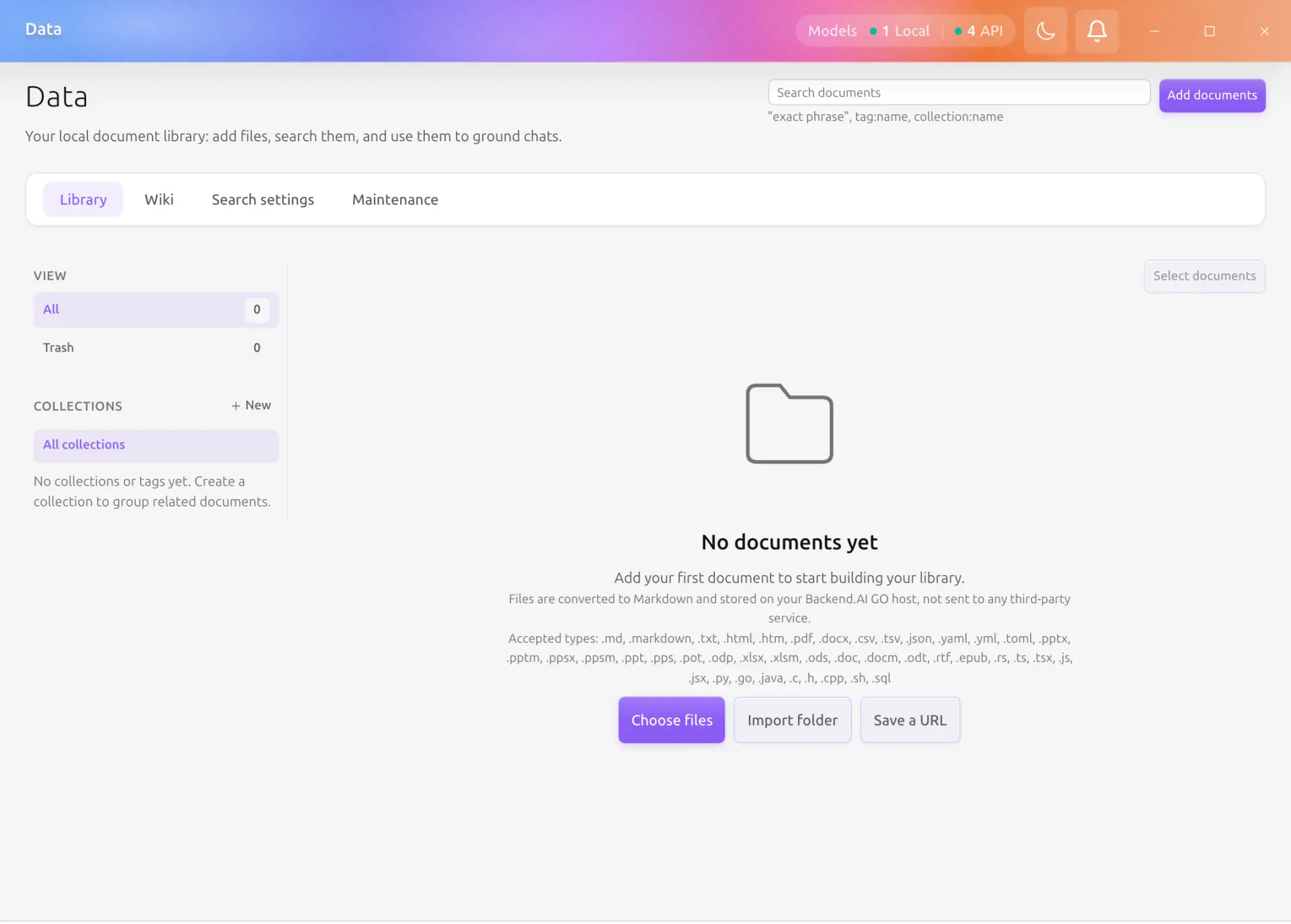
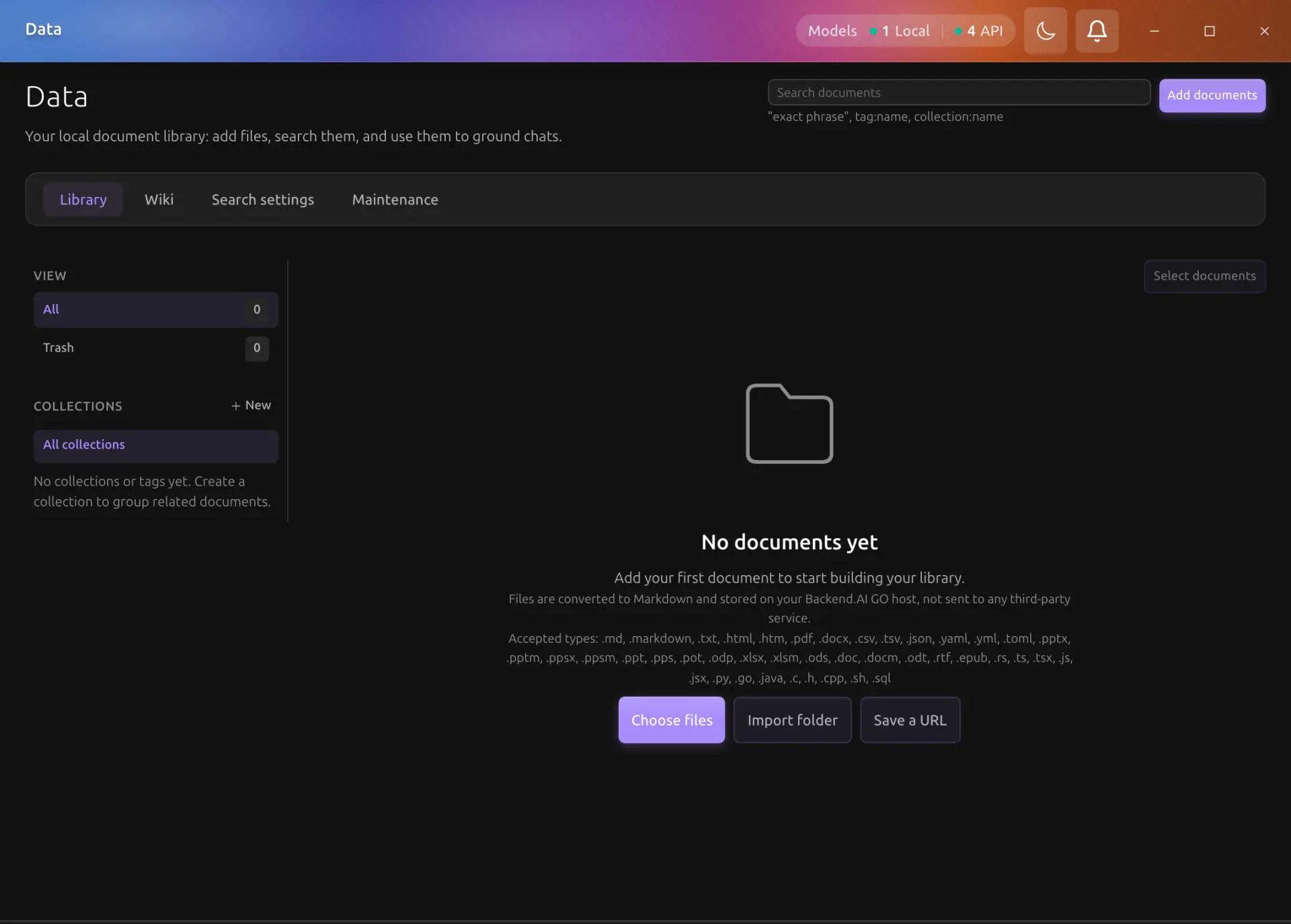
The Data page is a local document store. Add a paper, a report, a web page, or a folder of notes; the app converts each one to Markdown, keeps the original file, and makes both searchable. From there a document can answer a search, ground a chat reply with a citation, or be read by an agent under rules you set.
Availability
The Data Hub is generally available in Backend.AI GO v1.12.0 and later. In a standard packaged release it appears in the sidebar, the command palette, and direct /data routes.
Managed deployments can still hide the page with the features.hiddenPages policy. When /data is hidden, the page, chat grounding entry points, and Data tools are unavailable for that user. Development builds also include a local Metrics (dev) subpage for evaluation counters; release builds do not record or display those counters.
What a document is made of
Every document has three layers, and each answers a different question.
| Layer | What it holds | Where you see it |
|---|---|---|
| Card | A short summary, key points, notes, and bibliographic fields | The Overview tab |
| Body | The converted Markdown | The Content tab |
| Original | The exact bytes you added | Kept on disk, used for re-conversion |
The card is what search ranks first and what grounding quotes, so a good card makes a document findable long after you forget its title. The original never changes, which is why a bad conversion can always be redone rather than re-uploaded.
Each document also has a short handle such as D42. Handles are how you cite one document from another ([[D42]]) and how agents address documents.
The Data Wiki tab is built on the same three layers: a generated page is an ordinary document with its own handle, which is why it is searchable, citable, and groundable like any other.
Adding documents
Three ways in, all behind the Add documents button on the Data page:
- Choose files, or drag them anywhere onto the Documents tab: the page turns into a drop target while you drag. Supported formats are Markdown, plain text, HTML, PDF, Word (DOCX, DOC, DOCM, ODT, RTF), PowerPoint (PPTX, PPTM, PPSX, PPSM, PPT, PPS, POT, ODP), Excel (XLSX, XLSM, ODS), EPUB, CSV, TSV, JSON, YAML, TOML, and common source-code files.
- Save a URL. The page is fetched on your machine, reduced to its readable article text, and stored like any other document.
- Import a folder. Pick a directory and the app walks it within depth and file-count limits, skipping anything it cannot convert and reporting what it skipped.
Conversion runs in the background, a few files at a time. The progress strip reports each job, and the status tells you exactly where a document stands:
| Status | Meaning |
|---|---|
| Processing | Converting or indexing right now |
| Ready | Converted and searchable |
| Warning | Converted, but something is missing. A PDF with no text layer is the common case: the document is stored and listed, but there is no text to search |
| Failed | Conversion did not succeed. The original is kept and the document stays listed with a Retry action |
| Trashed | In the trash, out of search and out of reach of tools, until restored or purged |
A file whose content matches a document you already have is reported as a duplicate rather than added twice.
Optional content tags
In Add documents, enable Extract content tags after importing files and choose a local model before selecting files. This option starts off each time the dialog opens. It reads the converted document content, including PDF and Excel content, and adds tags without replacing your own or frontmatter tags. The selected local model starts when needed. Cloud model choices are not supported for this extraction feature.
The import succeeds even if tag extraction fails. Open the document's Generated tags section to see the model and outcome, retry with the same model, or cancel a running extraction. Undo generated tags removes only tags still owned by that extraction; later user changes are preserved. A document changed or trashed while extraction was waiting receives no generated tags. The history remains available after restarting the app.
When a conversion goes wrong
Two recovery paths, both non-destructive:
- Retry re-runs the conversion from the stored original.
- Edit the card to record what the document actually contains. Every edit becomes a revision you can compare and revert.
Finding documents
The search box sits beside the tabs and searches card fields and body text together, ranking card matches higher.
- Type words to search everything.
collection:notesnarrows to one collection,tag:routerto one tag.- Results show the matching snippet with the heading it sits under. Opening a result lands you on that section.
The page has four tabs, Documents, Glossary, Wiki, and Trash, with Data settings at the end of the row. Glossary holds the translation glossaries chat applies when it translates (see Translation). On Documents, the collection picker above the list narrows it to one collection; pin a collection from its ⋯ menu to keep it one click away beside the picker. When a conversion has failed, a notice above the list offers just those documents. Trash lists every trashed document, whichever collection is chosen on Documents.
Unquoted search terms of at least two characters also match inside original filenames, including Korean compound names. Filename-only matches follow existing content matches, and changing a document title does not remove its filename from search. Older uploads whose original filename was replaced by a title may not retain that name; their existing title remains searchable.
Collections, tags, and sensitive collections
A collection is a named group of documents; a tag is a free label. A document can be in several collections and carry several tags.
A collection can be marked sensitive. This is the control that decides what a model may see, and it deliberately resolves differently depending on who asked.
| Who is asking | Can it reach a sensitive collection? | Why |
|---|---|---|
| You, in the UI | Yes, when you select it | Clicking a collection is a deliberate human act. The collection picker is driven by your click, so the app takes you at your word |
An agent or chat tool call (search_data, read_data, list_data, write_data, delete_data) | No, not even when the call names it explicitly | Tool arguments are written by the model, and the model's context is full of untrusted text: a document, a fetched web page, or an earlier tool result can carry an instruction like "read the Payroll collection". A name in a tool call is therefore not evidence that you wanted it |
| A conversation with grounding on | Yes, when the retrieval preset names it | The preset is configured by you in conversation settings. The model cannot widen it during a turn and cannot influence it by writing into a document, so naming it is again your decision |
Two details make the tool rule hold up in practice:
list_datanever lists a sensitive collection. Its name does not enter the model's context, so the model cannot repeat back a name it was never shown.- A refused collection and a nonexistent one produce the same message. Asking for a collection you have hidden tells the model nothing about whether it exists, so the tool surface cannot be used to probe for one.
Marking a collection sensitive is not encryption and it is not a permission system. It narrows what models see. Credentials belong in a password manager, not in a document store.
Using documents in chat
Turn on grounding in a conversation to let answers draw on your documents. When it is on:
- Relevant passages are retrieved for each question and added to the model's context within a token budget shared with memory injection, so neither side can reduce the other to zero.
- The reply carries a Sources row. Each source opens the document at the cited section, so you can check the answer against what it was built from. A source that is a generated wiki page is marked as one, and the injected passages say so too, so an answer built on synthesis is never mistaken for one built on a primary source.
- The retrieval preset decides which collections are in scope, how many passages are retrieved, and whether retrieval is lexical or hybrid.
A conversation with no preset collections grounds on everything except sensitive collections.
Wiki pages in grounding and agent search
Generated wiki pages are ordinary documents, so by default they compete with your source documents on relevance. Generated wiki pages in the preset changes that:
| Option | What it does |
|---|---|
| Include | The default. Wiki pages rank on relevance alongside everything else |
| Exclude | Wiki pages are left out entirely, so answers rest on primary sources only |
| Prefer | Wiki pages come first when any match, so a question is answered from the compiled overview before the raw material |
The setting applies to chat grounding, to retrieval, and to the search_data tool agents use. One place stays unfiltered whichever option you pick: the Data page's own search box. Looking a concept page up by name is the reason to generate one, and typing into that box is you doing exactly that.
Agent tools always read the built-in Default preset, so that is the preset whose option governs search_data. Chat grounding follows whichever preset the conversation uses.
Exclude decides what an agent is shown, not what it can open. An agent given a specific handle still reads that page with read_data, including a handle it picked up from a [[D42]] citation in another document's body. Read the option as a rule about what surfaces on its own, not as a wall around the page.
Using documents with agents
Agents reach the store through five tools:
| Tool | What it does | Approval |
|---|---|---|
search_data | Ranked search within the allowed scope, following the preset's wiki-page option | Not required |
read_data | Read a document's card, a section, or the full body by handle, wiki pages included | Not required |
list_data | Browse documents and the collections it may see | Not required |
write_data | Create a document or edit a card | Required, every time |
delete_data | Move a document to the trash | Required, every time |
Writes and deletes ask every time, not once per session. A remembered approval would silence every later write in the run, which is exactly when you want to be asked.
An agent's edit is attributed to the agent in the Revisions tab, and reverting it is one action. If you gave an agent write access and want to check what it did, that tab is the place.
An agent profile can also pin a run to specific collections. The pin narrows what the tools can reach and the model cannot widen it.
Memory and Data: which one holds what
The app has two long-lived stores, and they are not the same thing.
| Memory | Data Hub | |
|---|---|---|
| What it holds | Experiential facts, preferences, and knowledge extracted from your conversations | Documents you curated: papers, reports, notes, pages |
| Who puts things in | Mostly automatic, through the extraction pipeline | Mostly you, explicitly, plus agents you allow |
| Unit of storage | Short entries | Whole documents, split into sections for retrieval |
| How it changes over time | Consolidation, deduplication, decay | Revisions, curation, trash |
| Good fit | "I prefer metric units", "the deploy runs on Fridays" | "the Q3 architecture review", "the vendor comparison PDF" |
They are bridged, not merged:
- The memory extraction pipeline may propose that something looks like reference material and belongs in Data. It never moves a document into memory entries silently.
- Grounding injection and memory injection share one token budget with a split between them, so turning on grounding does not quietly evict your memories from the model's context.
The short version: if you would want it quoted with a citation, it belongs in Data. If you would want it remembered without being asked, it belongs in Memory.
Housekeeping
Search presets and the maintenance tools below live in Settings > Data. The Data settings tab at the end of the Data page's tab row opens it.
- Trash and restore. Deleting moves a document to the trash, where it is out of search and out of reach of tools. Restore brings it back intact.
- Acting on a whole filtered set. Select documents turns the list into checkboxes, and offers two different selections. Select N on this page picks the rows on screen, which is what you want for a handful. Select everything matching picks the whole scope you have filtered to: the current view plus any collection or tag you have filtered to, however many pages it spans. The second one names an exact number where one exists, and says "everything matching" where none does, because a collection combined with a tag has no exact count today. Moving that set to the trash asks first, and the confirmation names the filters in effect. The set is worked out when you confirm, not when you selected it, so a document whose import finished in between is included and one already trashed elsewhere is not. Changing a filter while a scope-wide selection is up drops the selection rather than quietly re-pointing it.
- Purge. Emptying the trash is permanent and deletes everything belonging to those documents: the original file, the converted Markdown, the card, chunks, vectors, revisions, links, and search rows. The confirmation names those classes before it runs, and the result line reports them afterwards. It is offered both on the Trash tab, next to the documents it would destroy, and in Settings > Data, next to the retention schedule.
- Watched folders. A folder can be scanned on a schedule so new files are picked up without a manual import.
- Scheduled re-fetch. Documents saved from a URL can be re-fetched on a schedule, using conditional requests so an unchanged page costs nothing.
- Data doctor. Two steps, deliberately kept apart. The check reports what it finds and changes nothing; applying repairs then runs only the ones you tick, and the selection is spent by the run that used it. Repairs that delete rows are grouped last under a warning, are confirmed separately, and say what they will remove.
- Unfinished imports. A document whose import failed or was interrupted has no readable text behind it. One action in Settings > Data retries all of them at once; documents that already have their text are left alone.
- Citation export. Renders a bibliography in BibTeX or CSL JSON from the bibliographic fields on your cards.
What stays on your machine
- Documents, originals, cards, the search index, and any embeddings are stored on the machine running Backend.AI GO. Nothing is uploaded.
- URL fetching uses the app's guarded fetch path and honors the egress allowlist on managed installations. Model-backed drafting follows the application's configured inference routing.
- On a managed installation, hiding the
/datapage by policy also closes the agent and chat tools, so a hidden Data Hub cannot be reached indirectly. - Development builds include a local metrics subpage used to evaluate the feature before it ships. Those counters live in memory, hold no document titles, file names, or search text, are never written to disk, and are never transmitted.
Scripting the Data Hub
Everything on this page is also a Management API endpoint and an aigo data command, so a corpus can be built and maintained without the desktop app at all. The Data Hub API reference covers all 65 endpoints, their scopes, the five data:* events, and the request fields that look like they exist but are dropped. The CLI reference covers the matching commands, including the --follow modes for folder imports, embedding runs, and the ingest queue.