Memory page
The standalone Memory page is the main workspace for reviewing and maintaining persistent memory. Open Memory from the sidebar. The page has three tabs: Overview, Library, and Maintenance.
Memory banks are also called namespaces in API responses and diagnostic output. The app uses memory bank in user-facing controls.
Overview
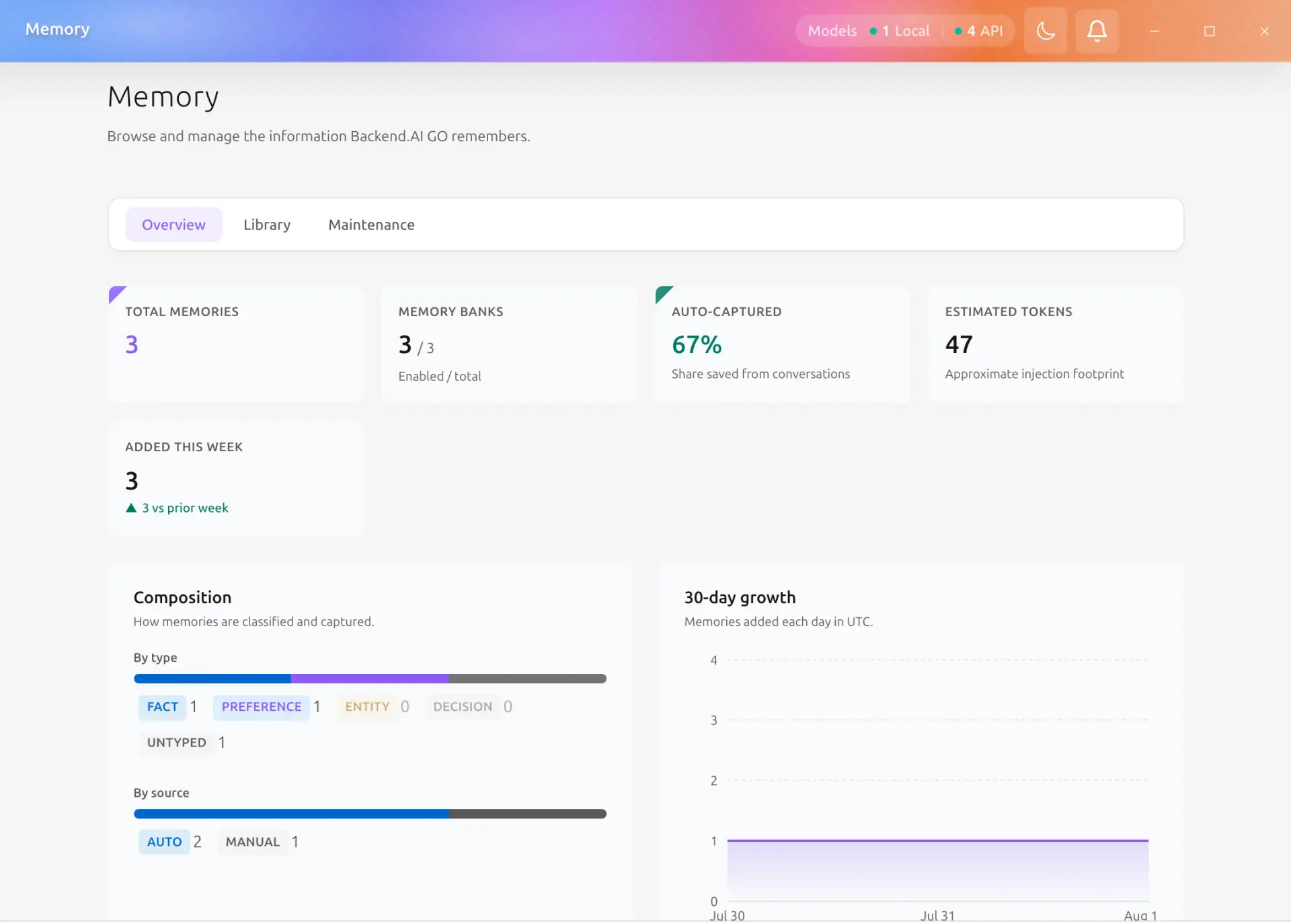
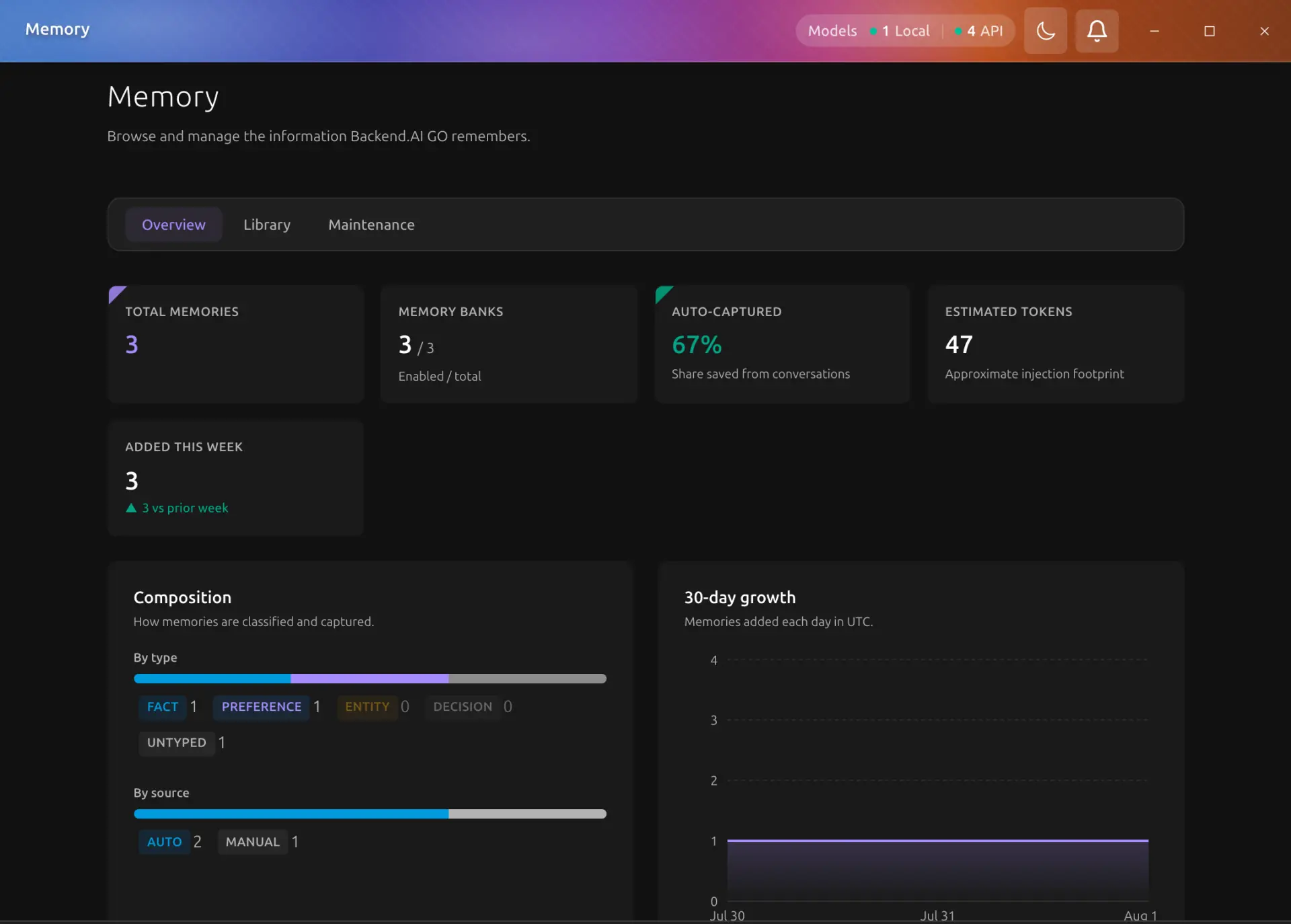
The Overview tab summarizes the memory corpus without loading every entry into the Library.
- Statistics show the total memories, enabled and total memory banks, auto-captured share, estimated injection tokens, and memories added this week.
- Composition groups memories by kind and source. Select a segment or legend item to open the Library with that filter.
- 30-day growth shows daily additions in UTC. Chart animation is disabled when reduced motion is enabled in the operating system.
- Maintenance status shows whether scheduled consolidation is enabled, due, or up to date.
- Injection preview shows the context that enabled memory banks would add to a conversation.
- Recent activity opens the Library at the selected memory bank.
Each statistic and chart has an accessible name. Use Tab to move through actions and the standard arrow keys to move between the page tabs.
Library
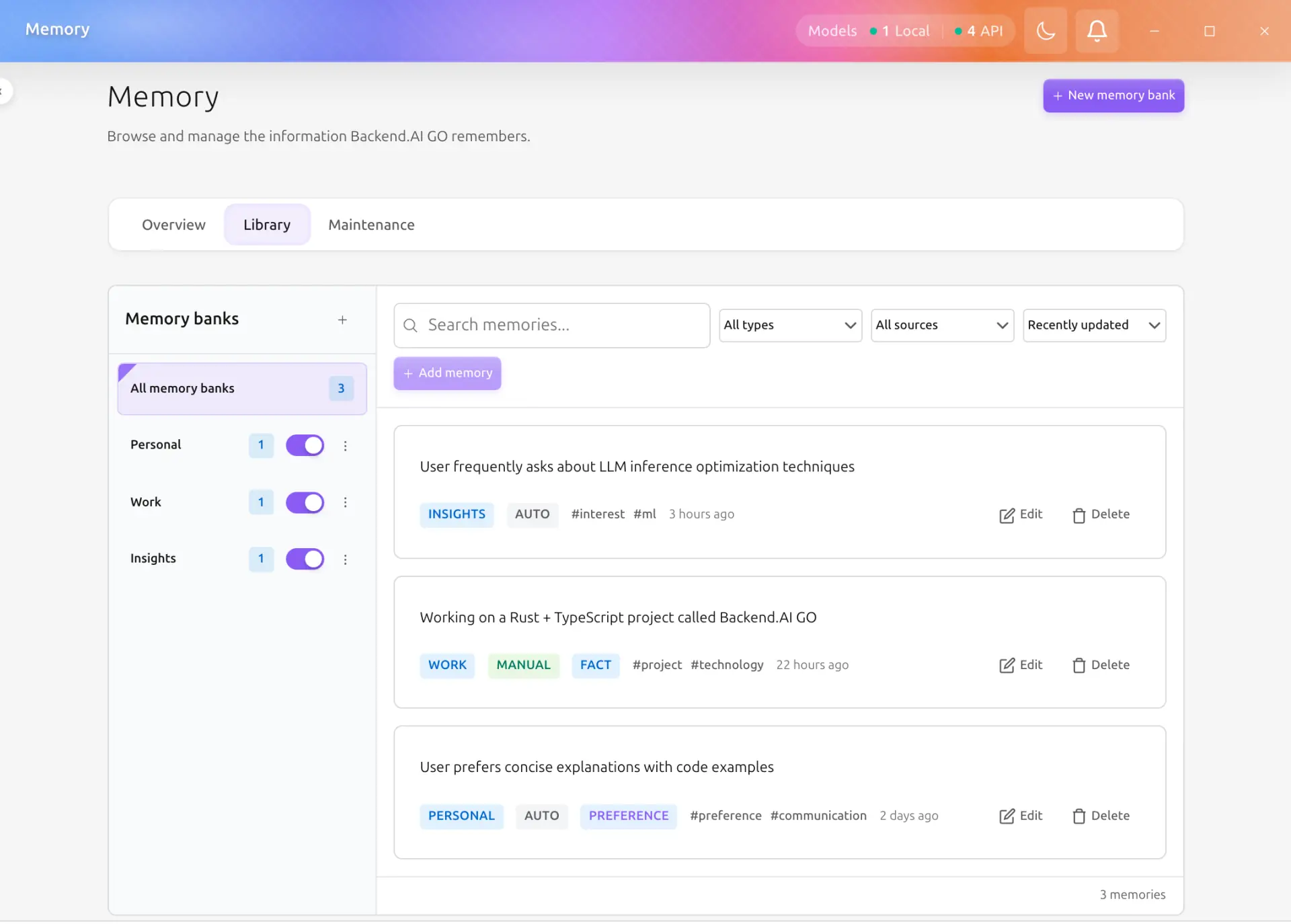
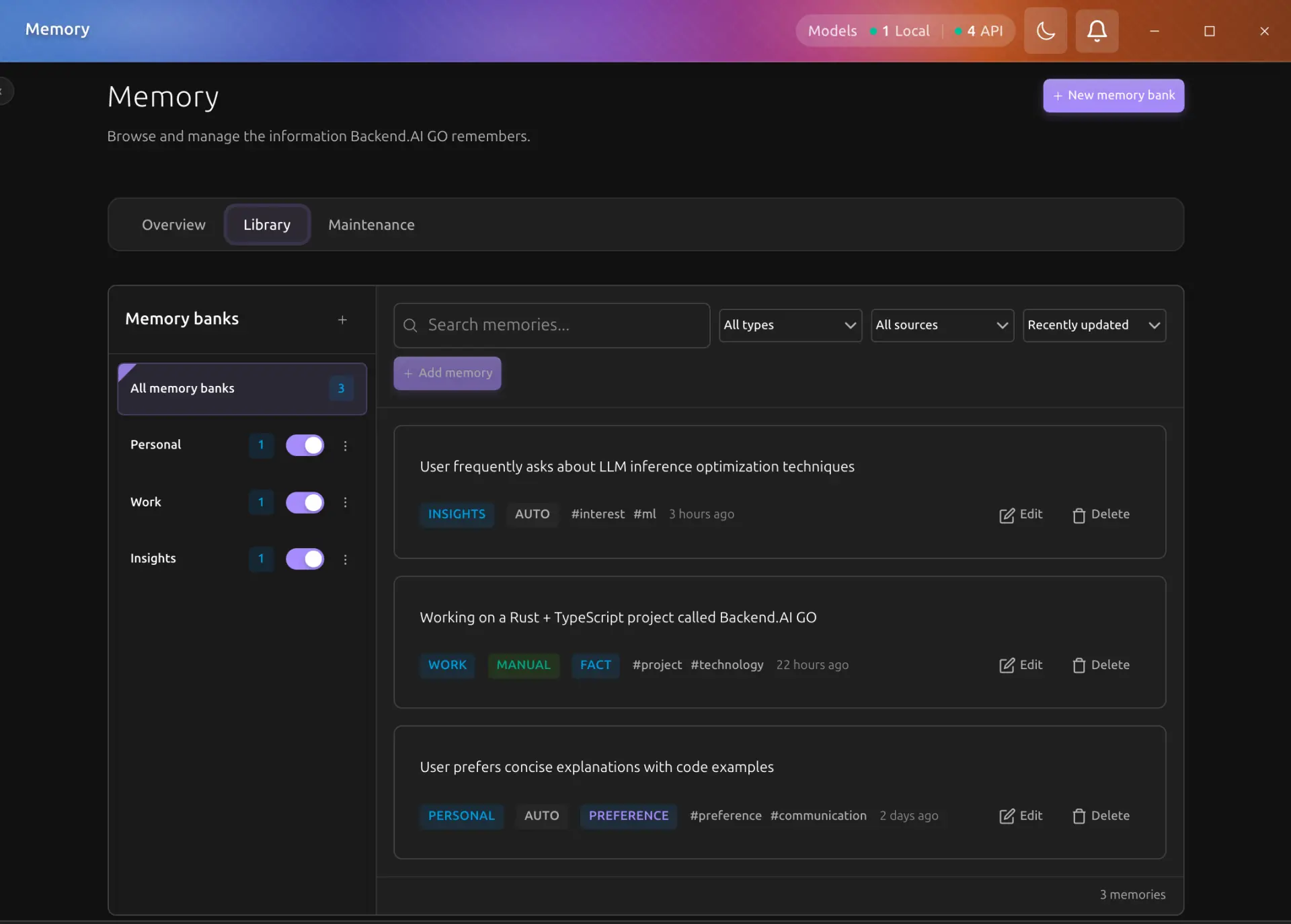
The Library tab is a full-page memory bank and entry editor.
Select a memory bank
The memory bank rail appears on the left.
- Select All memory banks to browse entries from regular memory banks together.
- Select one bank to add, edit, or delete its entries.
- Use the switch beside a bank to include or exclude it from memory injection.
- Open the bank menu to rename or delete it.
- Installed plugins can own memory banks. The plugin name appears below the bank name when ownership is known.
The rail supports Arrow Up, Arrow Down, Home, and End while a memory bank option has focus. Press Enter or Space to select the focused option.
Layer-A agent-experience memory
Agent-experience banks contain internal experience records used by agents. They are intentionally excluded from All memory banks and do not appear in the default entry list. Expand Agent experience in the rail when you need to inspect them. A direct link to an agent-experience bank expands the group automatically.
Disabling or editing these banks can change agent behavior. Treat them as operational data rather than general notes.
Search and filter entries
The toolbar can search entry content, filter by kind and source, and sort by created or updated time. Search runs across the selected bank, or across regular banks when All memory banks is selected.
Kinds include Fact, Preference, Entity, Decision, and Untyped. Sources distinguish memories captured automatically from entries added manually.
Direct links
Memory links can open the Library with a bank, search, or filter already selected. Supported query parameters include tab=browser, namespace, q, kind, and source. The page removes these parameters after applying them, so a refresh does not apply the same direct-link state again.
Maintenance
The Maintenance tab collects operations that change or transfer many memories.
Consolidation
Use Run consolidation to merge eligible near-duplicate memories with the configured model. The status panel shows the schedule, last run, last attempt, and last error. Manual entries are not consolidated.
Per-bank deduplication
Choose a memory bank, adjust the similarity threshold and maximum entry age, then run deduplication. This operation applies only to automatically captured entries. Review the result counts before running another pass with different thresholds.
Import and export
To create a backup:
- Select a memory bank in the export panel.
- Select Export.
- Store the downloaded JSON file in a safe location.
To restore or transfer a bank:
- Drop a Backend.AI GO memory JSON file into the import area, or choose the file with the file picker.
- Wait for the success message and for the memory bank list to refresh.
- Open the Library and verify the imported entries.
Import files are limited to 10 MB. Export before clearing a bank or deleting one if the data might be needed later.
Extraction status and danger zone
The extraction section shows the effective auto-extraction configuration and can check whether the selected extraction model is available. Use Edit settings to change extraction behavior in Settings > Memory.
The danger zone can clear every entry in a bank or delete the bank. Both actions require confirmation. Clearing keeps the bank and its configuration. Deleting removes both the bank and its entries.
Page, chat, and Settings surfaces
The Memory page does not replace every contextual memory control.
- Settings > Memory remains the place for global memory, injection, and auto-extraction configuration. Selecting View on a memory bank opens the existing drawer without leaving Settings.
- The chat memory indicator keeps its compact popover in the conversation. Its management action opens the standalone Library and carries the active memory bank in the link.
- Save to Memory in a chat message keeps its focused dialog for choosing a bank and tags.
Changes made through the page, drawers, chat, desktop IPC, or the Management API refresh the open Memory page automatically after the backend confirms the change.
Recommended workflow
- Use Overview to spot growth, token pressure, or overdue maintenance.
- Use Library to review and correct individual memories.
- Export important banks before bulk changes.
- Use Maintenance for consolidation, deduplication, import, export, clearing, or deletion.
- Return to Settings > Memory when you need to change injection or extraction policy.